Video
Picker group: Basic Elements · Project type: video · Reference version: 27.0.29
Use Video (video) for a video file or stream. Add Video, choose the variant, and set videoUrl. Configure autoplay, loop, mute, controls, and an optional poster image.
| Variant | Source and use |
|---|---|
standard | HTML5 video such as MP4 or WebM; playback depends on runtime codec support |
hls | An HLS playlist, typically a .m3u8 URL |
rtsp | An RTSP camera stream in App Container |
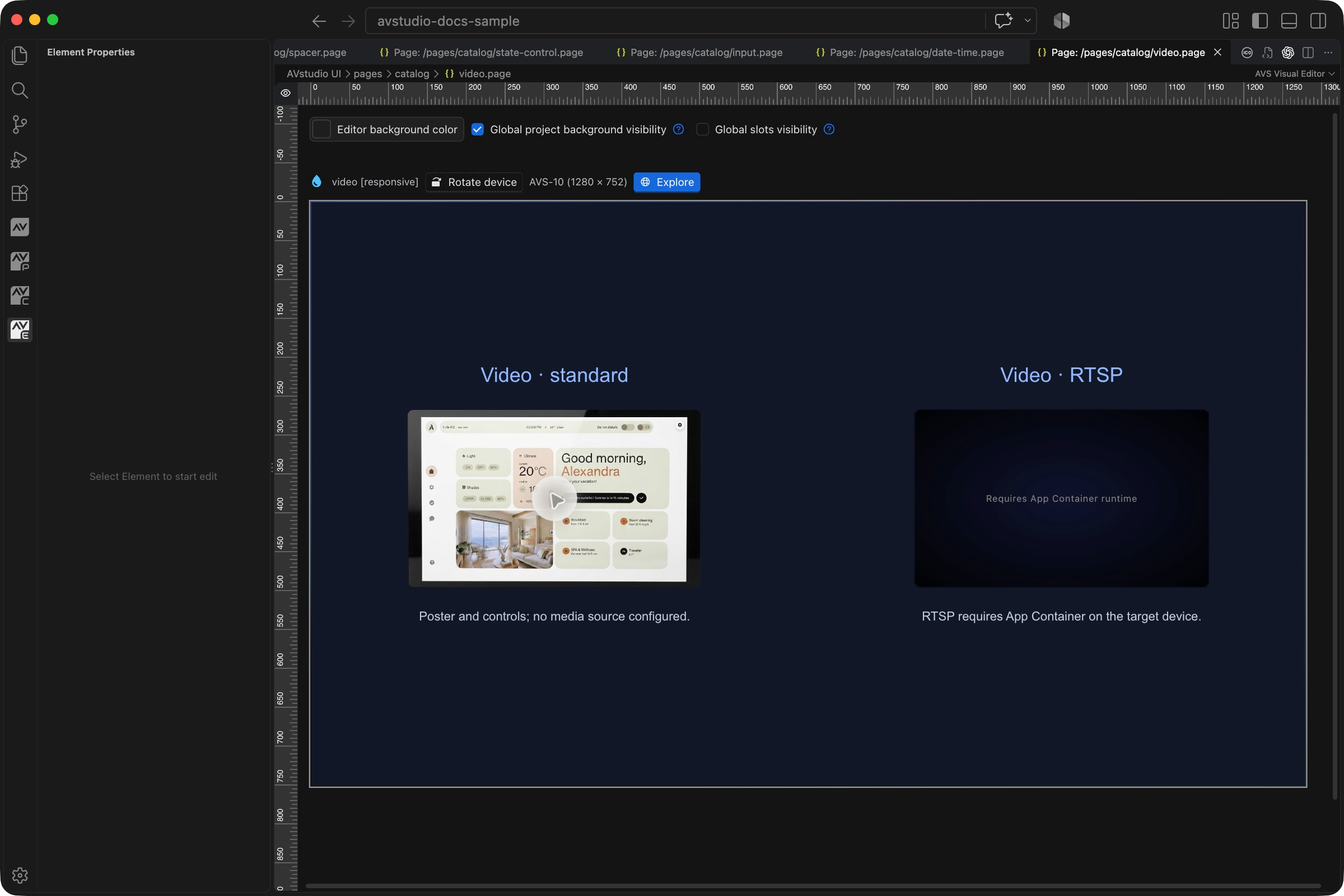
RTSP requires App Container's native bridge. Ordinary browser Live Preview shows a runtime requirement message. Check RTSP on the actual target device. Test autoplay and sound in the intended runtime, since browser playback policies can affect them. For MJPEG, use the Image stream variant.
Configure in the VS Code sidebar
Select the Video on the visual canvas, then open Element Properties. The screenshot shows the selected control in the development environment; click it to open the full-resolution image. Expand the groups below; scroll the sidebar to reach settings below the visible area.
| Sidebar control | What it does |
|---|---|
| Variant | Select Standard, HLS, or RTSP before configuring the source. |
| Content → Video URL | Enter a source compatible with the selected variant and runtime. |
| Content → Autoplay / Loop / Muted / Hide Controls | Choose startup and playback behavior. Hide Controls removes the player controls, so provide another interaction if required. |
| Content → Poster Image | Choose a local file or external image displayed before playback; its fill and opacity controls affect the poster. |
| Runtime check | The sidebar configures RTSP, but testing the stream requires App Container. The sample has no working media source configured. |
The shared Element name, datasource, sizing, CSS, and mode controls are explained in the sidebar reference. Settings depend on the selected type and variant.
Settings explained
Select the control and open Element Properties. Expand the relevant sections for its variant, appearance, content, and actions. The property keys below identify the saved project settings; the visible groups vary by control and variant.
| Setting | Project property | What to configure |
|---|---|---|
| Variant | variant | Standard for browser video files, HLS for playlists, or RTSP for App Container. |
| Media source | videoUrl | The actual media or stream URL, reachable from the runtime. |
| Autoplay | autoplay | Requests playback on entry; browser policy can still prevent it. |
| Loop | loop | Repeats supported media when playback reaches the end. |
| Muted | muted | Starts without audio; useful when evaluating browser autoplay behavior. |
| Controls | hideAllControls | Hide player controls only when the interface provides another appropriate interaction. |
| Poster | Image source properties | Provide artwork shown before playback or while the source is not playing. |
Worked setup
- Insert Video and name it
PresentationVideo. - Choose Standard and supply a supported media URL. Set the element area to the video's aspect ratio.
- Select a poster image. Leave controls visible while testing.
- Decide whether playback should autoplay, loop, or start muted.
- Test playback, audio, seeking where supported, and page exit/re-entry in the target runtime.
For HLS, use a valid .m3u8 playlist. For RTSP, enter the camera's RTSP URL and test in App Container. Browser Live Preview displays Requires App Container runtime, as shown in the screenshot. The screenshot's Standard example shows a poster and no configured media source; it is not evidence of successful streaming.
Verify the result
Test real network reachability, supported codecs, autoplay, sound, and cleanup on leaving the page. MJPEG belongs in Image → Stream.
Save the project, run Run Project Health Check, and test in Open Live Preview (Browser). Hardware-backed behavior also needs verification in the target runtime with the actual integration available.