Input
Picker group: Basic Elements · Project type: input · Reference version: 27.0.29
Use Input (input) for text or numeric entry. Add Input, set its placeholder, and choose whether to display it as ordinary text, a password, or a number. Enable autofocus only when opening the page should focus this field.
For an initial local value, use the direct value. For incoming feedback, bind input_direct_value to a variable, page parameter, or feedback token. Add the appropriate action for the entered value; showing a value and submitting it are separate settings.
Password mode masks the field visually; it does not secure values stored in project files. Test empty input, expected content, and the on-screen keyboard on the target device.
Configure in the VS Code sidebar
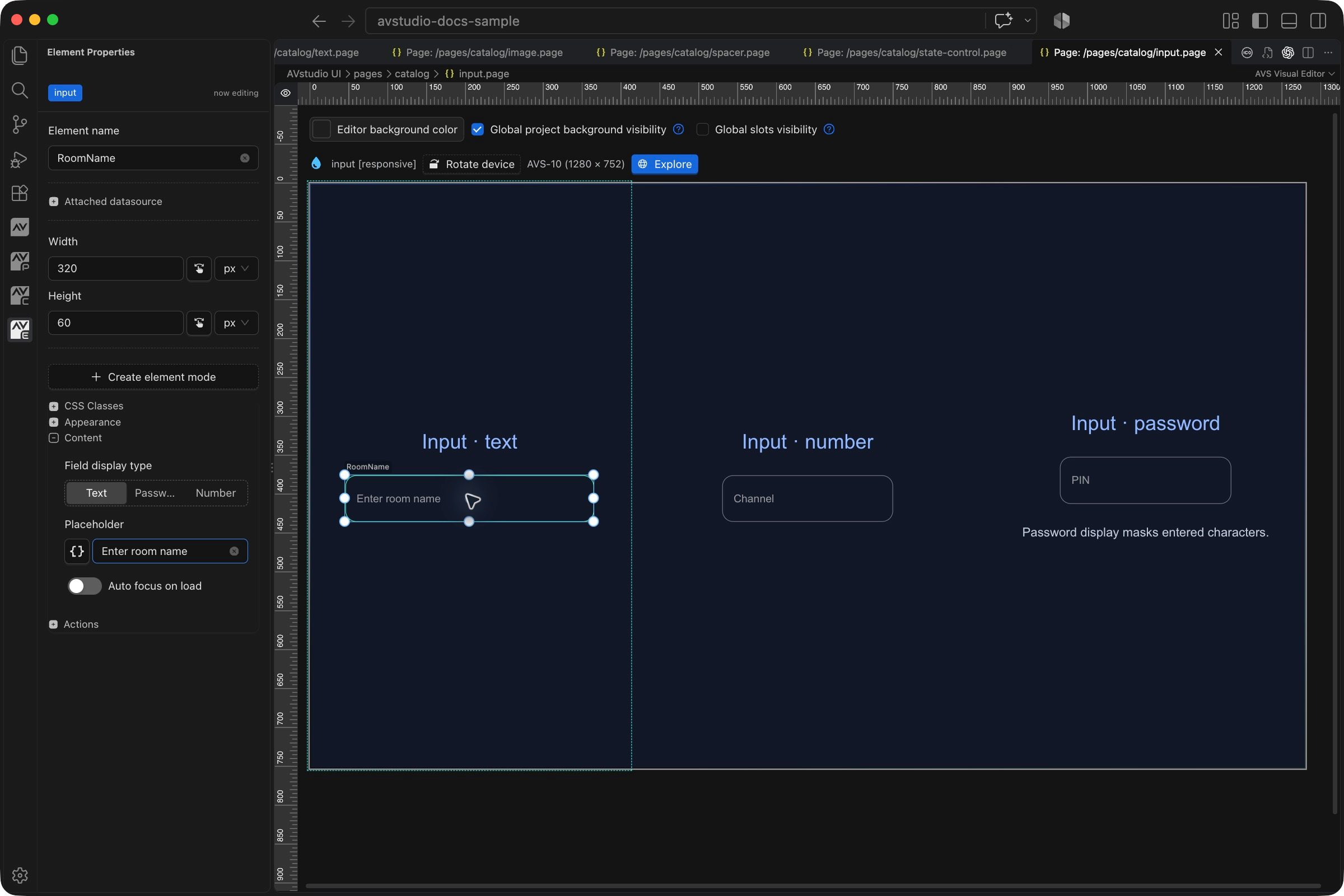
Select the Input on the visual canvas, then open Element Properties. The screenshot shows the selected control in the development environment; click it to open the full-resolution image. Expand the groups below; scroll the sidebar to reach settings below the visible area.
| Sidebar control | What it does |
|---|---|
| Content → Field display type | Select Text, Password, or Number. Password masks the displayed characters; Number changes the input presentation. |
| Content → Placeholder | Provide a short hint shown when the input is empty. It is not a submitted value. |
| Content → Auto focus on load | Enable only when opening the page should immediately focus this input. |
| Appearance | Configure the field typography, background, border, and spacing. |
| Actions | Configure how entered values are used or submitted. Display settings alone do not send the value. |
The shared Element name, datasource, sizing, CSS, and mode controls are explained in the sidebar reference. Settings depend on the selected type and variant.
Settings explained
Select the control and open Element Properties. Expand the relevant sections for its variant, appearance, content, and actions. The property keys below identify the saved project settings; the visible groups vary by control and variant.
| Setting | Project property | What to configure |
|---|---|---|
| Placeholder | placeholder | Hint shown while the field is empty; it is not a stored value. |
| Text/number display | displayAsNumber | Enable numeric entry when the value should be a number. |
| Password display | displayAsPassword | Masks entered characters on screen. |
| Focus on entry | autofocus | Focuses the field when mounted. Use only when immediate typing is intended. |
| Displayed value | input_direct_value | Literal or dynamic scalar binding, coerced to text. |
| Legacy feedback fields | input_signal_s_fb, activeValueStateSource | Legacy fields retained in project data; in 27.0.29; use a dynamic binding in input_direct_value for displayed feedback. |
| Remote focus | makeInFocus_signal_d | Digital signal used to focus this input. |
Worked setup
- Insert Input, name it
RoomNameInput, and set the placeholder to Enter room name. - Give the field enough width for the expected text. Choose ordinary text, number, or password display for the task.
- Bind
input_direct_valueto the intended incoming value if the field must follow external feedback. - Add the event/action that consumes the entered value. Use the changed event value when needed instead of a fixed literal payload.
- In Live Preview, enter a sample value and confirm the receiving variable or device gets the expected value.
The screenshot shows values entered into the live fields: Boardroom, 12, and a masked sample PIN. These are demonstration values. A separate Submit button is useful when editing should not send every intermediate change; wire that workflow explicitly.
Incoming value and JSON context
Typing updates the field immediately, then it re-syncs to input_direct_value about three seconds after the last keystroke. Save local changes to the bound state through an action, or supply hardware feedback, if edits should persist. Use @context:text@ inside a JSON body string to send the entered text, for example {"name":"@context:text@"}. Context markers do not apply to ordinary serial values or URL postfixes; use event-value behaviour there.
Verify the result
Test blank input, corrections, focus/blur, numeric entry, and the on-screen keyboard. Password display is visual masking, not encryption or secure storage.
Save the project, run Run Project Health Check, and test in Open Live Preview (Browser). Hardware-backed behavior also needs verification in the target runtime with the actual integration available.