Subpage
Picker group: Widgets · Project type: subpage · Reference version: 27.0.29
Use Subpage (subpage) to embed one reusable page, such as a navigation bar or room card. Create the target page first, add Subpage, select the target, and size its element area. You may insert the element before a target exists, then assign it later.
Define parameters on the target page and pass matching input values from the Subpage element. For example, a card can accept a room name and an identifier. A Subpage always renders one instance; attaching a datasource does not turn it into a list.
The editor shows Select Subpage when no target is assigned and a not-found hint for a broken reference. These hints are editor-only. Check the target, parameter names, and dimensions before previewing. See Subpages and global slots.
Configure in the VS Code sidebar
Select the Subpage on the visual canvas, then open Element Properties. The screenshot shows the selected control in the development environment; click it to open the full-resolution image. Expand the groups below; scroll the sidebar to reach settings below the visible area.
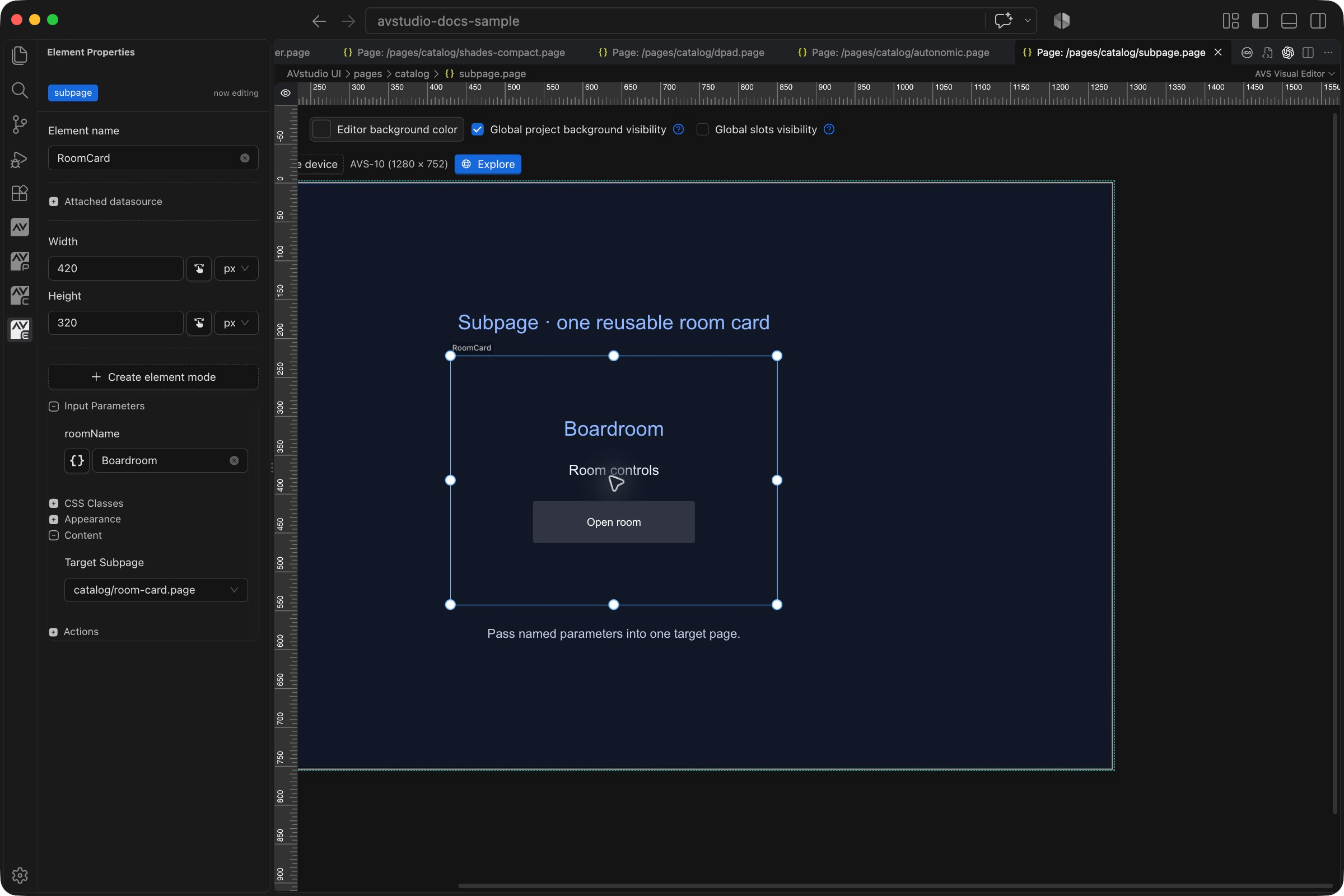
| Sidebar control | What it does |
|---|---|
| Content → Target Subpage | Choose the reusable page to embed. The example points to catalog/room-card.page. |
| Input Parameters | Supply values for parameters defined on the target page. Here roomName receives Boardroom. |
| Width / Height | Define the area allocated to this instance; check the target page layout fits. |
| Appearance | Style the instance box when needed. Edit the target page itself to change its internal controls. |
The shared Element name, datasource, sizing, CSS, and mode controls are explained in the sidebar reference. Settings depend on the selected type and variant.
Right-click the Subpage on the canvas
Right-click the embedded Subpage in the host page's visual canvas to open its context menu. This is the canvas menu, not the file's menu in VS Code Explorer.
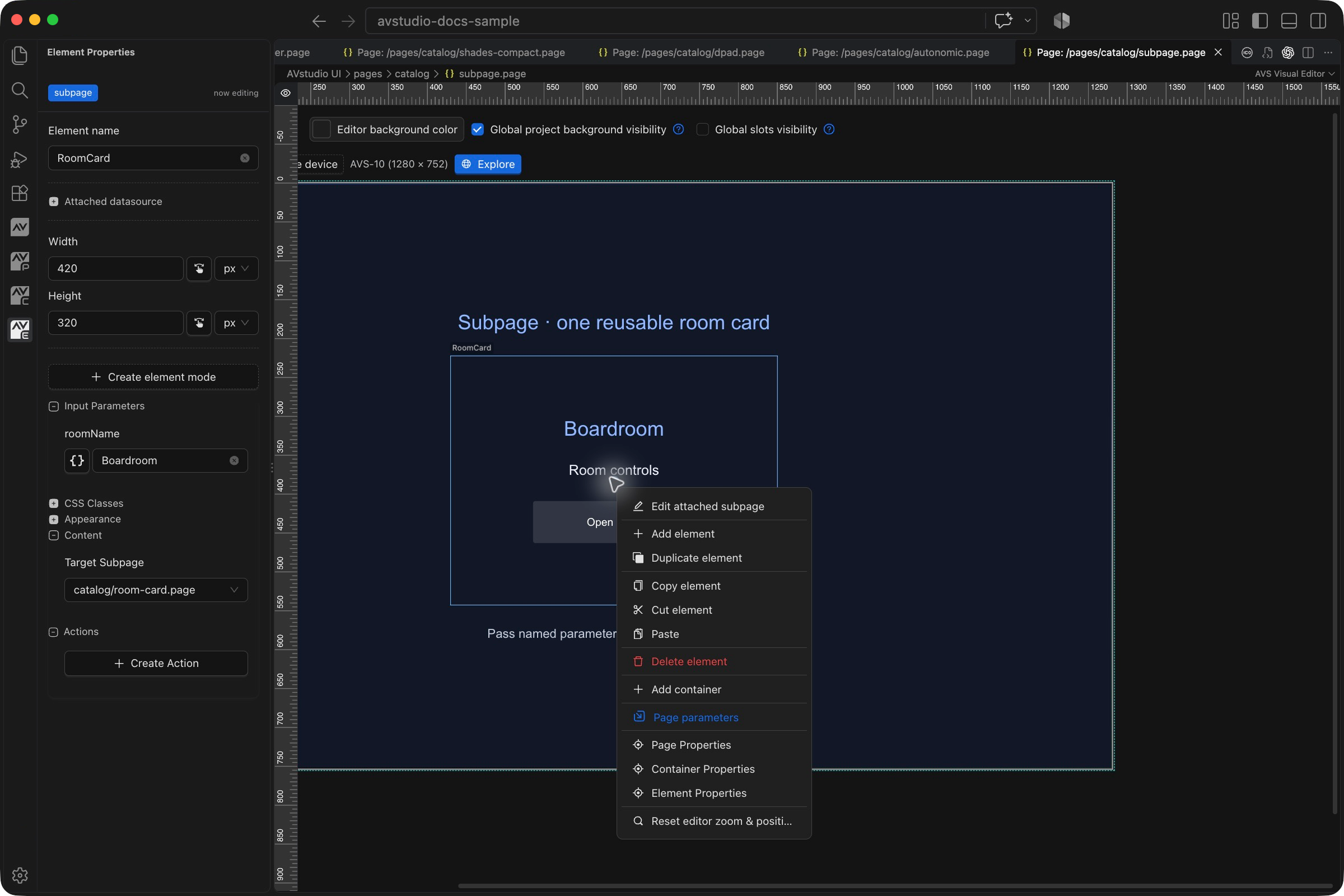
Edit attached subpage
Edit attached subpage opens the target .page file in the visual editor. Use it to change the controls and layout inside the reusable page.
- Select the Subpage and confirm Content → Target Subpage points to the intended file.
- Right-click the embedded card and choose Edit attached subpage.
- Check the newly active tab and breadcrumb. In this example, the host is
catalog/subpage.pageand the command openscatalog/room-card.page. - Select a control inside the target page and edit its properties, or change its containers and layout.
- Save the target, then return to the host's tab to check the embedded result with that instance's input values.
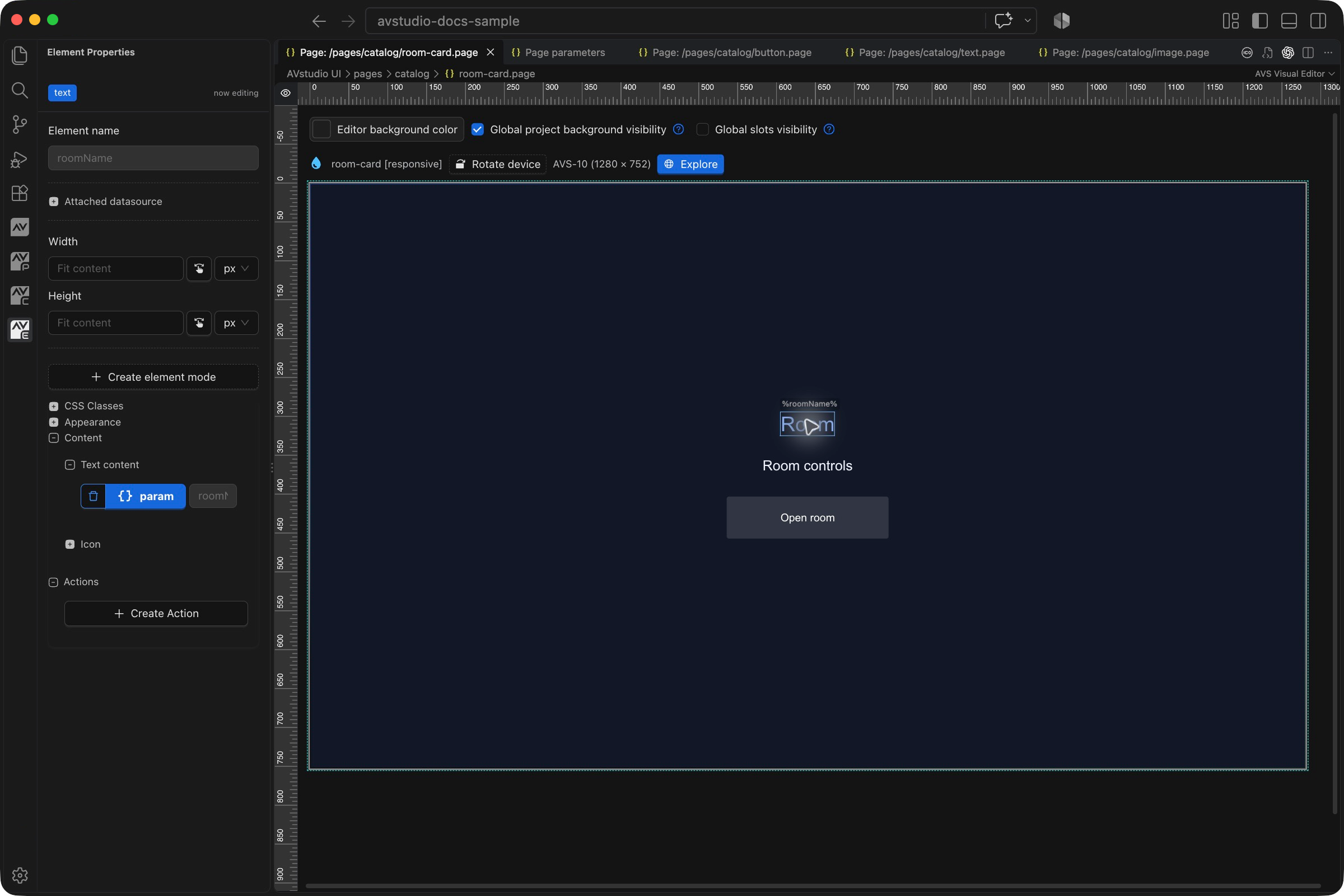
The target page shows Room, its parameter default, when opened on its own. The host instance supplies Boardroom through Input Parameters. This difference is expected: opening the target does not turn the host's input into the target's default.
Editing the target changes the shared page used by every instance that references it. To change only this card's supplied name, dimensions, or outer styling, return to the host and edit the Subpage element instead. If the target is missing or unassigned, correct Target Subpage before trying to edit it.
Other context-menu commands
The commands below act on the host page and the element or container you right-clicked. Before choosing a command, check the selection outline and the active page tab. Clicking inside the rendered room card still selects its Subpage instance; open Edit attached subpage to work on the controls inside it.
Add element
Use this to place another control in the same host container as the selected Subpage.
- Right-click the Subpage and choose Add element.
- Choose the required Element or Widget in the picker and complete the creation prompts.
- Select the new control and configure it in Element Properties.
- Check its position and size in the host layout.
For example, add a Text element beside the room card to display a host-page heading. It becomes a sibling of the Subpage, not part of room-card.page. In a fixed layout, the right-click position supplies the initial placement; in a responsive layout, the container's layout controls placement. See Add components to a project.
Duplicate element
Use this when you need more room cards with the same initial configuration, without choosing a target and styling each one again.
- Right-click
RoomCardand choose Duplicate element. - In Enter number of copies, enter a positive whole number.
1adds one copy;3adds three copies in addition to the original. Cancel the prompt to leave the page unchanged. - Select each new instance and give it a useful Element name.
- Change Input Parameters, for example from
BoardroomtoMeeting Room, and check its dimensions and placement.
The copies retain the source element's configuration and reference the same target page. Duplicating a Subpage does not create independent copies of the target .page file. Editing that target later affects every instance that uses it. Copied bindings and actions also need review if the new card should control a different room or device.
Copy element
Copy element puts the selected element's configuration on the clipboard and leaves the original in place. Use it with Paste to reuse a configured card in another container or page.
- Right-click the source card and choose Copy element.
- Open the destination page and right-click the intended destination container, or an element already inside it.
- Choose Paste, then check the inserted element's target, inputs, layout, and bindings.
This copies the element definition, not a screenshot or a bundle of project files. The referenced target page and any required assets, variables, or datasources must still be available at the destination. After copying between page folders, verify that the target reference resolves correctly.
Cut element
Cut element copies the selection to the clipboard and removes it from the source page immediately. Use it to move an existing instance rather than leave a second instance behind.
- Right-click the card and choose Cut element.
- Open the destination page or select the destination container.
- Choose Paste and check the result before continuing to edit.
The target .page file remains in the project. Because the cut operation already removes the source element, do not treat it as a pending move that only takes effect after Paste. Use Copy element if you want the original to remain available while preparing the destination.
Paste
Paste reads an NG element or container copied through the editor's clipboard commands. Ordinary text or an image copied from another application does not create an NG element through this command.
For copied elements, the selected container is the destination. Right-click an existing element to use its containing container, or right-click the container itself. After pasting, review the inserted controls in the canvas and sidebar: their copied inputs and bindings may still refer to the source room. Repeating Paste creates additional copies.
If nothing appears, copy an NG element again, confirm the destination page has a container, and check that you selected the intended container. Then inspect the layout for overlapping or off-screen controls. Do not assume the mouse pointer is the paste position.
Delete element
Delete element removes the selected instance from the host page. Use it to remove an unused room card from that layout. It does not delete room-card.page, its internal controls, or other instances of that page.
Check the selection before choosing Delete; the command sends the removal directly. After deletion, review the surrounding layout because responsive containers can rearrange the remaining elements. To remove a control inside the reusable card, open Edit attached subpage, select that internal control, and delete it there instead.
Add container
Add container creates a container on the current host page. Use a new container when controls need their own layout group—for example, a row of room cards separate from a navigation area.
After creating it, select the container, open Container Properties, configure its layout and spacing, and add or move elements into it. Choosing this command on a Subpage does not add a container inside its target page or automatically wrap the selected card.
This menu item is available for the responsive layout shown here; it is omitted from the fixed-layout context menu. See Containers and responsive layout.
Page parameters
Page parameters opens the parameter editor for the currently open page. On catalog/subpage.page, it edits the host's parameters even when the right-clicked element references catalog/room-card.page.
To add a parameter accepted by the reusable card:
- Choose Edit attached subpage to open
room-card.page. - Open Page parameters there and define the parameter's name, type, and default value.
- Use the parameter in the target's controls, for example
%roomName%in a Text element. - Return to the host, select the Subpage, and supply the value through Input Parameters.
Parameter definitions belong to the target page; supplied input values belong to each host instance. The Page parameters command does not change those instance inputs. See Variables and page parameters.
Page Properties
Page Properties brings the current page's properties into the sidebar. Use it when the issue concerns the overall host page, such as its layout or page sizing, rather than just one card.
Check the active tab before changing a page setting. On the host tab, these are the host's settings. To change the reusable page's own settings, open it with Edit attached subpage first. Opening this sidebar alone does not change the project. See Pages and layouts.
Container Properties
Container Properties brings the selected host container's settings into the sidebar. Use it to adjust the layout around the Subpage: the arrangement, alignment, spacing, and available area of its sibling controls.
For example, when several room cards need to sit together, configure their containing host container. If the controls inside a room card need a different arrangement, open the attached page and select its internal container instead. Container settings can affect every child in that container; the Subpage's own Width / Height remain element settings.
Element Properties
Element Properties brings the selected Subpage's settings into the sidebar. Use it to return to the instance after viewing page or container settings.
Check Element name to confirm the selected card, then use:
- Content → Target Subpage to choose the reusable page.
- Input Parameters to supply values such as
roomName = Boardroomfor this instance. - Width / Height to allocate space for this card.
- Appearance, CSS, datasource, and mode settings as needed for the instance.
Opening this panel does not open the target page for editing. To change its internal Text, Button, or other controls, choose Edit attached subpage.
Reset editor zoom & position
Use Reset editor zoom & position when zooming or panning makes the canvas difficult to locate or inspect. It resets the visual editor's view so you can continue working from its normal starting view.
This is a view command: it does not resize the Subpage, change the page's layout, remove controls, or reset their saved properties. After resetting, select the card again and continue editing. If the card itself is too large or incorrectly positioned, change its element or container settings instead.
Selection, layout, and shortcuts
The screenshot shows one Subpage selected in NG 0.1.54. The menu adapts to what you right-click:
- Subpage / Subpage List: includes Edit attached subpage; it is disabled when no target is assigned.
- Multiple selected elements: right-clicking within the selection changes Copy, Cut, and Delete to Copy group (N), Cut group (N), and Delete group (N). Check the count before acting. The context-menu Duplicate element command still targets the right-clicked element.
- Container or empty page area: offers commands for that context, so element-specific items may be absent.
- Fixed layout: omits Add container from this menu.
With focus on the visual canvas, ⌘C / Ctrl+C, ⌘X / Ctrl+X, and ⌘V / Ctrl+V perform Copy, Cut, and Paste. These shortcuts edit text normally when focus is in a text input. ⌘D / Ctrl+D duplicates the selection once; unlike the single-element context-menu command, it does not ask for a copy count.
Settings explained
Select the control and open Element Properties. Expand the relevant sections for its variant, appearance, content, and actions. The property keys below identify the saved project settings; the visible groups vary by control and variant.
| Setting | Project property | What to configure |
|---|---|---|
| Target | subpageName | An existing page rendered once inside the element. |
| Inputs | inputParameters | Values passed to parameter names declared by the target page. |
| Bounds | width, height | Space allocated to the embedded interface. |
| Relative reference | ./room-card.page | Use for a target in the same folder or a descendant folder. |
| Project-root reference | pages/shared/room-card.page | Use for a target outside the current page folder. |
Worked setup
- Create a reusable page called
room-card.pagewith a string parameter namedroomName. - Add a Text element containing
%roomName%and the controls that belong to the card. - On the host page, insert Subpage and select
room-card.pageas the target. - Set its input parameter
roomNametoBoardroomand size the element to fit the card. - Preview the host page. One Boardroom card should appear.
A second Subpage element can reuse the same target with a different input value. Changes to the target page update both instances. Adding a datasource to a Subpage does not repeat it; use Subpage List for one instance per record.
Verify the result
Check the target reference, parameter spelling and types, available space, and any navigation inside the embedded page. Avoid a page embedding itself, directly or through another subpage.
Save the project, run Run Project Health Check, and test in Open Live Preview (Browser). Hardware-backed behavior also needs verification in the target runtime with the actual integration available.