Connector setup
A connector describes how the runtime reaches an external system. Create it with Create new connector, select its type, and open the generated file in the Forms Editor.
Create a connector in VS Code
- Open the AVstudio project and the Command Palette (⇧⌘P / Ctrl+Shift+P).
- Run AVstudio: Create new connector.
- Choose WebSocket, Web, MQTT, Crestron, AMX, KNX, or DoorBird.
- Enter a descriptive filename, such as
docs-apifor an HTTP service. NG supplies the type's extension. - The generated file opens in AVS Forms Editor. Confirm the type badge and the path under
connectors/. - Fill in the connection settings for your system and save the document with ⌘S / Ctrl+S.
- Select the connector in the action, datasource, or feedback configuration that will use it.
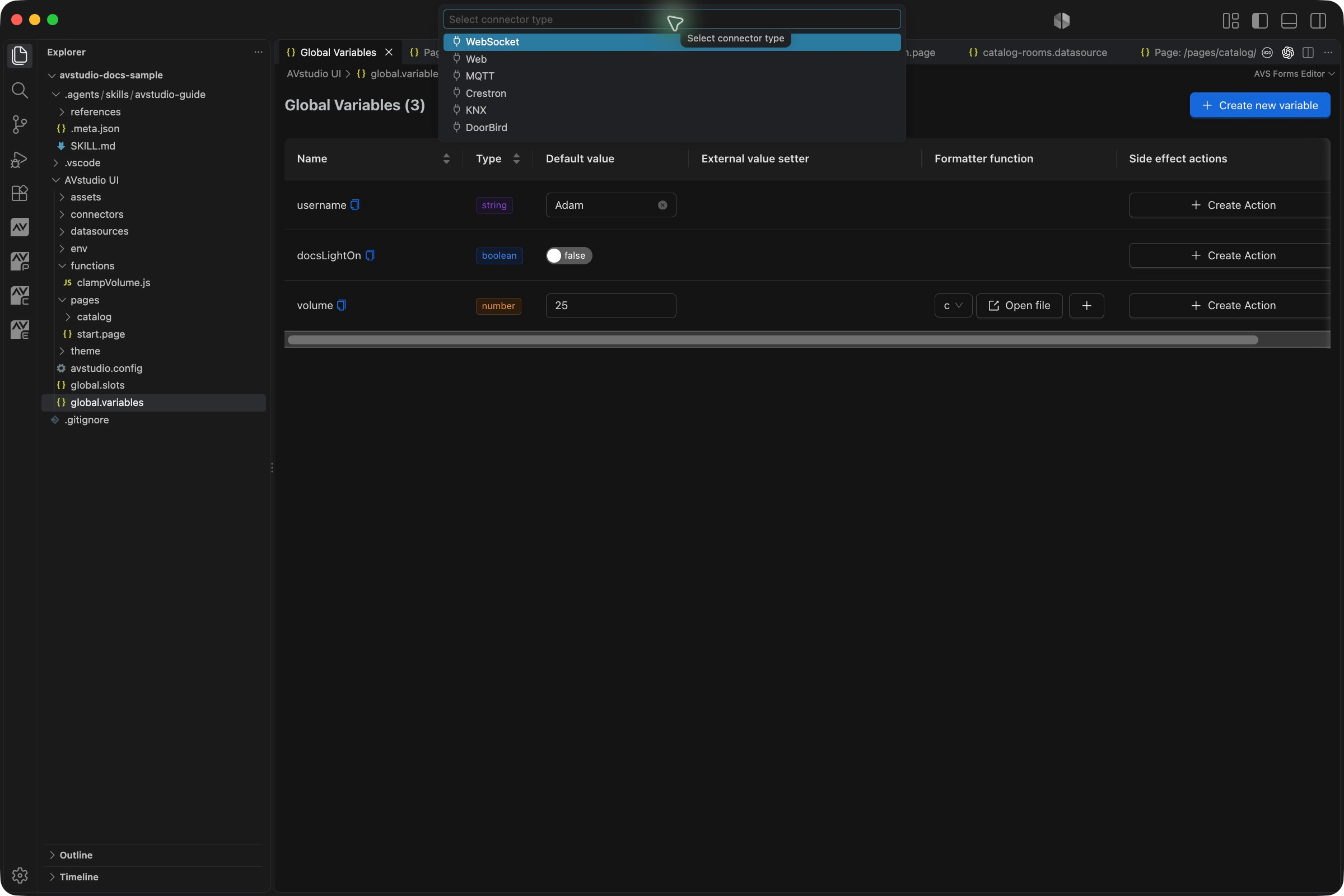
The older 0.1.54 capture shows six types. The 27.0.29 picker also includes AMX.
The Command Palette also exposes individual Create new Web connector, Create new MQTT connector, and corresponding commands for the other available types. These skip the general type picker.
The screenshots show configuration screens, not established connections. The HTTP example uses api.example.invalid as a placeholder; replace it with your service's endpoint when configuring your own project. The MQTT example is an unconfigured template.
Supported creation commands
| Connector | File extension | Configuration to check |
|---|---|---|
| Web / HTTP | .web | Host and request headers |
| WebSocket | .websocket | Endpoint, security, reconnect and keepalive |
| MQTT | .mqtt | Broker endpoint, port, path, credentials, keepalive |
| Crestron | .crestron | Processor host, IP ID, room ID/token where applicable, global joins |
| KNX | .knx | BAOS connection, gateway endpoint, credentials |
| DoorBird | .doorbird | Device host, port, credentials, security |
| AMX | .amx | Host, room, key, credentials, security, reconnect and keepalive |
The existence of a file extension or a marketing integration list does not imply that a dedicated creation workflow is enabled. This table follows the installed extension's commands.
Web / HTTP connector
Use a Web connector to hold the service host and shared request headers. The endpoint/query or outgoing operation is configured by the datasource or action that uses it.
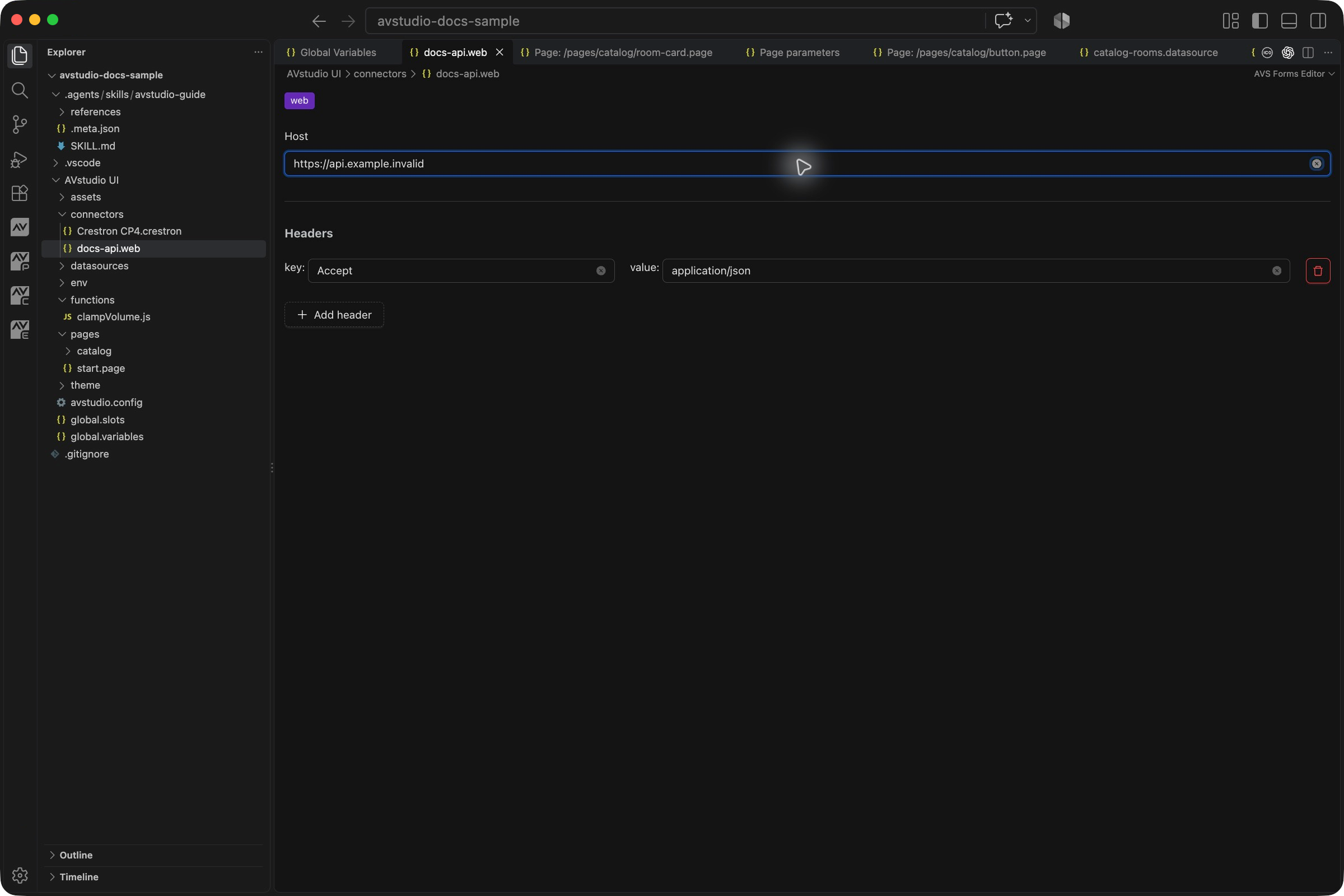
| Field | What to enter |
|---|---|
| Host | The service's base address, using the scheme required by the endpoint. The illustrated placeholder is https://api.example.invalid. |
| Headers | Request header key/value pairs required by the service. |
| Add header | Add a new row, then enter its key and value. |
| Delete button on a header | Remove that row from the connector configuration. |
For a JSON API, the example header Accept: application/json requests JSON responses. It does not authenticate the request or guarantee the response shape. Add authentication headers only as required by the actual service.
To consume incoming data, open a datasource, choose Web (HTTP), select this connector in Web Connector, and configure URL postfix and optional polling. To send an HTTP request from a control, create a Web action and configure its method, target, body, and response handling. See Datasources and Actions.
MQTT connector
The MQTT form separates broker connection settings from the topics and payloads used by consumers.
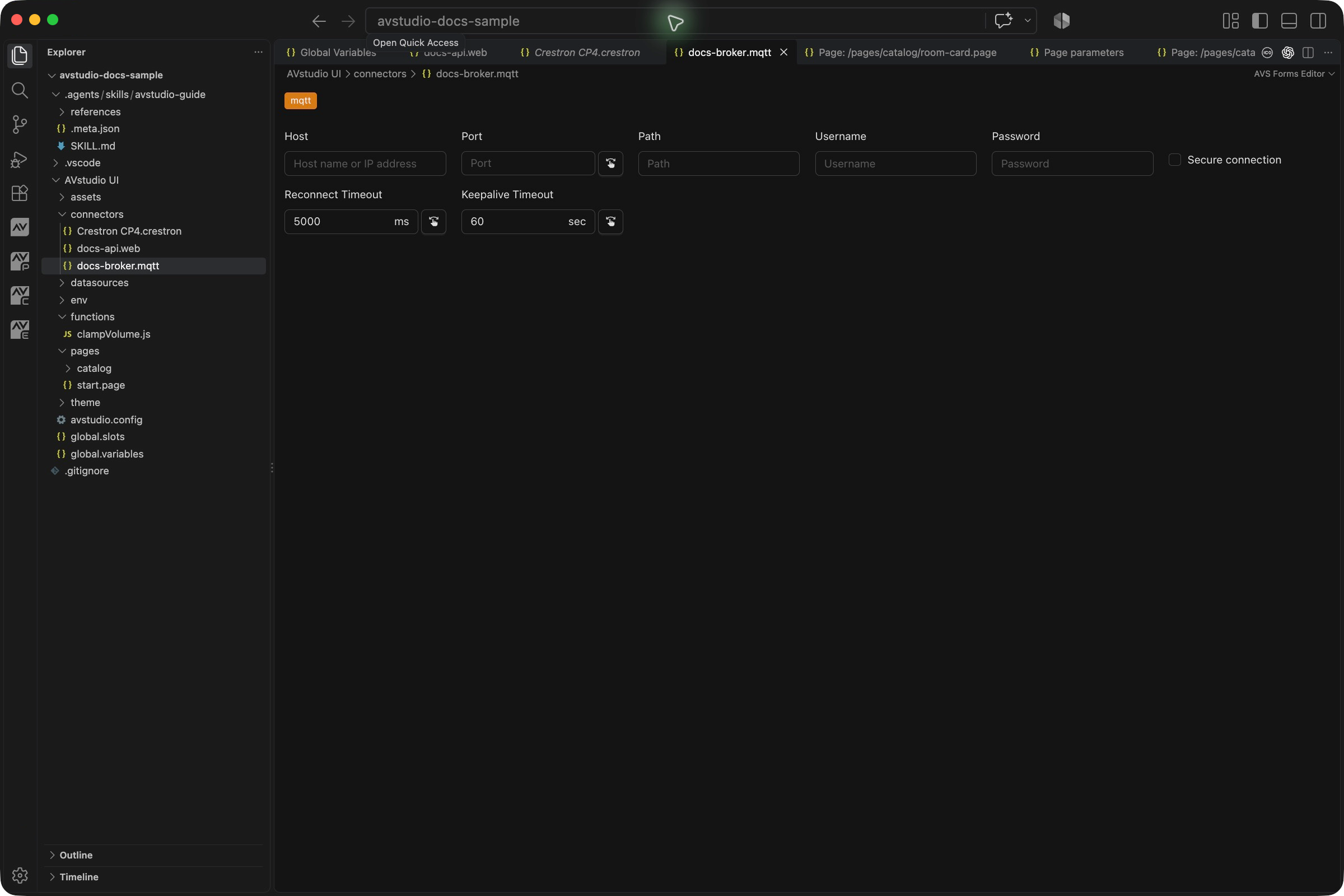
| Field | What to configure |
|---|---|
| Host | Broker endpoint reachable by the intended runtime. |
| Port | The listener's port. Use the broker's configured transport and listener, not an assumed default. |
| Path | The path required by the broker endpoint, where applicable. |
| Username / Password | Credentials accepted by that broker. |
| Secure connection | Match the endpoint's secure transport configuration. |
| Reconnect Timeout | Retry interval in milliseconds; the generated template shows 5000. |
| Keepalive Timeout | MQTT keepalive in seconds; the template shows 60. |
The different timeout units matter: 5000 ms is five seconds, while 60 sec is one minute. A smaller reconnect interval does not fix invalid credentials or an incompatible listener.
Configure an incoming topic in the datasource's MQTT tab. Configure an outgoing topic, value, and retain behavior in an MQTT action. These are consumer settings, not fields on the connector shown above. Test publishing and receiving separately, including whether the final runtime supports the broker's configured transport.
Crestron connector
The Crestron form exposes processor and authentication settings followed by project-wide feedback joins.
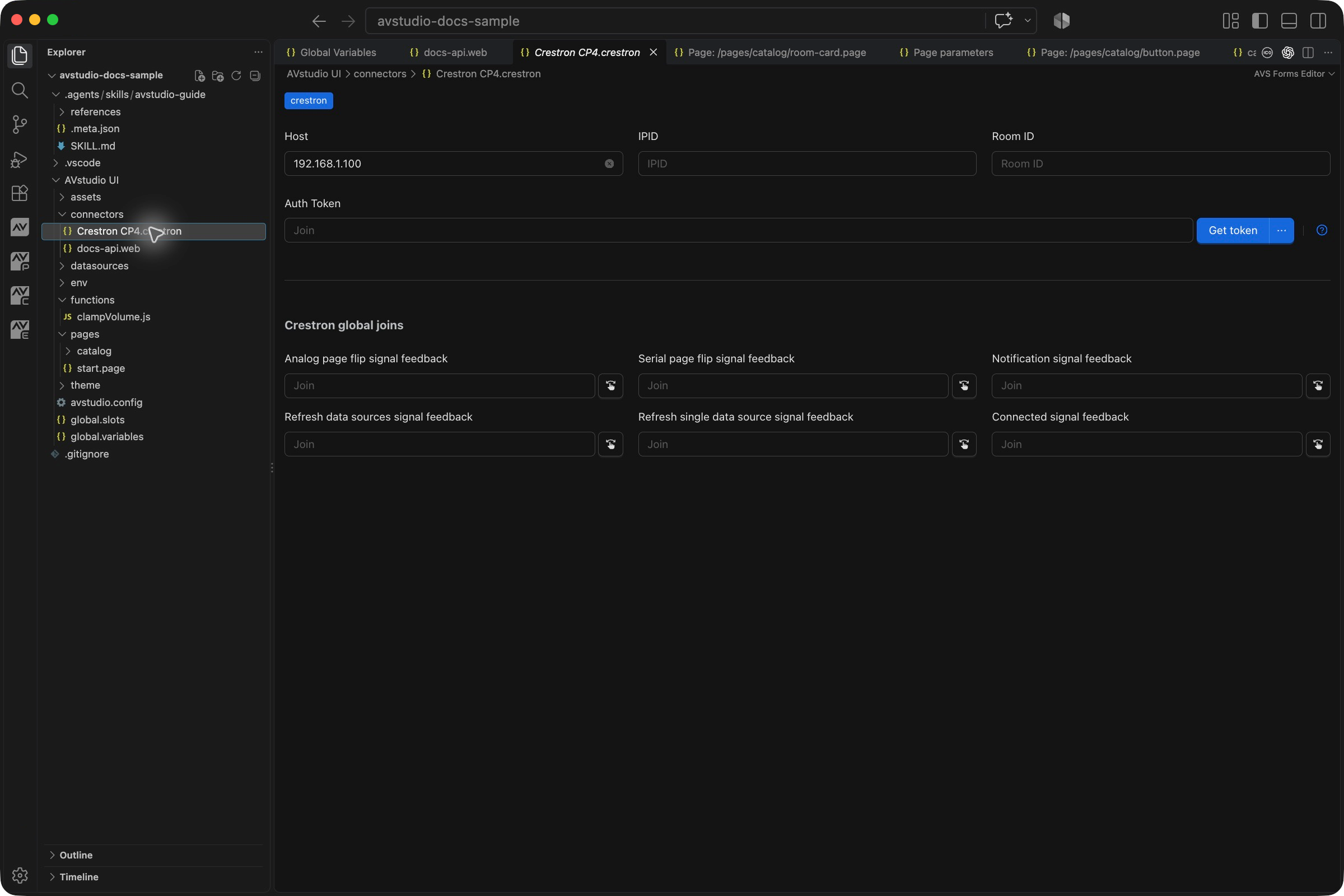
| Field | Purpose |
|---|---|
| Host | Processor address appropriate for the deployment. |
| IPID | The interface identifier expected by the control-system configuration. |
| Room ID / Auth Token | Deployment-specific room/authentication values where required. |
| Get token | Retrieves an existing processor token over SSH and offers generation when retrieval fails. Follow Retrieve a processor token. |
| Crestron global joins | Shared incoming signals for page routing, notifications, datasource refresh, and connection feedback. |
The global join fields are Analog page flip signal feedback, Serial page flip signal feedback, Notification signal feedback, Refresh data sources signal feedback, Refresh single data source signal feedback, and Connected signal feedback. Map them to the processor program deliberately; template values are not a completed join map.
Individual control actions and feedback still need their own configuration. See the Crestron guide for that workflow.
AMX connector
Choose AMX in Create new connector, or run Create new AMX connector. Open the .amx file and enter Host, optional Port, Room, Key, Username, Password, and Secure connection as required by your system. Room selects /web/ui/<room>/ws; Key is the public key used for password encryption during authentication. The default port is 8080. Reconnect Timeout and Keepalive Timeout use milliseconds (defaults 5000 and 30000 respectively).
Save and start Live Preview, then inspect connection state in Connectors. The runtime reconnects after unexpected closure and sends a keepalive while connected. In 27.0.29, AMX variable get/set is not implemented; verify the required control workflow separately.
Other connector types
KNX BAOS gateways
Create a KNX connector, give it a gateway-specific name, then configure Host, Port, Username, Password, security, and the connection timeouts shown by the form. A project can have separate connectors for multiple BAOS devices; select the intended connector in each action or incoming binding.
The October 2026 Product Guide's tested configuration uses BAOS 777. That example does not establish compatibility with every BAOS gateway. Verify the gateway's actual connection settings, then test a known datapoint's command and feedback using the required ID and format. See KNX for the action workflow.
Additional connection settings
| Type | Setup details to confirm |
|---|---|
| WebSocket | Match Host, Port, Path, security, and Reconnect Timeout to the server. Configure the message payload in the consuming action and incoming data in the appropriate binding or datasource. |
| KNX | The documented connector uses a BAOS connection. Configure the gateway host, port, credentials, and security as required. Actions and bindings select the datapoint ID and format separately. |
| DoorBird | Configure one connector per device, with host, optional port, credentials, and security settings. Device-specific control choices belong to the consuming control or action. |
| AMX | Creation is available since 27.0.0; authenticated live connection/status since 27.0.3. Variable read/write remains unimplemented. |
For protocol-specific considerations, see Supported protocols. Use the units displayed by each form; do not copy a timeout value between connector types without checking its meaning.
Environment values and passwords
In 27.0.29, all seven connector types accept @env:KEY@ in connection fields, including Web host/headers, credentials, ports, and security options. Values resolve when the driver starts; switching the active environment in Live Preview restarts affected drivers. See Environment files for typed values and the independent production-build selection.
Password fields are masked. Their copy button copies the stored value without revealing it in the form; when the stored value is an environment token, it is that reference rather than an invitation to expose deployment credentials. Unset boolean selectors no longer preselect True. Set the required transport/security value explicitly or bind it to a typed env key.
An empty Web header key is skipped with a runtime warning and flagged by Health Check. Correct or remove incomplete rows rather than treating a skipped header as applied authentication.
Configure and reference
Keep connector files under connectors/. Preserve the generated structure: the file extension and stored type must agree. Renaming docs-api.web to a different extension does not convert its settings into another protocol.
References elsewhere include the folder and extension: connectors/docs-api.web, not just docs-api.web or docs-api. Select the file in the consuming picker whenever possible.
| Consumer | What it adds to the connection |
|---|---|
| Action | An outgoing operation, such as an HTTP request, MQTT publish, or KNX write. Many action types store the reference in connectorUid. |
| Datasource | Incoming structured data, with a source-specific connector field plus endpoint/topic and any transformations. |
| Variable or element feedback binding | An incoming signal/datapoint and the mapping to application state or display. |
A saved connector alone does not create a datasource, send a command, or attach feedback. Configure and test each part of the path you need. After moving or renaming a connector, revisit its consumers and run the health check to catch stale references.
Test the complete path
- Save the connector and run Run Project Health Check.
- Configure one control, datasource, or variable to use it.
- Open Live Preview and inspect available logs at
infoordebug. - For an outgoing action, confirm that the system receives the expected command or payload.
- For incoming data, inspect the actual response or signal and confirm the UI updates.
- Repeat on the final runtime, whose network access and browser behavior may differ from the workstation.
Successful validation of the file is different from successful communication with the device. Check both directions when the interface depends on commands and feedback.
| Symptom | What to check |
|---|---|
| Connector is missing from a consumer's picker | Check the file's folder, extension, stored type, and whether that consumer supports the chosen connector type. |
| Connection does not open | Verify host, port, protocol/security, authentication, and reachability from the runtime. |
| HTTP request succeeds but data is blank | Inspect the response shape and the datasource's field paths, formatter, and filters. |
| MQTT has no updates | Verify the listener/transport, topic, publisher, credentials, and expected payload format. |
| Commands work but state does not update | Configure incoming feedback separately and match its signal or datapoint. |
| Workstation preview works but the panel fails | Check the panel's network access and runtime support using the same endpoint and operation. |
| Repeated reconnects | Check server logs and configuration before shortening retry intervals. |
| Reference fails after renaming | Reselect the connector in its consumers and save those documents. |
Connector and environment files can contain credentials. Use placeholders in shared screenshots and examples, and keep production secrets out of public documentation.