Crestron signals and feedback
Connect a Crestron processor, publish commands from elements, and use incoming feedback to update variables and the interface. These are three separate parts of the setup: a configured connector does not automatically attach joins to controls.
This guide covers AVstudio Editor NG 27.0.29. Join numbers are examples; match them to your processor program and verify incoming feedback and outgoing commands on the target system.
Configure the connector
- Open the Command Palette (⇧⌘P / Ctrl+Shift+P).
- Run AVstudio: Create new connector, choose Crestron, and give the file a descriptive name.
- Open the
.crestronfile under AVstudio UI → connectors in the Forms Editor. - Enter the processor Host and the IPID, Room ID, and Auth Token required by your deployment. These values come from the processor/deployment configuration; they are not signal joins.
- Save the file. Configure the command and feedback bindings below.
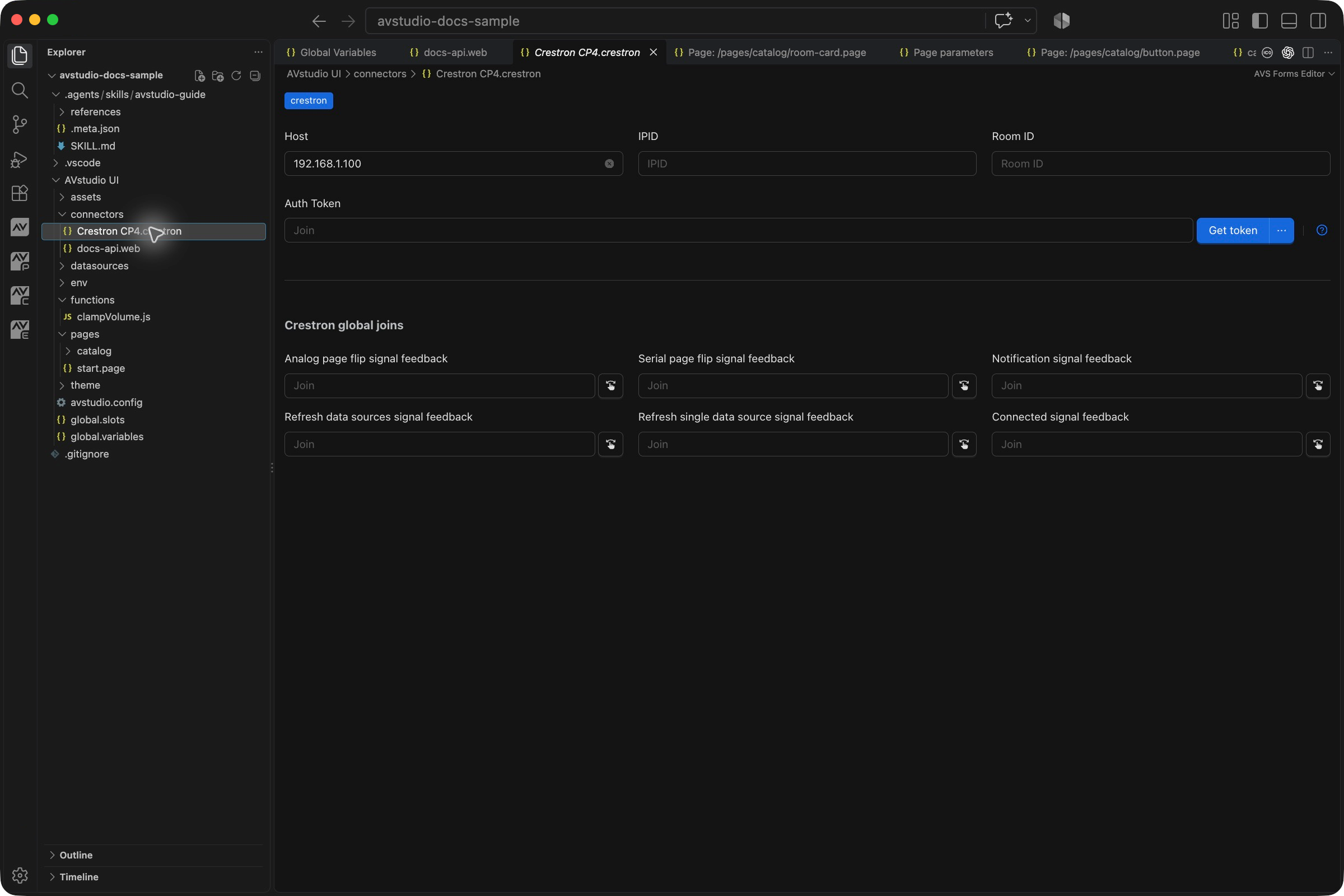
Get token retrieves a processor authentication token over SSH. The prompts and retrieval/generation behavior below were checked against the installed 27.0.29 extension. The older sample screenshot above leaves credentials blank. See Connector setup for the connection field reference.
References to this connector use its full project-root path, for example connectors/Crestron CP4.crestron. Preserve the globalJoins object even when its entries are unused.
Retrieve a processor token
- Enter the processor's Host and the deployment's IPID in its connector form.
- Click Get token beside Auth Token.
- At Enter SSH username for the Crestron processor, enter the account for that processor.
- At Enter SSH password, enter that account's password. This is a processor account, separate from your AVstudio sign-in.
- The helper attempts to retrieve the existing WebSocket token. If retrieval does not return one, it offers to generate a token; read the prompt before choosing whether to generate it.
- On success, the helper inserts the result into Auth Token. Save the connector, then start Live Preview and check the connection and a known command/feedback pair.

Authentication result from the Product Guide; the token is hidden. The host and IPID belong to that example.
The dropdown next to Get token also offers Generate new token. Generation can change processor authentication settings; replacing an existing token requires a separate Delete & Generate confirmation in the inspected extension. Use retrieval when you need the existing token. If the operation fails, inspect Output → AVStudio Crestron SSH, verify processor reachability and SSH credentials, and retain the failure details for troubleshooting.
Choose the signal type
| Crestron signal | Action option | Feedback variable type | Typical use |
|---|---|---|---|
| Digital | Push Digital (d) | boolean | Light state, mute, a button press |
| Analog | Push Analog (a) | number | Volume, level, numeric page selection |
| Serial | Push Serial (s) | string | Status text, source name, text commands |
A join's type and direction matter as much as its name or number. Digital 101 and analog 101 are different signals. A UI command and processor feedback can use the same number in their respective directions, but only when the processor program defines that mapping.
Send a command from an element
- Select the element on the VS Code canvas.
- In Element Properties, expand Actions and choose Create Action.
- Give the action a useful Name and choose the Behaviour that should trigger it.
- Select the Crestron tab, then Push Digital, Push Analog, or Push Serial.
- Enter Signal Name and configure the value to send.
- Choose Save action & close, then save the page. Reopen the action with its pencil button to review it.
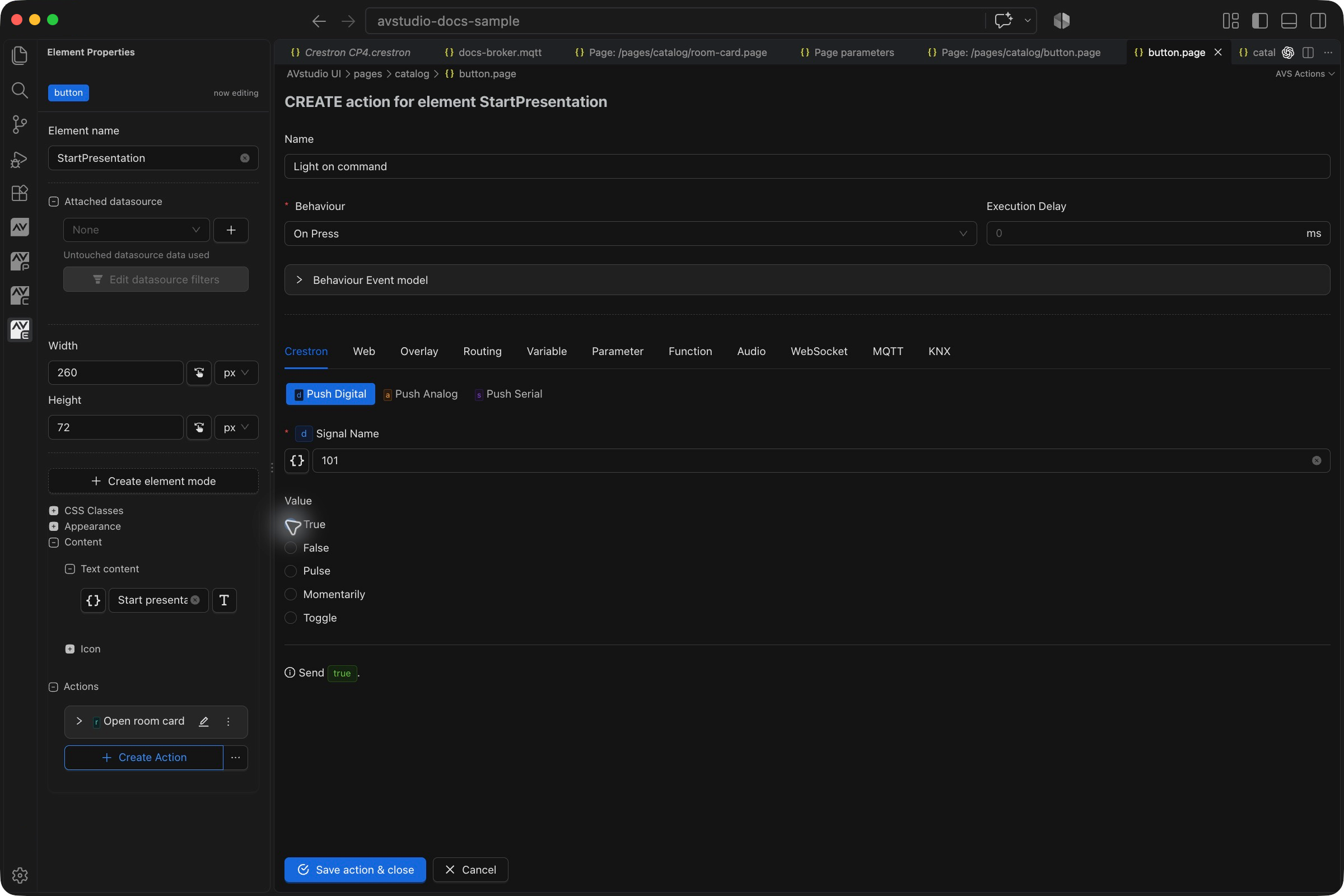
This screenshot shows a draft Light on command on the sample button: On Press, join 101, True, and no execution delay. The draft was used to demonstrate the form and was not saved onto the presentation button. For a real light control, attach it to the intended light button and match the command join to your program.
Digital values and timing
| Option | Use |
|---|---|
| True | Send a boolean true value. Useful for an explicit on request. |
| False | Send false. Useful for an explicit off request. |
| Pulse | Send true followed by false. Pulse Delay controls the pulse timing in milliseconds. |
| Momentarily | Use the press/release interaction for a momentary control. Verify both press and release in the running target. |
| Toggle | Toggle the digital value. Confirm that this matches the processor's expected command model. |
Execution Delay postpones the action, in milliseconds; it is separate from Pulse Delay. Behaviour determines when the action starts. The Behaviour Event model explains the interaction events available in the action editor.
A sustained true command is not the same as a pulse. Choose the option the processor expects, and test release behaviour for controls such as volume up/down.
Analog and serial values
Push Analog and Push Serial expose Signal Name and Value. For a fixed analog command, enter the numeric value expected by the control program. For a serial command, enter its text payload.
For a slider, use a change behaviour and the event-value behaviour described in Actions, rather than assuming a fixed Value follows the thumb. Match the slider's minimum, maximum, and step to the processor's range. Do not assume that every analog join uses 0–100.
Since 27.0.3, action payload and signal fields support $variable$ and %parameter%; element actions also resolve datasource paths. Use the dynamic-value modal to choose the source and check the action host scope. Event-value behavior remains available for value controls.
Bind incoming feedback to a variable
Feedback tells the interface what the processor reports. Setting a local default or pressing a command button does not prove that feedback arrived.
- Open global.variables in VS Code.
- Create or locate a variable whose type matches the signal:
boolean,number, orstring. - In its External value setter column, choose the Crestron connector.
- Enter Join name or number. For the boolean example, the field is labelled digital-join.
- Save the file. Use Open file beside the selector when you need to check the connector's host or authentication settings.
- Attach the variable to an element's displayed value or mode selector.
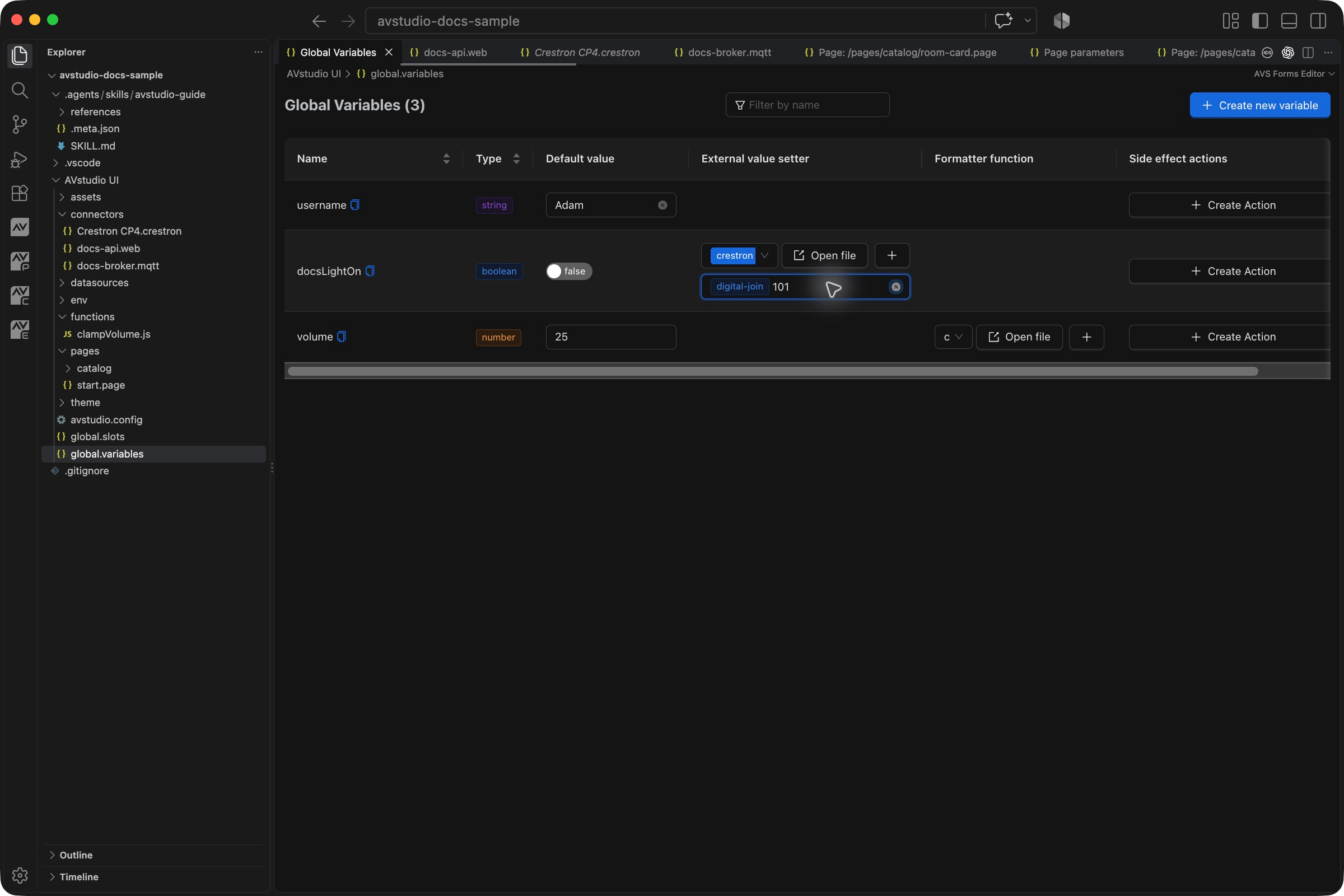
Here, docsLightOn is a boolean with default false, bound to feedback join 101. The selector can appear narrow; Open file opens the selected connector for verification. The default is the initial UI value, not a processor reading.
For a two-mode light button, attach docsLightOn to Mode selector by index or name: false selects Default, and true selects the first added mode. Configure Default as Light OFF and the first mode as Light ON. See Modes and feedback styling for the sidebar workflow.
Keep command actions on the intended interaction. Adding a Crestron send action to the feedback variable's Side effect actions can send another command whenever feedback changes; use this only when that behaviour is intentional.
Bind a render property directly to feedback
Since 27.0.4, a render property can read the active Crestron connection without creating an intermediary variable:
!crestron:type=boolean;name=101!
!crestron:type=number;name=7!
!crestron:type=string;name=RoomName!
Use boolean, number, or string to match the join type. A whole-property token retains its value type; a token embedded in text becomes text. The active project Crestron connector supplies the connection, so the token has no connector path.
The join name can contain $variable$, %parameter%, or datasource paths. For a repeated room card, an input parameter can use !crestron:type=number;name=#datasources/rooms.datasource:*.volume#!; each list item resolves its own join before passing feedback to its subpage. Use the received parameter in several controls to share that boundary value.
To drive a two-state mode, set activeModeIndex to !crestron:type=boolean;name=101!: false selects Default, true selects the first added mode. String feedback can select a mode by name. Rich text also supports feedback tokens and digital/analog/serial feedback tags.
Live feedback resolves in Live Preview and production. In the design canvas tokens have no live signal; subpage input parameters use their declared defaults instead of leaking raw token text in 27.0.5. Unknown systems or unresolved joins can remain literal. Run Health Check for invalid Crestron type/name and missing-connector diagnostics.
Global joins
Global joins are project-wide feedback handlers in the connector, separate from individual variable bindings. Leave unused fields blank and agree the assignments with the processor programmer.
| Forms Editor field | JSON key | What to configure |
|---|---|---|
| Analog page flip signal feedback | analogPageFlip_signal_a_fb | Analog join carrying the page selection value. Match each destination page's pageFlips.analogPageFlipValue. |
| Serial page flip signal feedback | serialPageFlip_signal_s_fb | Serial join carrying the page name used for navigation. Match the project's page naming. |
| Notification signal feedback | notification_signal_s_fb | Serial feedback used for project notifications. |
| Refresh data sources signal feedback | refreshDataSources_signal_d_fb | Digital feedback that requests a refresh of datasources. |
| Refresh single data source signal feedback | refreshSingleDataSource_signal_s_fb | Serial feedback identifying the datasource to refresh. Agree the identifier with the project configuration. |
| Connected signal feedback | connected_signal_d_fb | Digital feedback used for connection state. |
Enter the join identifier in these connector fields, not the page value, notification text, or a boolean literal. The processor sends the payload on that join. Check the destination page and datasource configuration as well as the join assignment when testing navigation or refresh behaviour.
Verify command and feedback separately
For the light example, check these steps in order:
- Start the running preview or deployed target with the intended connector configuration.
- Press the light button and confirm that the processor receives the expected digital command.
- Have the processor send false, then true, on the configured feedback join.
- Confirm the bound variable and the element appearance follow that feedback.
- Change the state from another control and confirm this interface also updates.
| Symptom | Check |
|---|---|
| No commands or feedback | Connector host, deployment authentication/IPID/Room ID, and the target's connection to the processor. |
| Command arrives, appearance stays unchanged | Feedback join/type, selected connector in External value setter, and the variable attached to the display or mode selector. |
| Button remains active after release | Digital Value choice and the action's press/release behaviour. |
| Slider value is wrong | Analog range, step, fixed versus event value, and any formatter applied to feedback. |
| Default state looks correct but never changes | A default only initializes the variable; verify an incoming feedback update. |
| Repeated commands after feedback changes | Side effect actions on the feedback variable and any loop back to the same control path. |
| Page does not change | Global page-flip join type and the destination page's matching value/name. |
Emulate incoming feedback
For UI testing before hardware is available, open Chrome Developer Tools in the running preview and select AVStudio → Crestron Emulation. Choose Digital, Analog, or Serial, enter Join and Value, then click Send data. Match the test join to the bound property, change the value again, and check the UI follows it. This simulates incoming feedback, not processor receipt of commands. See AVStudio DevTools in Live Preview for the panel-opening workflow, Variables, Connectors, and troubleshooting.
Alternatively, open the running preview's browser console. These methods are available only when the Crestron runtime module is loaded, typically with an active Crestron connector:
window.CrComLib.bridgeReceiveBooleanFromNative('1', true);
window.CrComLib.bridgeReceiveIntegerFromNative('1', 50);
window.CrComLib.bridgeReceiveStringFromNative('1', 'Ready');
They inject feedback into the running UI. They do not validate the processor program or network connection. Use test joins matching your project.
If window.CrComLib is absent, check the active connector and that you are in the running preview's console. receiveStateChange is not the supported emulation method.
Package and deploy
Choose .ch5z when the target's deployment workflow requires a Crestron package. Use Build project, then follow the target device's deployment procedure. A valid archive alone does not configure processor joins or authentication.