Installation and account
Requirements
Download and install Visual Studio Code from the official website. Choose the installer for your operating system: Windows, macOS, or Linux.
Use Visual Studio Code 1.104 or later for the documented release and an internet connection to download the extension. Live Preview launches Chrome, so install Chrome before following the preview tutorial. Keep the project in a local folder you can read and write.
Compatible VS Code-based editors may also work, but their extension installation, debugging, and MCP configuration can differ. These instructions use VS Code.
Install AVstudio Editor
You can also start from Install Extension on the NG product page or open the AVstudio Editor Marketplace listing directly. Choose Install and continue in VS Code. If VS Code is not installed, complete its installation first, then return to the extension listing. The Extensions workflow below reaches the same extension.
The screenshots below show installation in the macOS desktop app. Windows shortcuts are included in the steps.
1. Find the extension
Open VS Code and click the four-square Extensions icon in the Activity Bar on the left. You can also press Cmd+Shift+X on macOS or Ctrl+Shift+X on Windows/Linux.
Search for AVstudio and select AVstudio Editor. To find the extension by its exact identifier, enter this in the Extensions search field:
@id:AVstudio.avstudio-editor
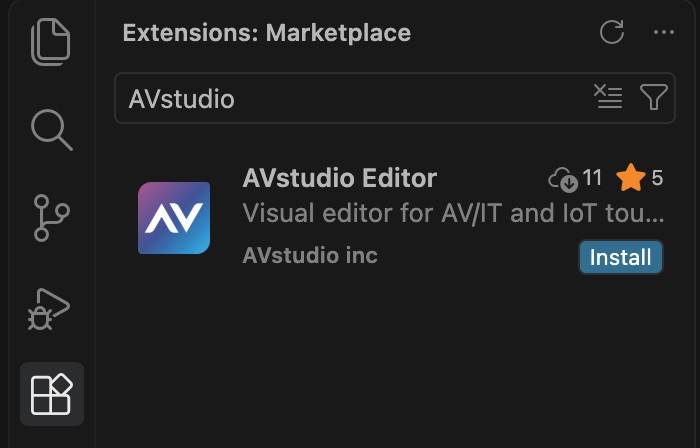
Find AVstudio Editor in the Extensions view.
2. Verify the listing and install
Open the extension details and check these values before installing:
| Field | Expected value |
|---|---|
| Name | AVstudio Editor |
| Publisher display name | AVstudio inc |
| Extension identifier | avstudio.avstudio-editor |
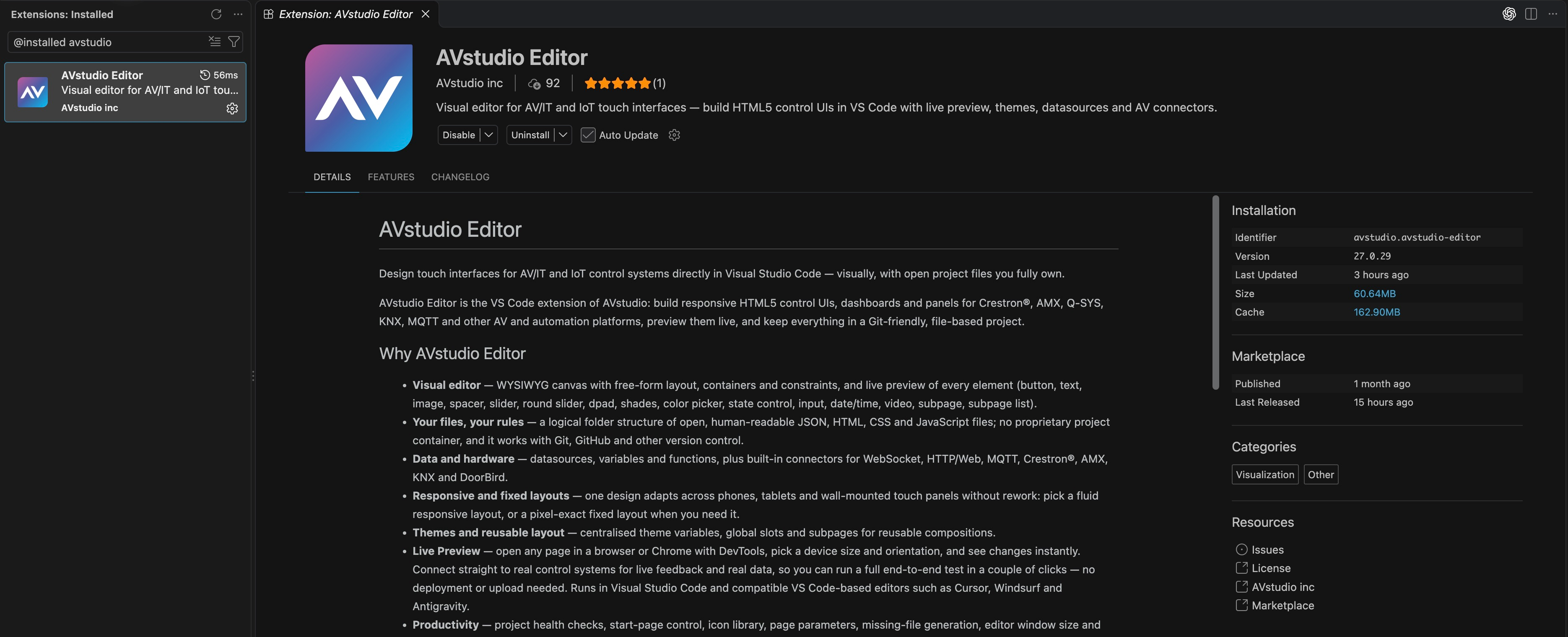
Check the publisher and extension identifier. This capture shows version 27.0.29 already installed, so Disable and Uninstall appear in place of Install.
Click Install. The button changes to Installing while installation is in progress; wait for it to finish. If VS Code asks you to trust the publisher, check the publisher name before confirming. Follow any restart or reload prompt.
If your release was supplied as a VSIX, open the Command Palette with Cmd+Shift+P on macOS or Ctrl+Shift+P on Windows/Linux. Run Extensions: Install from VSIX..., select the supplied package, and follow any reload prompt.
The free Community edition includes the complete editor. An Editor PRO subscription adds organization support and Beta-channel access; see Community and Editor PRO for the current scope. If you received a VSIX through a specific distribution channel, follow that channel's package instructions.
3. Confirm installation
The extension details show Disable and Uninstall after a successful installation. Disable indicates that the extension is currently enabled; leave it enabled. Uninstall removes it. The AVstudio icon also appears in the Activity Bar.
Successful installation: Disable and Uninstall replace the Install button.
To find the installed extension again, search Extensions for @installed AVstudio. Check the version in its details and review the Auto Update setting if you want updates installed automatically. The extension-details screenshots show 27.0.29, captured on October 27, 2026. The search screenshot shows an earlier release. The version offered to you may differ; the current command and setting references use 27.0.29.
Open the Command Palette and search for AVstudio. Confirm that Create new AVstudio project is available, then sign in before creating a project.
Open your profile
Run AVstudio Profile from the Command Palette, choose AV Studio Hub → Account → Open Profile, or click AVstudio Sign-In in the status bar. The profile opens in an editor tab.
Before signing in, the profile offers Sign In, Manage or Create Account, and Support. Click Sign In and complete the sign-in flow. The device is registered automatically during sign-in. Afterward, the profile displays:
- Account → Status: the current sign-in state, such as Signed in.
- License: the license available to this account.
- Devices: registered devices, their operating system, last-seen date, and status. (this device) identifies the current computer; the copy icon copies its device identifier.
- Check again: refreshes the account and license information.
- Manage Account: opens account management.
- Sign Out: signs out of AVstudio on this computer.
If an action is unavailable for your account, read the notification and check Profile. Use Copy Log when contacting support, removing credentials or site-specific details before sharing it. Availability depends on your account; an installed extension alone does not establish access to every licensed action.
Open a workspace
Choose File → Open Folder... and select a working folder. For an existing project, open its folder or a parent folder containing it. The extension recognizes each project by its avstudio.config file.
For a new workspace, open the AVstudio view from the Activity Bar. The sidebar displays No AVstudio project found in this workspace and an Initialize AVstudio project button. Initialization requires you to be signed in.
Next: Initialize your first project.
Installation troubleshooting
| Symptom | Check and resolution |
|---|---|
| No extension appears in search | Use @id:AVstudio.avstudio-editor in Extensions and check internet access. If the package is unavailable through your distribution channel, use the supplied VSIX. |
| VS Code reports an incompatible version | Update VS Code to 1.104 or later for the documented extension release. |
| AVstudio commands are missing | Search for @installed AVstudio, confirm the extension is enabled, and follow any pending reload prompt. |
| Visual editor does not open | Confirm the extension is enabled and the project contains avstudio.config. Open a .page file; if it opens as text, choose Reopen Editor With... → AVS Visual Editor. |
For project diagnostics and support details, see Troubleshooting and support.