Your first project
Initialize a project, add a second page, and test navigation before connecting hardware.
1. Open a folder and sign in
Open the folder that will contain your project with File → Open Folder.... Select the AVstudio icon in the Activity Bar. If the status bar shows AVstudio Sign-In, sign in before continuing; project initialization requires an authenticated AVstudio account.
2. Initialize the project
When the AVstudio sidebar says No AVstudio project found in this workspace, click Initialize AVstudio project.
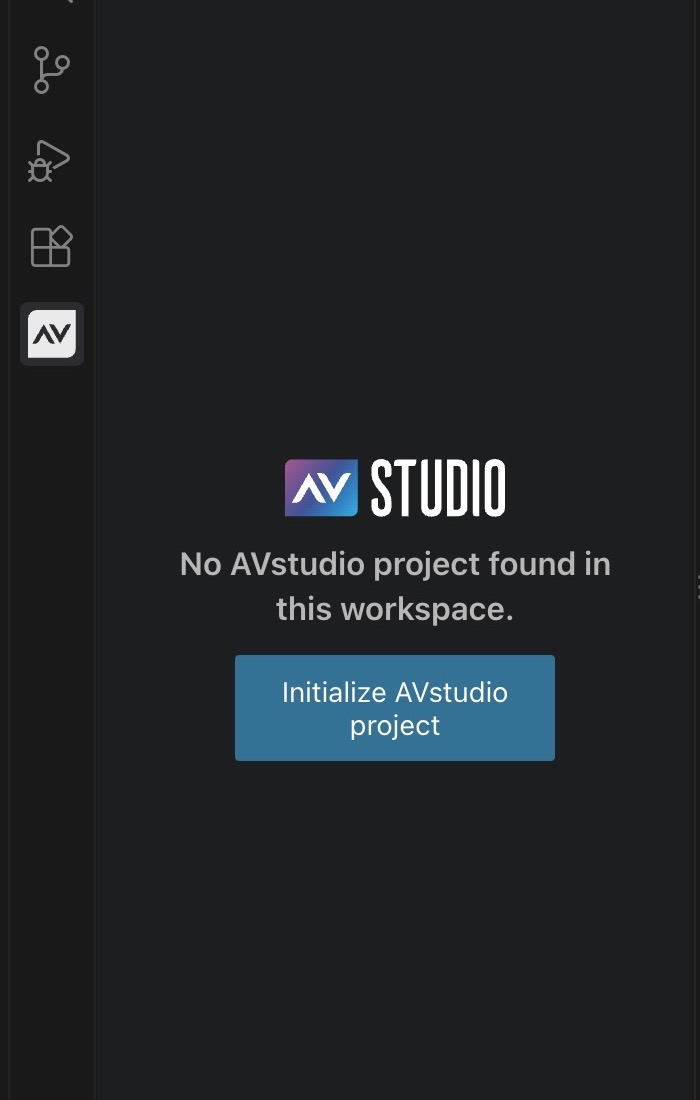
In Select project type, choose one of the following:
- Simple project — an empty project with a single page and button. Choose this option for this tutorial.
- Project with demo data — includes a demo datasource, a Crestron connector, and a sample variable.
Follow the remaining prompts to complete initialization. You can also start the same workflow from the Command Palette: press Cmd+Shift+P on macOS or Ctrl+Shift+P on Windows/Linux, search for Create new AVstudio project, and press Enter.
The extension creates an AVstudio UI project folder with a start page, configuration, theme, and supporting folders. In 27.0.29, new projects also include a README, bundled AVstudio AI guidance, and a Live Preview launch configuration. Deployment env files are optional and created when needed. The new workspace ignore rules exclude build output and private env files.
If VS Code has no folder open, use File → Open Folder... first. The selected folder becomes the workspace that contains the generated AVstudio UI project.
3. Add your first page
After initializing the project, use Add Page to create the first screen you want to design:
- Click the AVstudio icon in the Activity Bar.
- Click Add Page in the AVstudio sidebar.
- In Enter page name, type
homeand press Enter. Enter only the name; the editor adds.pageautomatically. Themy-pagetext is a placeholder. - Choose Responsive Layout for a screen that adapts to different display sizes, or Fixed Layout for positioned elements with optional anchors.
- The editor creates
pages/home.pageand opens it in AVS Visual Editor. Press Escape in either prompt to cancel creation. - In Explorer, right-click
home.pageand choose Set as start page so Live Preview opens your new screen first.
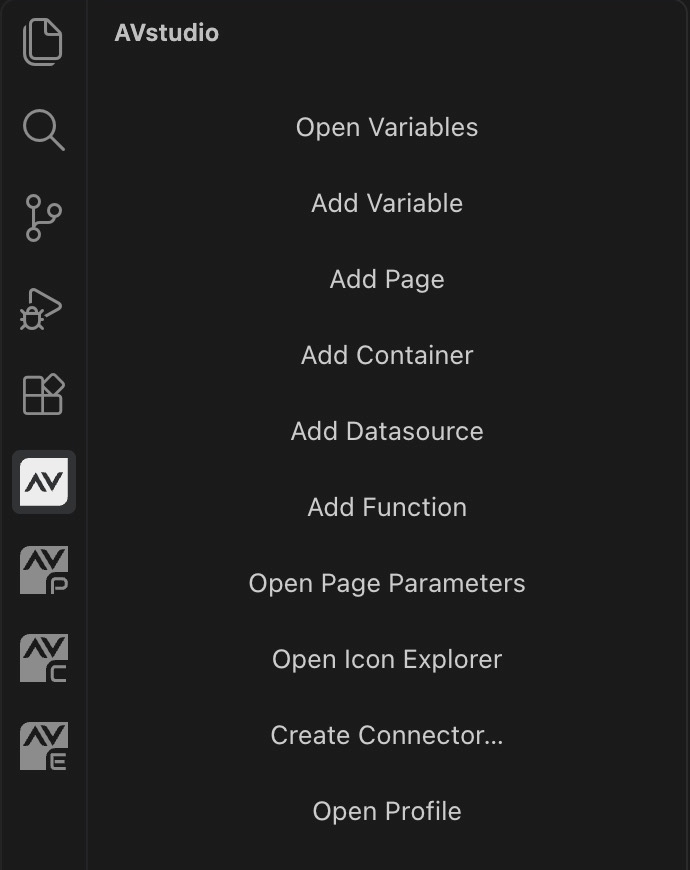
If initialization already supplied a start page, you can open and use that page instead. Creating home.page gives you a separate screen; selecting Set as start page makes it the project's entry page. See Add a new page for naming rules and folder options.
Open the page and review its layout
Expand AVstudio UI/pages in Explorer and open your .page file if it is not already open. Select Page Properties to review its layout. The screenshot below shows a sample start.page after adding content; your new page is ready for you to add containers and elements.
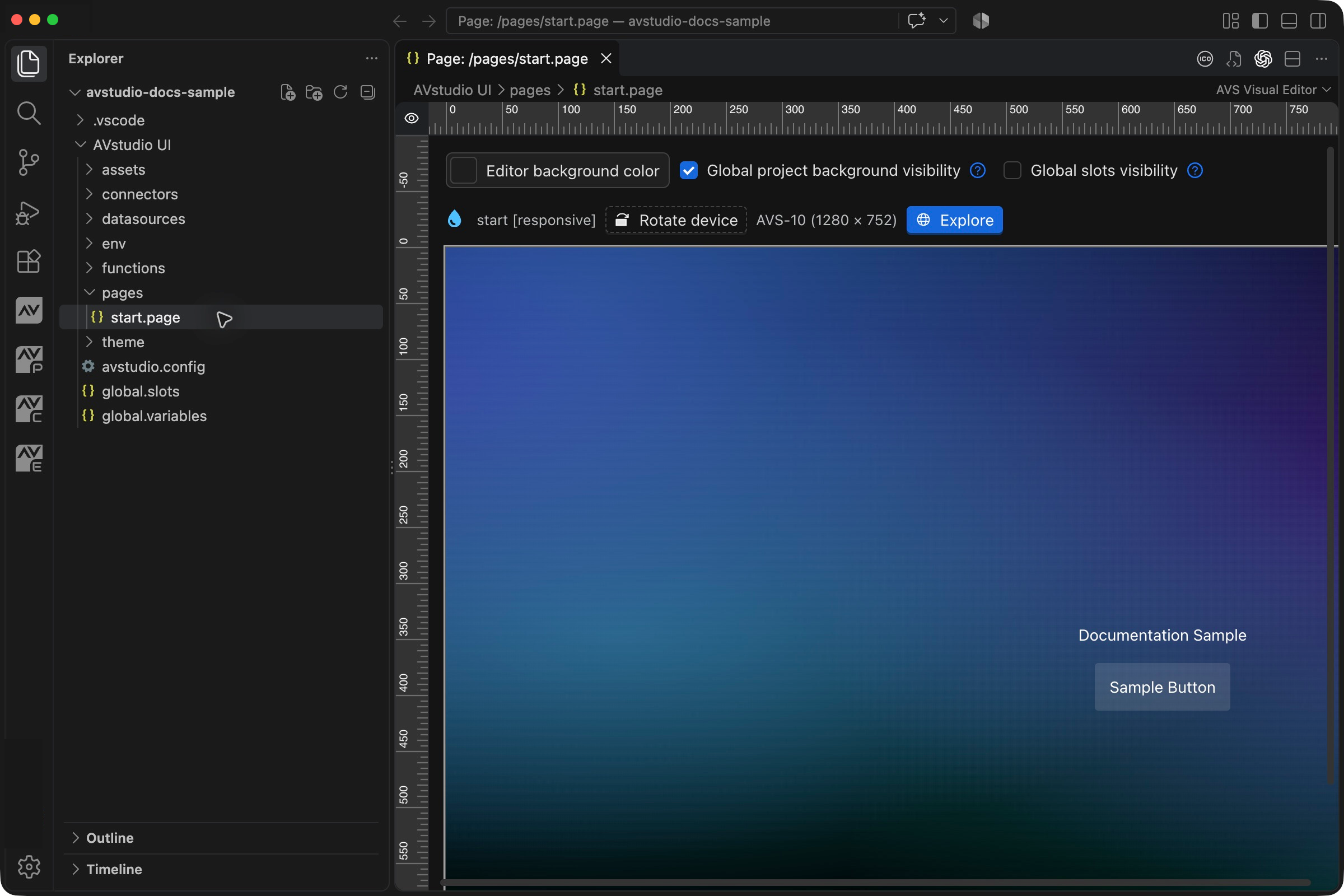
If the page opens as JSON, use Reopen Editor With... → AVS Visual Editor from the editor tab menu.
Use the three Properties icons
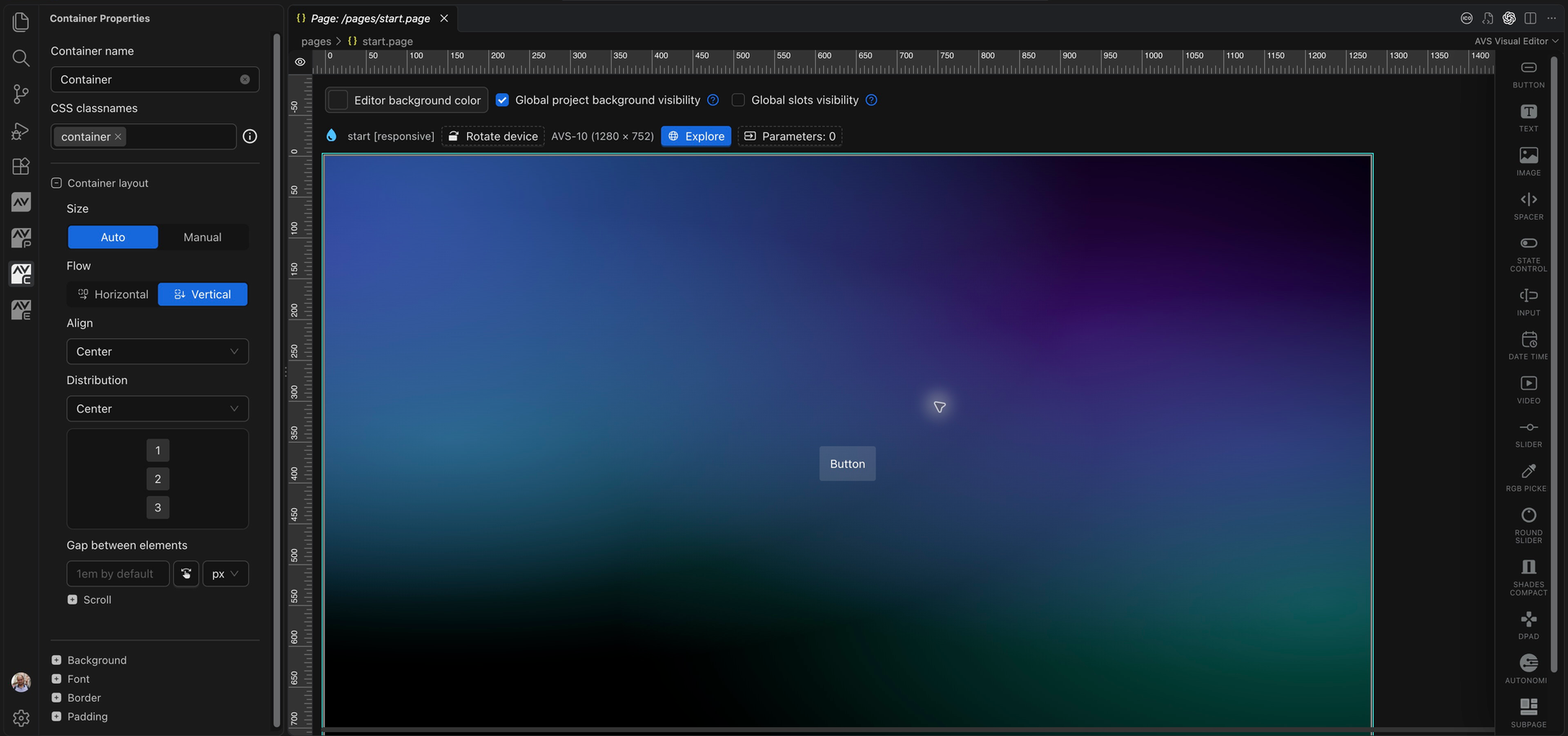
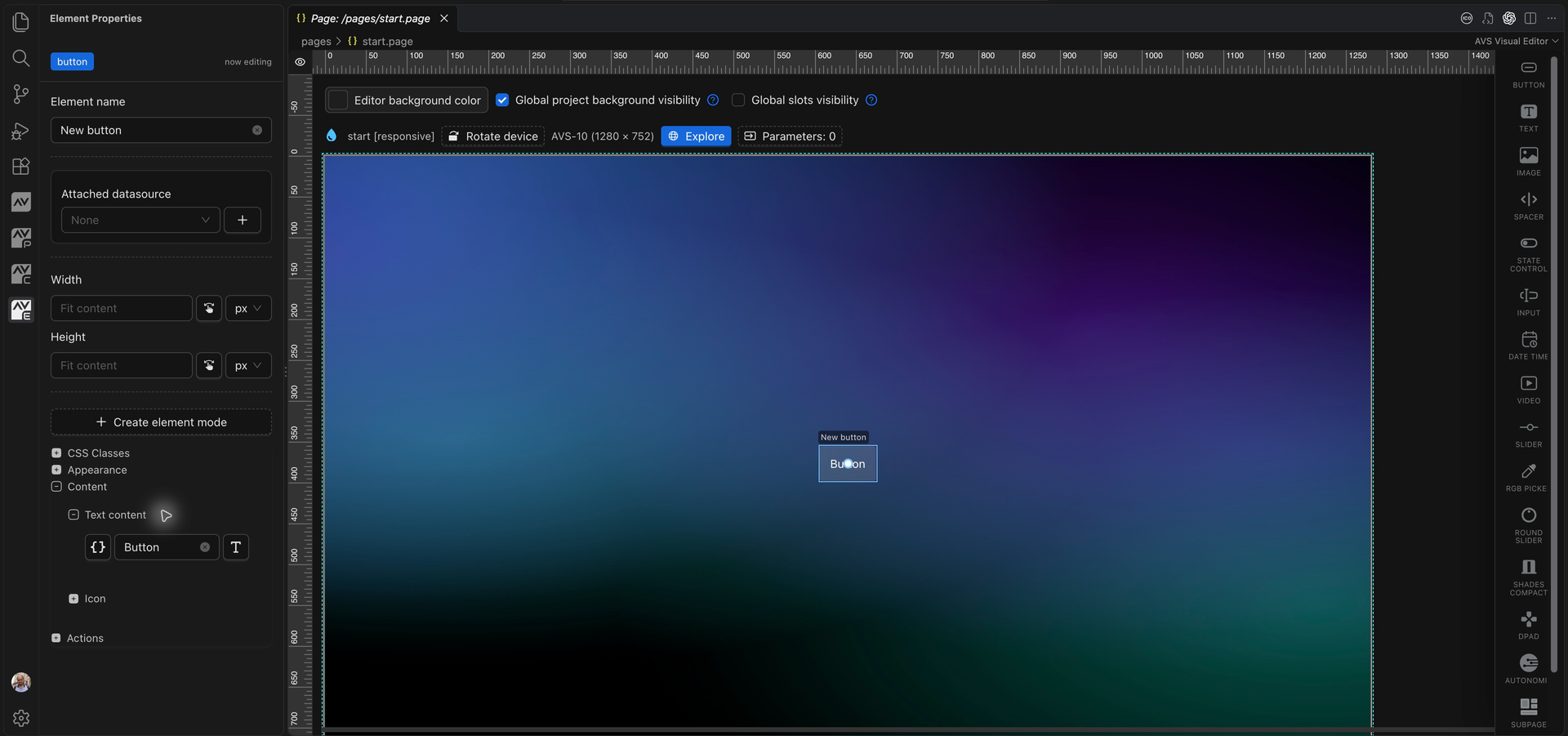
The three AVstudio icons marked P, C, and E in the Activity Bar open Page Properties, Container Properties, and Element Properties. These screenshots use the open AVstudio UI project and its pages/start.page, with a container and a Button.
Click P — Page Properties with the page open. This sidebar contains page parameters, dimensions, container alignment, the layout structure, appearance, and page actions.
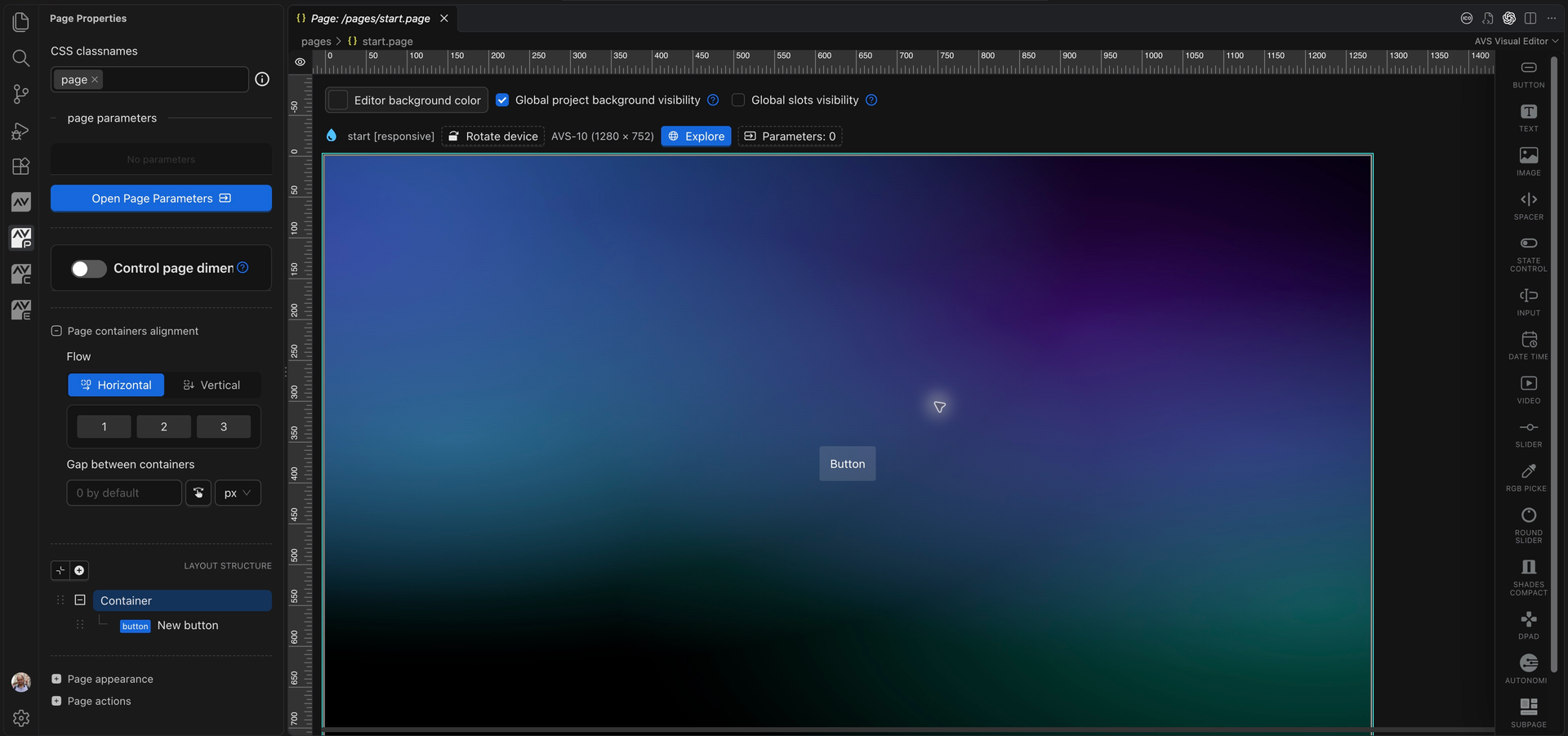
Select a container on the canvas, then click C — Container Properties. Review its name, size, flow, alignment, distribution, spacing, and appearance. If the sidebar asks you to select a container, click the container's background on the canvas.
Select the Button on the canvas, then click E — Element Properties. Expand Content → Text content to edit its label. The element name identifies the control in the editor; Text content is the label displayed on the button. Expand Actions when configuring navigation in step 5.
4. Add a destination page
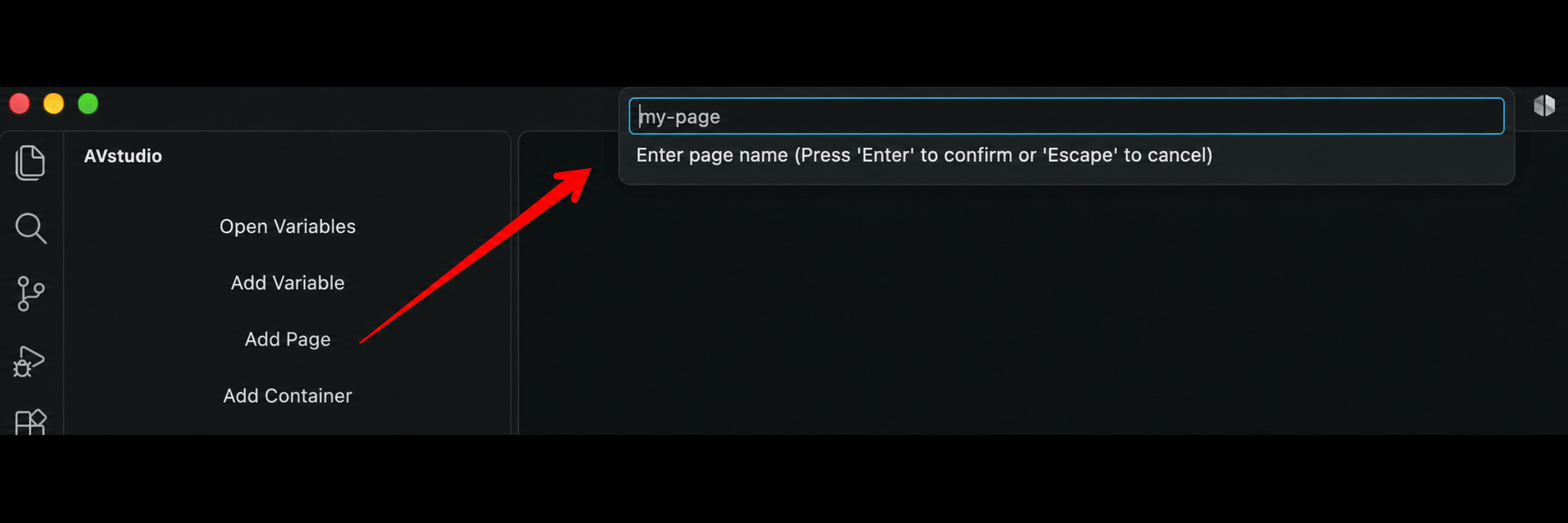
Click AVstudio → Add Page, or right-click the pages folder in Explorer and choose Add page. In Enter page name, type controls without a file extension and press Enter. The my-page text is a placeholder.
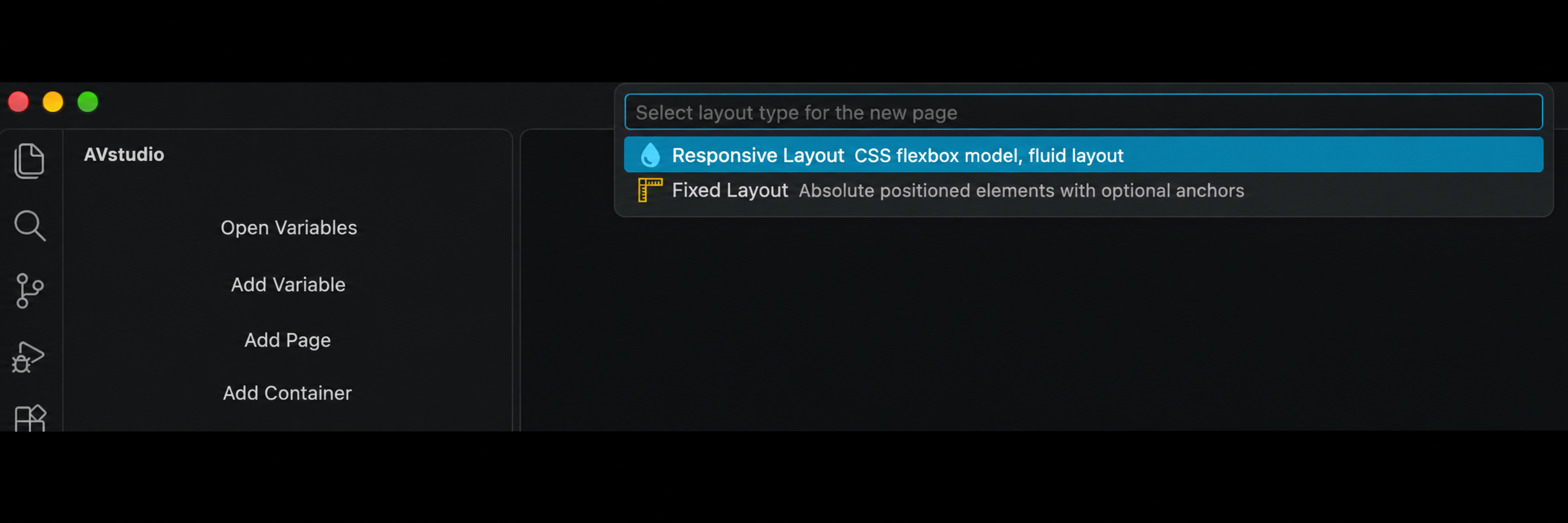
In Select layout type for the new page, choose Responsive Layout. The editor creates and opens pages/controls.page; keep its filename and location visible in Explorer. Press Escape in either prompt to cancel creation.
These UI illustrations were recreated from the supplied screenshots.
See Add a new page for naming rules, alternative entry points, and creating pages in subfolders.
Return to the start page. Use Add container if the page has no container, then add a Button with the visual editor's element controls. Select the button and give it a useful name and the label Open controls.
For screenshots of the context menu, element picker, and properties panel, follow Add components to a project. See the component catalog for every available element type.
Right-click other files and folders in Explorer, or containers and elements in the visual editor, to access additional commands. The context menu changes depending on where you click. For example, an element's menu includes commands to open its properties, duplicate, copy, cut, or delete it.
5. Add navigation
Configure the button's action as a page flip to the controls page with an onPress behavior. Name the action Open controls and select pages/controls.page as its target.
On the controls page, add a Home button with a page-flip action targeting the configured start page.
Right-click your starting .page file in Explorer and select Set as start page. Save the files.
6. Check and preview
Run Run Project Health Check. Open the Problems panel and resolve any entries with source AVStudio. Then run Open Live Preview (Browser).
Chrome opens the project. Press Open controls, confirm the destination page appears, and press Home to return. Change the label in the editor, save, and confirm that the preview updates.
7. Try another size
With a visual editor tab open, run Select editor window size, choose a preset or custom size, then use Rotate editor device. Check that labels remain readable and controls fit inside their containers.
You now have a saved project with two pages and working navigation. Continue with containers, variables, or build and deployment.