Add components to a project
Build an interface in three levels: a page is a screen, a container arranges a group of controls, and an element is a control such as a Button, Slider, or Image. The element picker groups these into Basic Elements and Widgets. Both groups are inserted into containers.
1. Open or add a page
Open your project folder in VS Code, then open AVstudio UI/pages/start.page. If you need another screen, right-click the pages folder in Explorer, choose Add page, and follow the prompts. Open the resulting .page file in AVS Visual Editor.
2. Add a container (optional)
Use an existing container, or add another one to group and arrange your controls.
With the page active, open the Command Palette and run AVstudio: Add container. You can also use Add container in the canvas context menu. Select the container and open Container Properties to set its name, direction, alignment, spacing, and dimensions.
For a responsive page, choose whether the controls should flow in a row or column. Leave a content container flexible when it should fill the available space. Use a manual size for a fixed-height header or fixed-width sidebar. See Containers and responsive layout.
Containers belong directly to the page. To put a group with its own containers inside another component, use a Subpage.
3. Insert an element
Drag from the component toolbar
With the target page open in AVS Visual Editor, find the component toolbar on the right edge of the canvas. Drag the desired component into the destination container. Scroll within the toolbar to reach controls farther down the list, including widgets and subpages. Select the new element and configure it in Element Properties.
The 16 built-in types in the component catalog are available in this toolbar. In 27.0.29, folders under elements/ also appear in the Add element picker’s Custom Elements section; see Custom Element. Add a container first if the page has no destination container.
The smart home sample in Element Properties and Live Preview. The controls show local demo state.
Use the context menu
- Right-click an empty area inside the destination container, or an existing element in it, to open the canvas context menu.
- Choose Add element.
- In Select element type, select a component or type its name to filter the list. Press Enter to insert it.
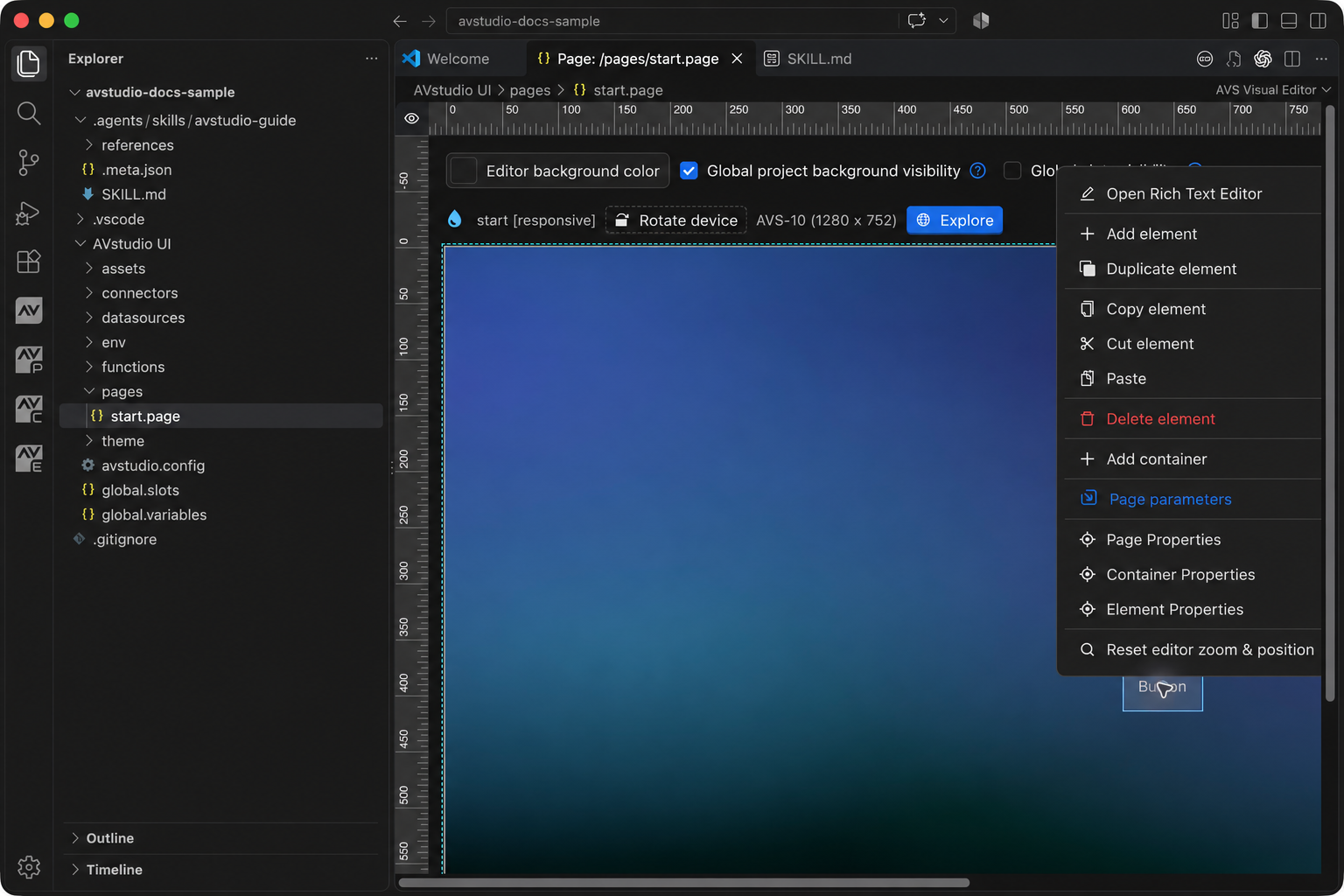
The context menu lets you add a control to the current container or add another container to the page.
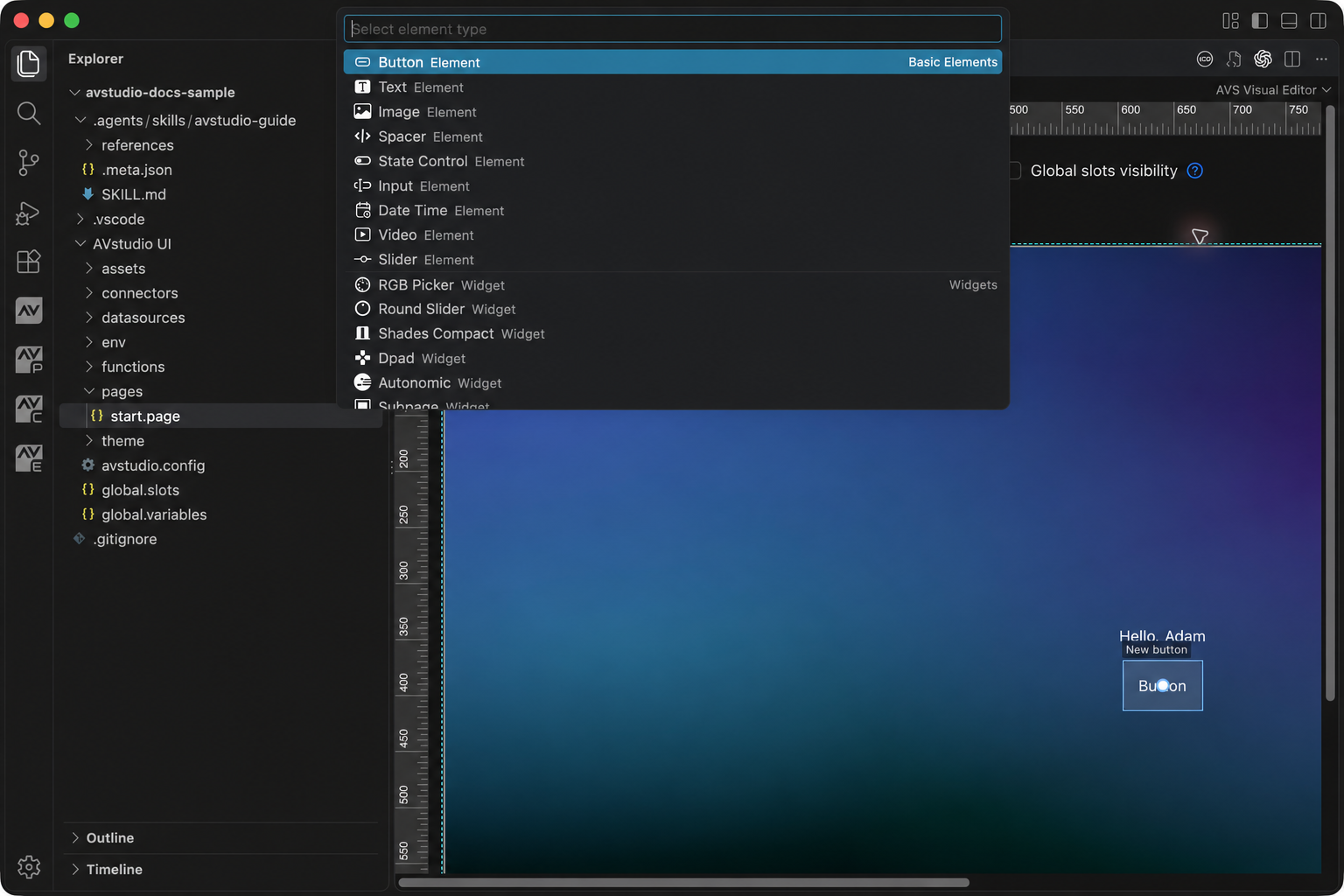
Choose from 16 element types. Scroll the picker to see the remaining items, or search by name.
The new element appears in the container. On a responsive page, its position follows the container's layout. On a fixed page, configure its position and anchoring. A control with no content or source may initially look empty; select it and configure its properties.
4. Configure the element
Select the new element, then open Element Properties from the Activity Bar or the canvas context menu. Give it a useful name, such as RoomVolume, and set its width and height. The remaining sections depend on the selected type.
For example, choose Slider, name it RoomVolume, and inspect Variant. Simple uses one value, Range uses two, and Fat changes the slider presentation. Configure its limits and step for the values your system accepts. A volume slider might use 0–100 with a step of 1; use the actual device range when connecting hardware.
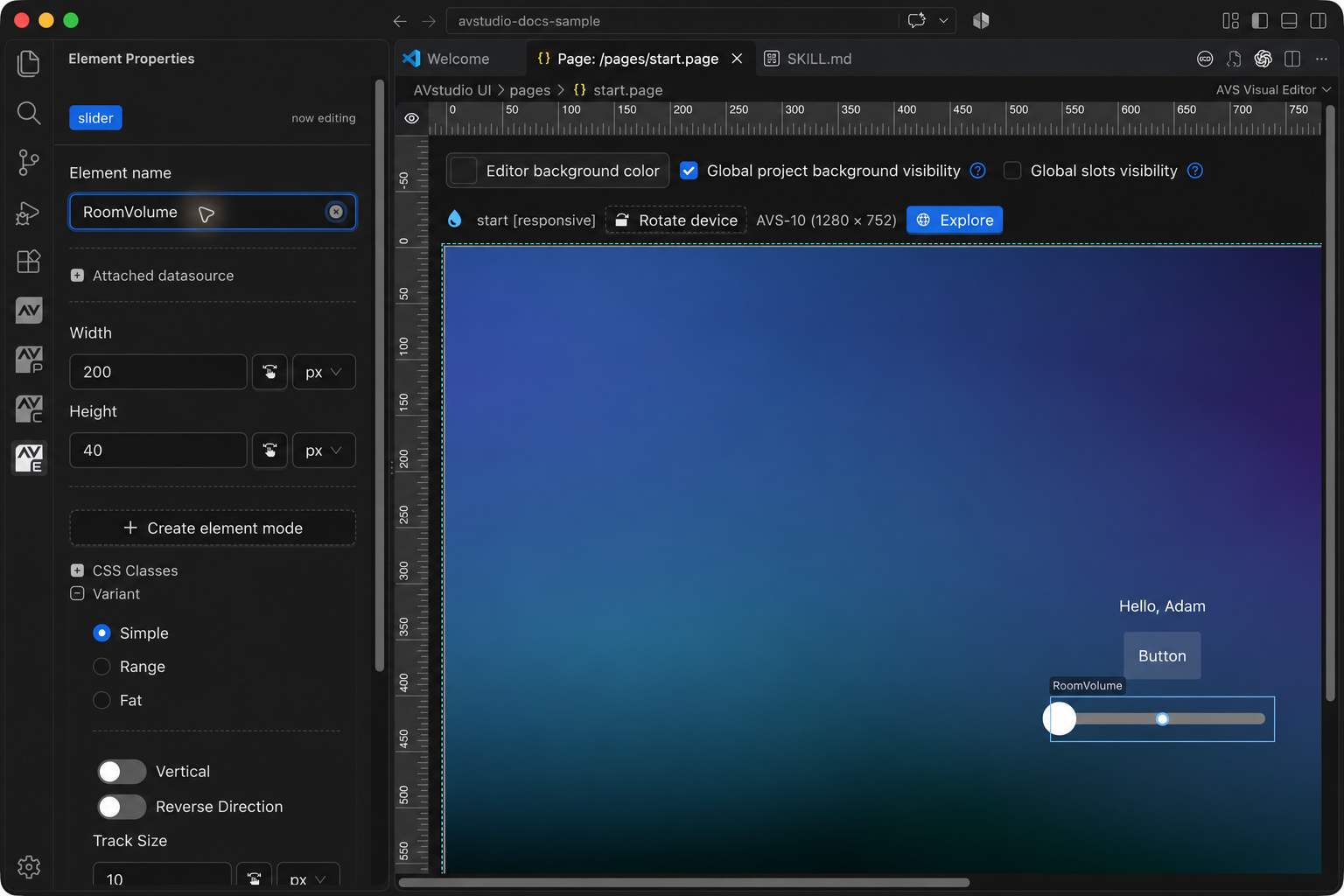
The sample slider has been added and named. Actions and feedback are configured separately.
Use themes for appearance shared across controls. Use local properties for a particular control and modes for alternate visual states. The element catalog explains what to configure for each component.
5. Add behavior and feedback
Expand Actions in the element's properties to configure what happens when the user interacts with it. Choose an event supported by the component, then an action and target. A Button can navigate to another page; a Slider can send its changed value to a control system.
Configure feedback separately so the interface reflects changes made elsewhere. For example, sending a volume command and displaying the device's current volume are two parts of the same control. See Actions, Variables and parameters, and Connectors.
6. Save and test
Save with Cmd+S on macOS or Ctrl+S on Windows/Linux. Run Run Project Health Check, resolve relevant diagnostics, and run Open Live Preview (Browser) to test the control. Check the layout at another size and orientation.
For runtime issues, see Debug a control in Live Preview.
For a value control, test minimum, maximum, intermediate values, and incoming feedback. For navigation, confirm both the destination and return path. Media controls also need a valid source and a compatible runtime.
Duplicate, move, or remove controls
The element context menu includes Duplicate element, Copy element, Cut element, Paste, and Delete element. After duplication, update the name, actions, and feedback bindings for the new purpose. Save and recheck navigation and references after structural changes.
Other project components
These resources support the visual controls. Use the relevant creation command with your project open, then configure the resulting resource.
| Resource | How to add or open it | What it provides |
|---|---|---|
| Page | Add page from the pages folder | A screen, reusable subpage, or overlay |
| Theme | Add theme | Shared colors, typography, and control defaults |
| Connector | Create new connector | Connection settings for a device or service |
| Datasource | Add datasource; Add local data JSON for a local fixture | Structured data for labels, cards, and lists |
| Variable | Add variable or Open variables | Shared project state |
| Page parameter | Open page parameters with the page active | Values local to a page or passed to a subpage |
| Function | Add function | JavaScript transformations or custom behavior |
| Assets and icons | Add media to assets; use Open Icon Library Explorer for icons | Images, media, and activated icon packs |
| Global slots | Open global.slots | Shared page regions such as headers and navigation |
| AI guide | Generate AVStudio skill | Project-format instructions for a coding assistant |
For available commands and their context requirements, see the command reference.