Spacer
Picker group: Basic Elements · Project type: spacer · Reference version: 27.0.29
Use Spacer (spacer) to separate controls or create a decorative divider, dot, or block. Add Spacer, then set its width and height to suit the container's layout. An unstyled spacer may be invisible while still occupying space.
For a divider, give it a thin height and a background color. For a dot, use equal dimensions and a rounded border. Use a Button for a touch target and Text for a label. Check the spacing at different viewport sizes; avoid using large fixed spacers to compensate for an incorrect container layout.
Configure in the VS Code sidebar
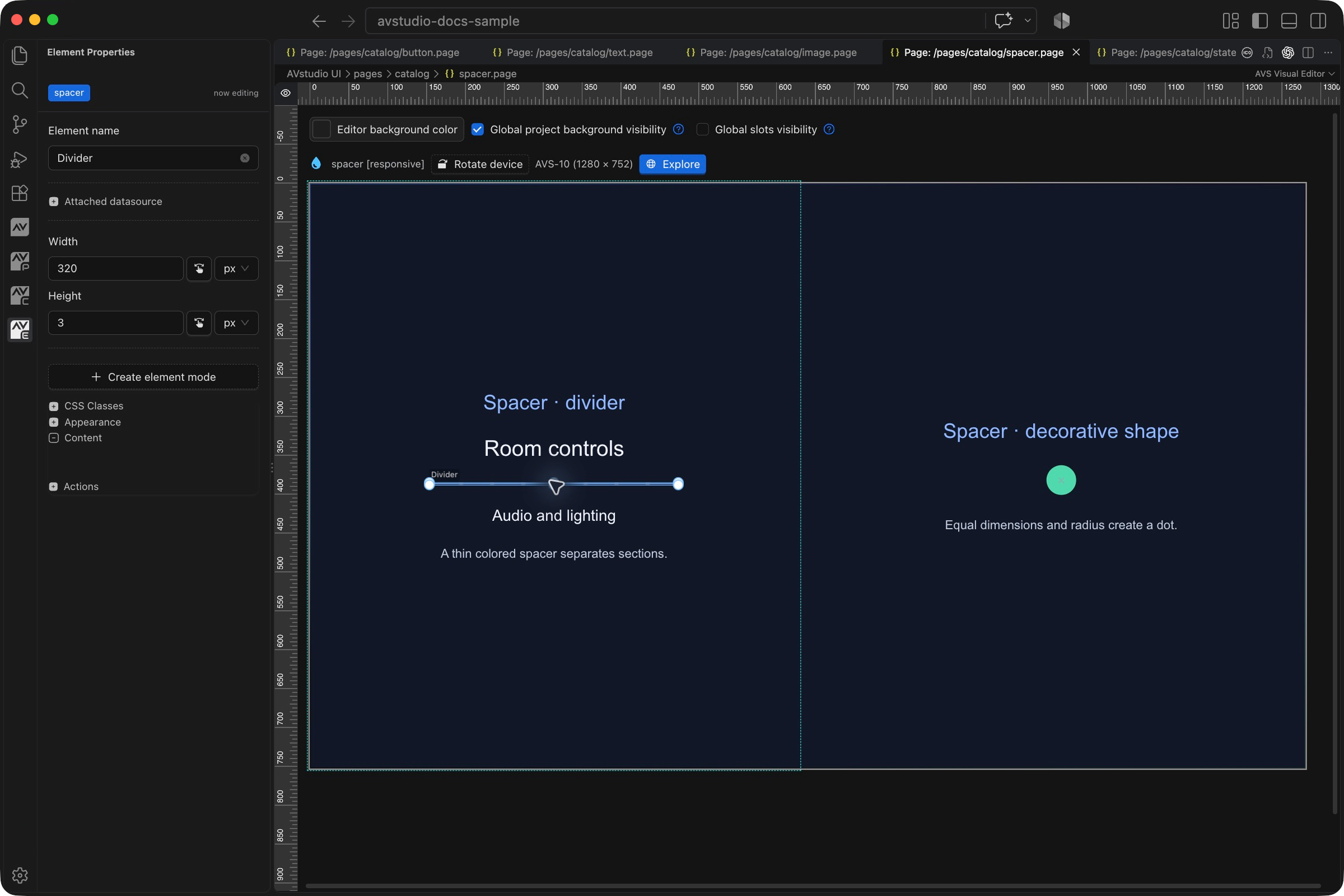
Select the Spacer on the visual canvas, then open Element Properties. The screenshot shows the selected control in the development environment; click it to open the full-resolution image. Expand the groups below; scroll the sidebar to reach settings below the visible area.
| Sidebar control | What it does |
|---|---|
| Width / Height | Define the space occupied by the element. The selected Divider is deliberately thin. |
| Appearance → Background | Give an otherwise invisible spacer a fill to turn it into a line or block. |
| Appearance → Border | Configure the outline and corners; equal dimensions and rounded corners can create a dot. |
| Appearance → Shadow / Reflection | Add optional decorative effects. Keep spacing decisions in the parent container rather than compensating with large fixed blocks. |
The shared Element name, datasource, sizing, CSS, and mode controls are explained in the sidebar reference. Settings depend on the selected type and variant.
Settings explained
Select the control and open Element Properties. Expand the relevant sections for its variant, appearance, content, and actions. The property keys below identify the saved project settings; the visible groups vary by control and variant.
| Setting | Project property | What to configure |
|---|---|---|
| Dimensions | width, height | Controls the space occupied by the element in its container. |
| Fill | background.color | Leave unstyled for spacing, or use a color for a divider or decorative shape. |
| Border | border | Enable the border settings when using radius or border appearance. |
| Rounding | border.borderRadius | With equal dimensions, a radius of half the side creates a circle. |
| Layout position | Container flow and element order | A responsive spacer participates in the same flow as neighboring controls. |
Worked setup
- Insert Spacer between the controls that need separation.
- For a horizontal divider, use a width that follows the container and a height of 2–3 px.
- Choose a subtle background color. A divider should separate groups without dominating the screen.
- For a decorative dot, use 40 × 40 px, enable border settings, set border width to 0 and radius to 20 px, and choose the fill.
- Preview at the smallest and largest target sizes.
Use the container's gap for uniform spacing between every child. Add a Spacer when a particular gap or decorative shape is part of the layout. It is not an interactive button and does not display a text label.
Verify the result
Confirm that an invisible spacer is intentionally occupying space. If controls drift at smaller sizes, revisit the container flow and sizing instead of adding more fixed spacers.
Save the project, run Run Project Health Check, and test in Open Live Preview (Browser). Hardware-backed behavior also needs verification in the target runtime with the actual integration available.