Text
Picker group: Basic Elements · Project type: text · Reference version: 27.0.29
Use Text (text) for a heading, instruction, room name, or status display. Add Text, edit its rich text, then configure typography, wrapping, alignment, and dimensions.
A label can include a global variable such as $roomName$ or a page parameter such as %roomName%. Create the matching variable or parameter first; their scopes are different. A datasource can supply changing status or metadata through its tokens. See Variables and parameters.
Keep images in an Image element or the supported icon/background fields. Test long labels and missing or changing data at the smallest target screen size.
Configure in the VS Code sidebar
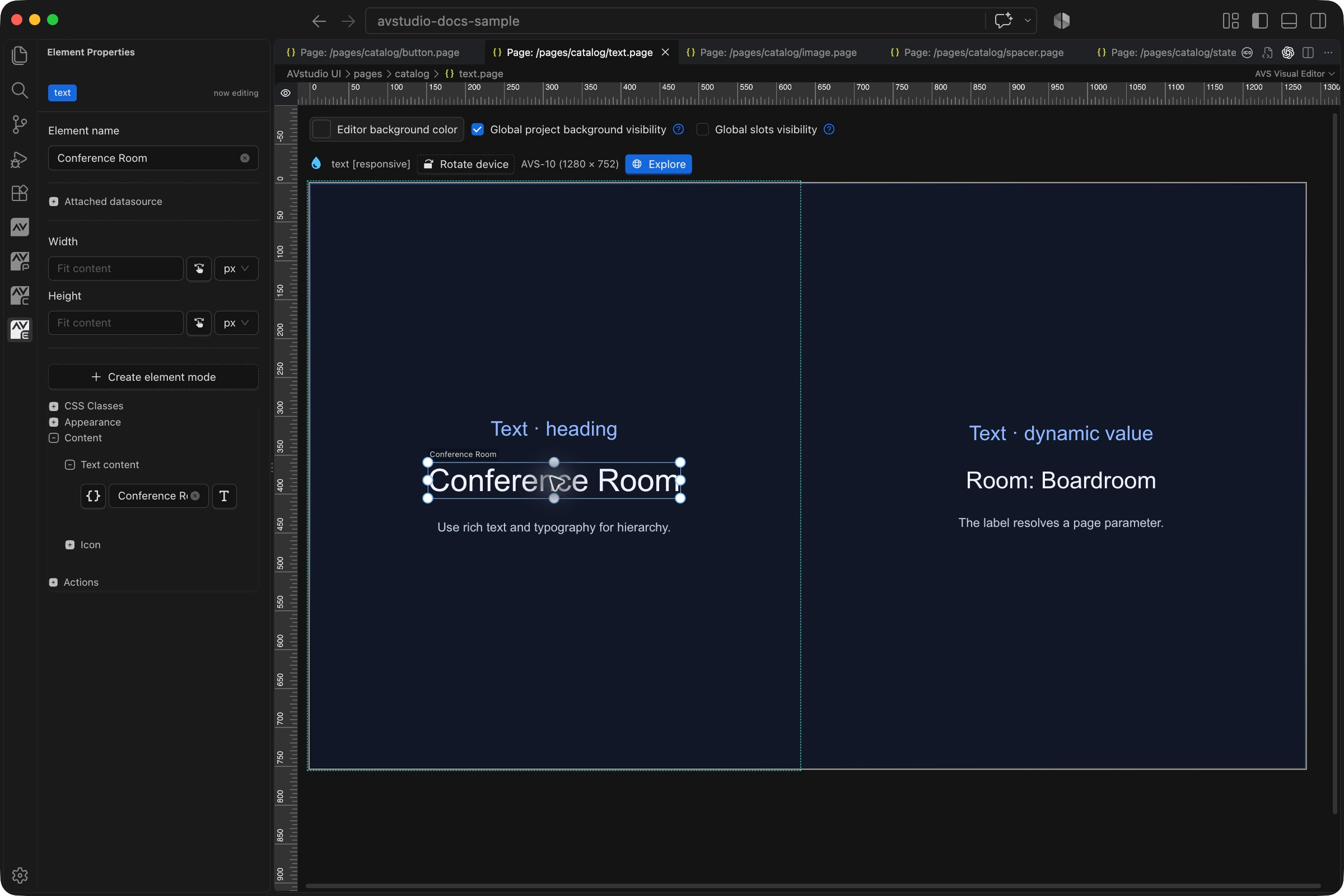
Select the Text on the visual canvas, then open Element Properties. The screenshot shows the selected control in the development environment; click it to open the full-resolution image. Expand the groups below; scroll the sidebar to reach settings below the visible area.
| Sidebar control | What it does |
|---|---|
| Content → Text content | Enter a static label or text containing a variable or page-parameter token. The screenshot selects the Conference Room heading. |
| Content → Icon | Configure an optional icon when the label needs a visual cue. |
| Appearance | Set typography, alignment, color, and box styling. Check long or changing text in the available width. |
| Width / Height | Reserve enough space for the largest expected value; check wrapping on the target device. |
The shared Element name, datasource, sizing, CSS, and mode controls are explained in the sidebar reference. Settings depend on the selected type and variant.
Settings explained
Select the control and open Element Properties. Expand the relevant sections for its variant, appearance, content, and actions. The property keys below identify the saved project settings; the visible groups vary by control and variant.
| Setting | Project property | What to configure |
|---|---|---|
| Content | text | Rich text for headings, instructions, values, and units. |
| Typography | fontSize, fontFamily, textColor | Set readable size, family, and contrast. Use the theme for a consistent default. |
| Wrapping | allowTextWrap | Allow long text to wrap when the layout provides enough height. |
| Case | textTransform | Use none, uppercase, lowercase, or capitalize without rewriting the content. |
| Dynamic content | $name$, %name%, datasource tokens | Global variables, page parameters, and datasource fields provide values in rendered text. |
| Optional icon | Icon properties | Attach a library or image icon through the icon settings. |
Worked setup
- Insert Text and name it
RoomHeading. - Enter Conference Room in the rich-text editor and set a heading size.
- For a reusable room label, create a string page parameter named
roomNamewith a default such asBoardroom. - Change the content to
Room: %roomName%. - Preview the page. The token should resolve to Room: Boardroom, as in the screenshot.
Use $roomName$ only when the value is a global variable. %roomName% is local to the page instance, which makes it useful inside repeated room cards.
Boolean parameter labels
The rich-text toolbar supports page-parameter boolean tags in 27.0.29. For example, <parameterBoolean name="lightOn" true="On" false="Off"/> chooses the label from a parameter on the current page. Global boolean labels use varBoolean; normal parameter values use %name% or parameter. See Boolean page-parameter text.
Verify the result
Test a long room name, an empty value, wrapping, and contrast. If a token remains visible, check its spelling, scope, and datasource path.
Save the project, run Run Project Health Check, and test in Open Live Preview (Browser). Hardware-backed behavior also needs verification in the target runtime with the actual integration available.