Date Time
Picker group: Basic Elements · Project type: dateTime · Reference version: 27.0.29
Use Date Time (dateTime) for an analog clock, digital clock, or combined date and time display. Add Date Time and choose analog, digital, or datetime.
For analog clocks, configure hour/minute marks and hand colors. For digital and combined displays, choose whether to show seconds, date, time, and AM/PM, then set date position, typography, and spacing. Set a locale and, when needed, an IANA time zone such as America/New_York.
Check that the date and time fit without clipping and that the target device reports the intended time. This is a display component, not a scheduling engine.
Configure in the VS Code sidebar
Select the Date Time on the visual canvas, then open Element Properties. The screenshot shows the selected control in the development environment; click it to open the full-resolution image. Expand the groups below; scroll the sidebar to reach settings below the visible area.
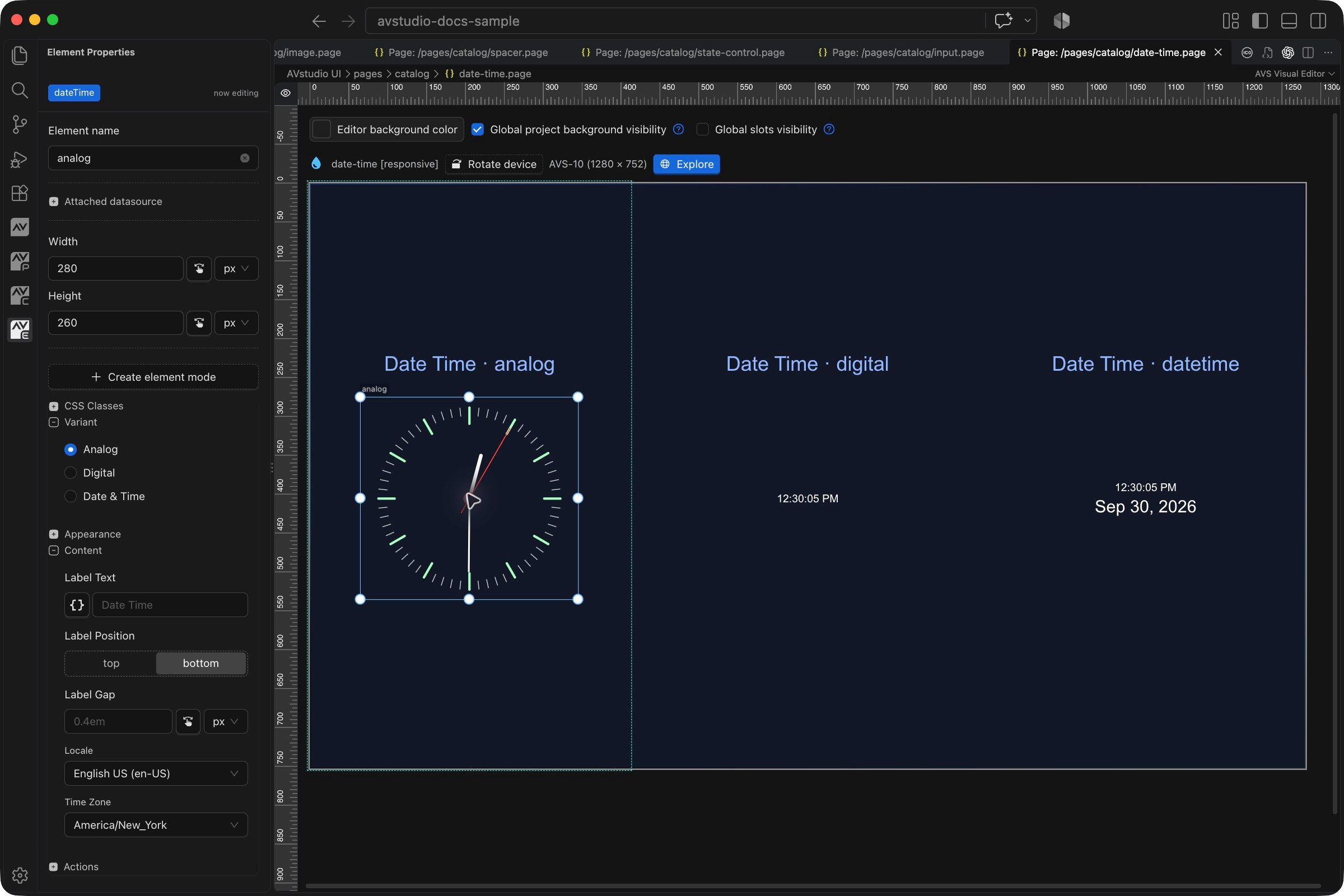
| Sidebar control | What it does |
|---|---|
| Variant | Choose Analog, Digital, or Date & Time. This choice changes the relevant clock appearance settings. |
| Content → Label Text / Label Position / Label Gap | Add a caption and position it above or below the clock, with the desired separation. |
| Content → Locale | Choose formatting conventions for the displayed date and time. |
| Content → Time Zone | Choose the clock timezone; the example uses America/New_York. |
| Appearance | Configure the selected clock presentation, including the supported marks, hands, colors, and typography. |
The shared Element name, datasource, sizing, CSS, and mode controls are explained in the sidebar reference. Settings depend on the selected type and variant.
Settings explained
Select the control and open Element Properties. Expand the relevant sections for its variant, appearance, content, and actions. The property keys below identify the saved project settings; the visible groups vary by control and variant.
| Setting | Project property | What to configure |
|---|---|---|
| Variant | variant | Analog clock, digital time, or combined datetime display. |
| Time format | useAmPm, showSeconds | Choose 12-hour AM/PM presentation and whether seconds are visible. |
| Combined display | showDate, showTime, datePosition | Control visible sections and their relative positions in the combined display. |
| Locale | locale | A BCP 47 locale such as en-US controls localized formatting. |
| Time zone | timeZone | Use an IANA name such as America/New_York; leave unset for the runtime default. |
| Analog marks | minuteMarkColor, hourMarkColor | Style minute and hour marks separately. |
| Analog hands | hourHandColor, minuteHandColor, secondHandColor | Give each hand a readable color. |
| Date styling | dateColor, dateFontSize, gap | Style the date and its spacing from other label sections. |
Worked setup
- Insert Date Time and name it
RoomClock. - Choose DateTime to display date and time together, or Analog/Digital for the other presentations.
- Set locale to
en-USand time zone toAmerica/New_Yorkfor the example. - Enable AM/PM, choose whether seconds are useful, and place the date below the time.
- Size the element for the longest expected date and preview it.
The screenshot records the runtime clock at capture time. The control reads time from the runtime; it does not set the panel clock, schedule equipment, or provide a date-entry field.
Verify the result
Check time-zone selection, localization, 12/24-hour readability, and the target device clock. Long month names and large typography must fit the available space.
Save the project, run Run Project Health Check, and test in Open Live Preview (Browser). Hardware-backed behavior also needs verification in the target runtime with the actual integration available.
Related guides
- Add components to a project
- Shared sizing and appearance
- Actions and navigation
- Variables and feedback
- Back to the component catalog
Dynamic text in 27.0.5
Text labels now resolve dynamic tokens and HTML instead of showing raw token strings. Use the correct global variable, page parameter, or datasource scope, then check the rendered label in Live Preview.