Round Slider
Picker group: Widgets · Project type: roundSlider · Reference version: 27.0.29
Use Round Slider (roundSlider) for a circular numeric control such as a setpoint or level. Add Round Slider and choose a full circle, horseshoe, or half-circle variant: round, horseshoe, half-top, half-bottom, half-left, or half-right.
Set the minimum, maximum, and valueStep. This component uses valueStep, while the regular Slider uses step. Configure track size, handle size, colors, direction, and central text. Use a direct value for a local example or configure the analog feedback signal.
Add the required value-change action. Check endpoints, step increments, feedback, and whether the handle remains easy to operate at the intended display size.
Configure in the VS Code sidebar
Select the Round Slider on the visual canvas, then open Element Properties. The screenshot shows the selected control in the development environment; click it to open the full-resolution image. Expand the groups below; scroll the sidebar to reach settings below the visible area.
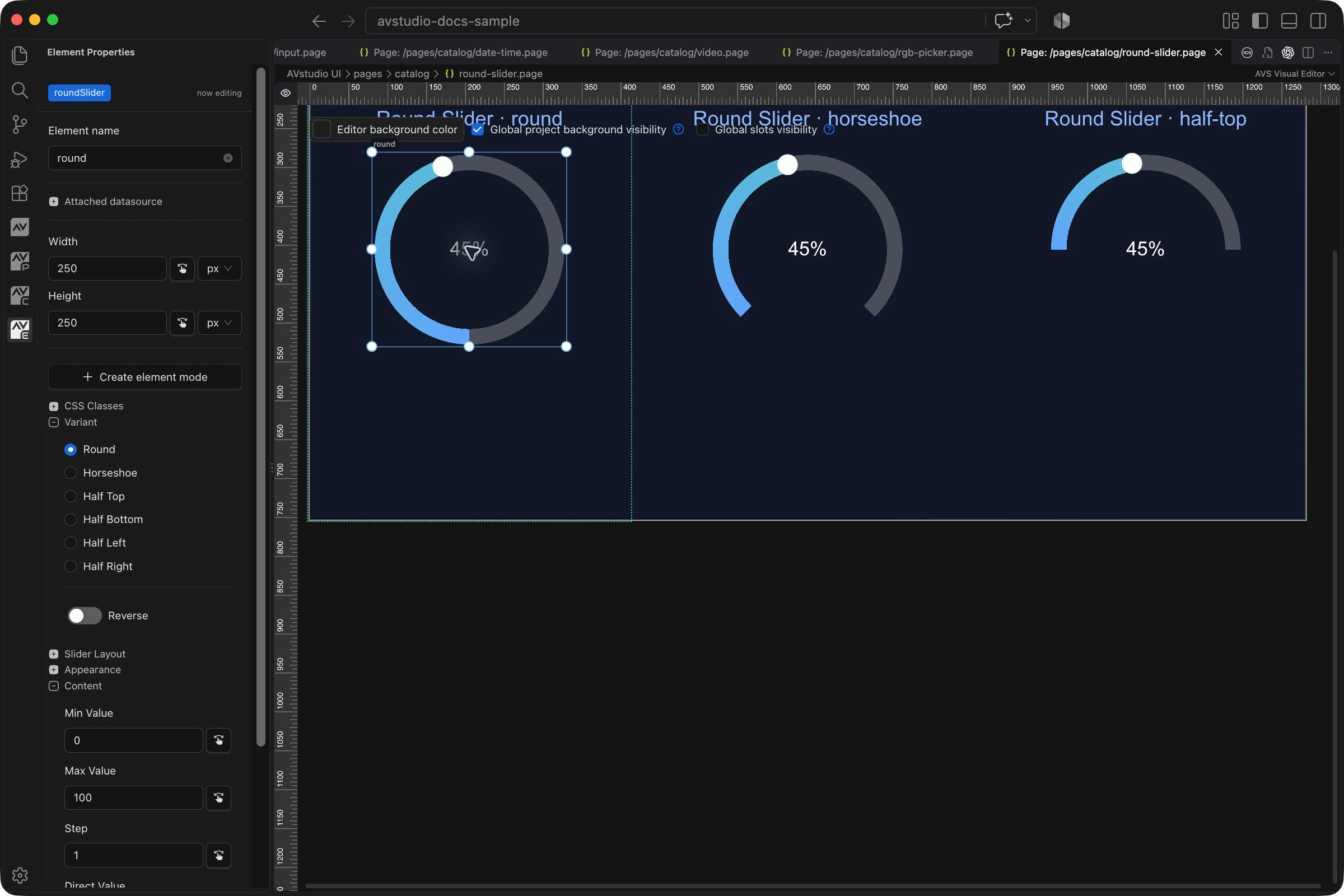
| Sidebar control | What it does |
|---|---|
| Variant | Choose Round, Horseshoe, Half Top, Half Bottom, Half Left, or Half Right. |
| Variant → Reverse | Reverse the value direction when required by the interface. |
| Slider Layout | Configure the circular control geometry and handle/track layout. |
| Content → Min Value / Max Value / Step / Direct Value | Set limits, increment, and the local starting position. Step is saved as valueStep for this widget. |
| Content → Text content | Set the center label. The sample label 45% is static text; bind it if it must follow a changing value. |
| Appearance / Actions | Style the control and configure its value-change behavior and feedback. |
The shared Element name, datasource, sizing, CSS, and mode controls are explained in the sidebar reference. Settings depend on the selected type and variant.
Settings explained
Select the control and open Element Properties. Expand the relevant sections for its variant, appearance, content, and actions. The property keys below identify the saved project settings; the visible groups vary by control and variant.
| Setting | Project property | What to configure |
|---|---|---|
| Shape | variant | Round, horseshoe, half-top, half-bottom, half-left, or half-right. |
| Range | minValue, maxValue, valueStep | Numeric limits and increment. This widget uses valueStep, not Slider step. |
| Direct/feedback value | value_direct, value_signal_a | Local demonstration value or analog feedback signal. |
| Direction | reverse | Reverse the value direction around the arc. |
| Track colors | startColor, endColor, defaultTrackColor | Gradient progress and remaining-track appearance. |
| Track and handle | trackSize, handleSize, handleColor | Pixel sizes and handle fill. |
| Handle treatment | handleBorder, handleShadow | Border and shadow around the drag handle. |
| Center label | text and font properties | Optional text in the middle. A literal label remains literal; bind dynamic text if it must show a live value. |
Worked setup
- Insert Round Slider and name it
RoomLevel. - Choose Horseshoe, set the range to 0–100, value step to 1, and direct value to 45.
- Configure track thickness, handle size, and colors. Keep the handle easy to drag on a touch screen.
- Add a value-change action and the required analog feedback signal.
- If the center must display the changing level, bind its text to the corresponding value rather than typing a fixed number.
The screenshot uses a literal 45% label to illustrate placement. For a thermostat, use your actual allowed setpoint range, units, and step instead of copying the level example unchanged.
Change context and drag fix
In 27.0.29, JSON action bodies can use numeric @context:value@ for the knob change and string @context:elementName@ for its name. Choose the appropriate change event and test several values. The 27.0.6 update also fixes stalled knob dragging; verify release and repeated drags in Live Preview.
Verify the result
Test both arc endpoints, step increments, reverse direction, incoming feedback, and whether any center label follows the value. Version 27.0.29 fixes unresolved dynamic tokens being misread as the value; test both initial binding resolution and subsequent feedback.
Save the project, run Run Project Health Check, and test in Open Live Preview (Browser). Hardware-backed behavior also needs verification in the target runtime with the actual integration available.