Dpad
Picker group: Widgets · Project type: dpad · Reference version: 27.0.29
Use Dpad (dpad) for directional navigation and a central select button, such as a media remote. Add Dpad, set its size, and configure labels, arrow colors, pressed color, line thickness, and corner radius.
Set the digital signal names for top, right, bottom, left, and center to match your control program. Hide the center button if the interface does not need it. Test every direction and the center independently, including press/release behavior required by the device.
Configure in the VS Code sidebar
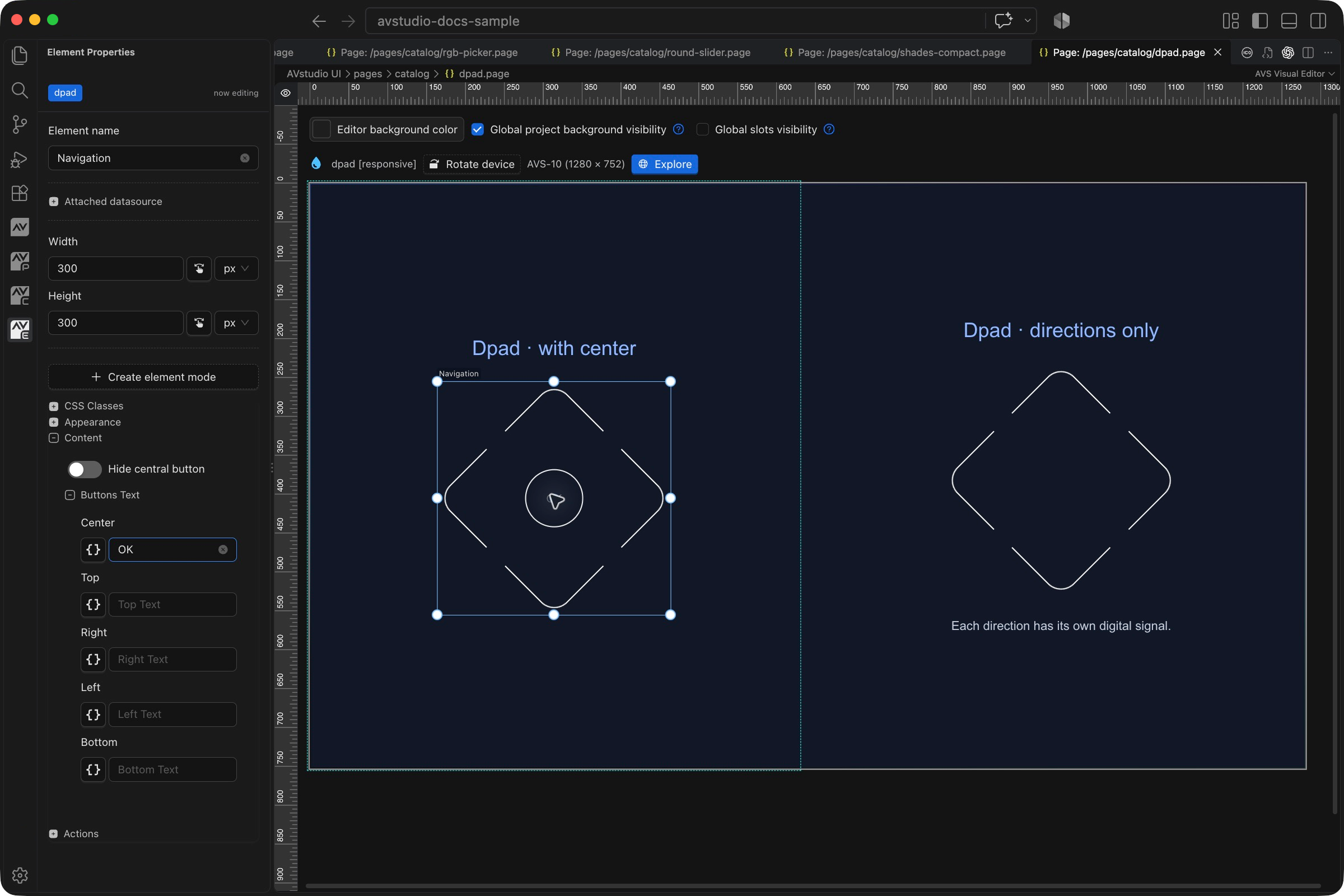
Select the Dpad on the visual canvas, then open Element Properties. The screenshot shows the selected control in the development environment; click it to open the full-resolution image. Expand the groups below; scroll the sidebar to reach settings below the visible area.
| Sidebar control | What it does |
|---|---|
| Content → Hide central button | Remove the center region when only directional navigation is needed. |
| Content → Buttons Text | Set Center, Top, Right, Left, and Bottom labels. The example uses OK for Center. |
| Appearance | Style arrows, pressed feedback, lines, and corners where supported. |
| Actions | Configure the intended control behavior and directional signals. Verify every direction and the center separately. |
The shared Element name, datasource, sizing, CSS, and mode controls are explained in the sidebar reference. Settings depend on the selected type and variant.
Settings explained
Select the control and open Element Properties. Expand the relevant sections for its variant, appearance, content, and actions. The property keys below identify the saved project settings; the visible groups vary by control and variant.
| Setting | Project property | What to configure |
|---|---|---|
| Arrow appearance | color, pressedColor | Normal and pressed arrow colors. |
| Geometry | cornersRadius, thickness | Corner rounding and line thickness in pixels. |
| Center visibility | hideCentralButton | Remove the center select button when it is not needed. |
| Button labels | topText, rightText, bottomText, leftText, centerText | Optional labels for the five regions. |
| Direction signals | topButton_signal_d, rightButton_signal_d, bottomButton_signal_d, leftButton_signal_d | Independent digital signal names for each direction. |
| Center signal | centerButton_signal_d | Independent digital signal for the center action. |
Worked setup
- Insert Dpad and name it
MediaNavigation. - Size it for comfortable directional touches, for example 300 × 300 px.
- Use OK as the center label, or hide the center for a four-direction control.
- Under Actions, create Crestron → Button Join Map and map Top, Right, Bottom, Left, and Center to the expected digital joins.
- Test each direction and center separately with the connected system.
Do not assume the five directions share one command. Each region has its own digital mapping. Legacy projects may contain older spellings of some fields; use the editor to change those settings rather than removing unknown fields from a working project.
Button Join Map
Since 27.0.1, use one joinMap action with buttonJoins mapping top, right, bottom, left, and center to separate Crestron digital joins. It is always momentary: True on press and False on release, regardless of a legacy stored behaviour. The editor fixes behaviour to On Press.
Use at most one Join Map action per element. Health Check flags duplicates and Join Map actions on elements without buttons. For another transport, a JSON action body containing @context:pressedButton@ can identify the pressed region; configure the transport separately. In 27.0.6 this replaces @buttonId@; quote the string marker in the JSON body, such as {"button":"@context:pressedButton@"}. It is not substituted in ordinary serial values or URL postfixes.
Dpad labels support dynamic tokens and HTML in 27.0.5. Match each label's variable/parameter scope and check the runtime output.
Verify the result
Check directional mapping and the required press/release behavior. Confirm that a held command stops when released and that hiding the center matches the intended interaction.
Save the project, run Run Project Health Check, and test in Open Live Preview (Browser). Hardware-backed behavior also needs verification in the target runtime with the actual integration available.