Button
Picker group: Basic Elements · Project type: button · Reference version: 27.0.29
Use a Button (button) for a touch command, scene selection, or navigation. Add it with Add element → Button, select it, and edit its label in the rich-text editor. Give it a name that describes the action, such as OpenLighting.
Configure the label, optional icon, dimensions, and appearance. In Actions, choose the event and result: for example, an onPress page-flip action targeting an existing lighting page. The button's appearance alone does not send a command.
For an active source or light-on indication, configure modes using feedback. Test the press action and incoming state separately. See Actions and navigation.
Configure in the VS Code sidebar
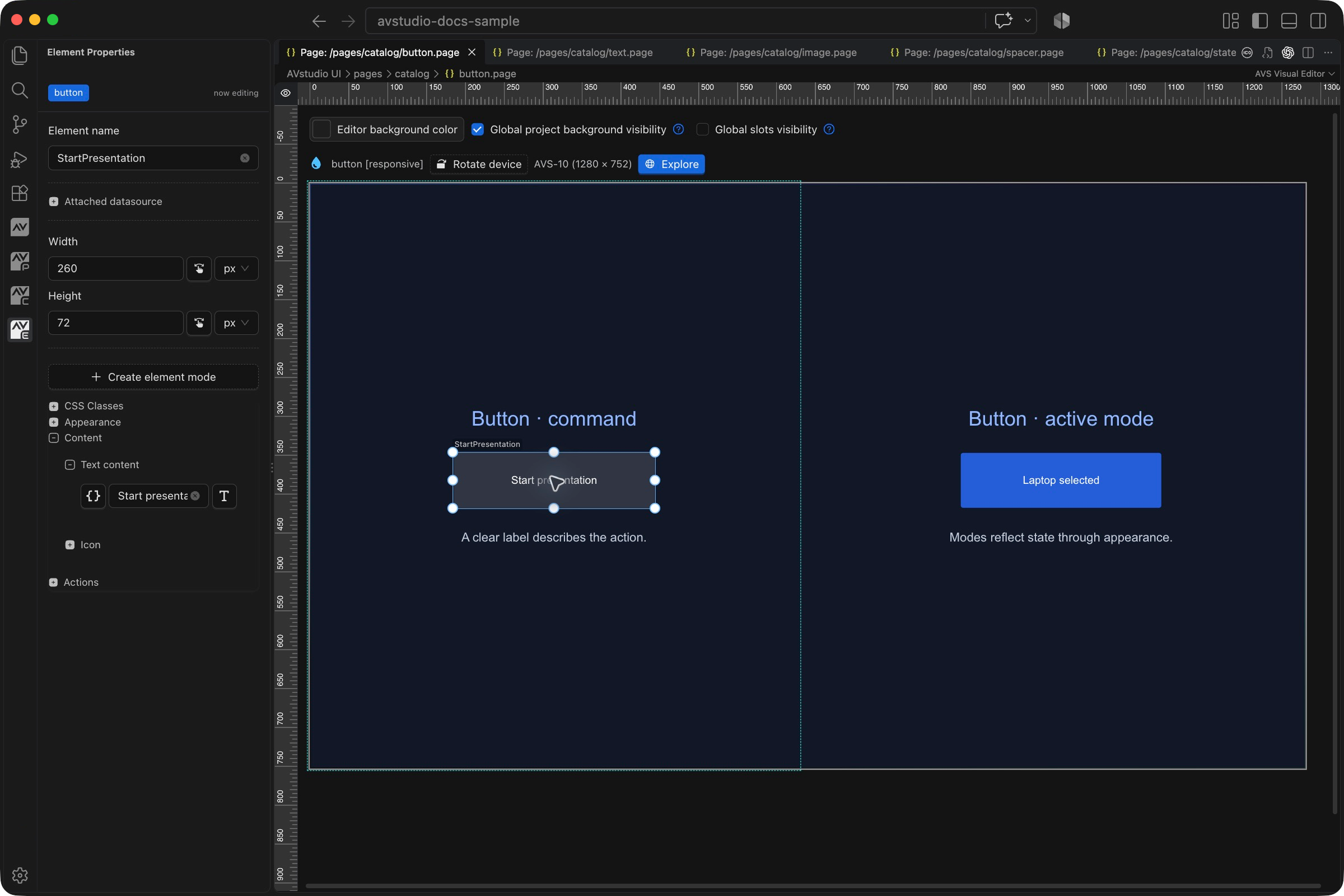
Select the Button on the visual canvas, then open Element Properties. The screenshot shows the selected control in the development environment; click it to open the full-resolution image. Expand the groups below; scroll the sidebar to reach settings below the visible area.
| Sidebar control | What it does |
|---|---|
| Content → Text content | Edit the text displayed on the button. This is separate from Element name, which identifies the control in the project. |
| Content → Icon | Choose and configure an optional icon alongside the label. |
| Appearance | Expand the styling groups to configure typography, colors, background, border, padding, and effects. |
| Actions | Configure what pressing the button does. A label or highlighted mode does not create a command. |
The shared Element name, datasource, sizing, CSS, and mode controls are explained in the sidebar reference. Settings depend on the selected type and variant.
Settings explained
Select the control and open Element Properties. Expand the relevant sections for its variant, appearance, content, and actions. The property keys below identify the saved project settings; the visible groups vary by control and variant.
| Setting | Project property | What to configure |
|---|---|---|
| Label | text | Rich text displayed on the button. Keep the command understandable without relying on color. |
| Icon | iconName, iconPosition, iconSize, iconColor | Choose an activated library icon and place it beside or above the label. |
| Image icon | useImageAsIcon, iconImageData | Use an asset as the icon. Store the asset in the project so it travels with the interface. |
| Touch area | width, height, paddingOptions | Size the whole control, including padding, for the target touch panel. |
| State styling | modes, activeModeIndex | Keep the normal look in Default; add a mode for selected, active, or another reported state. |
| Behavior | actions | A label does not execute a command. Configure the event, action type, and destination. |
Pressed and disabled states
In 27.0.29, select the Button and expand State in Element Properties. Pressed state (isPressed) and Disabled state (isDisabled) accept literals or dynamic bindings, including Crestron feedback tokens. Use the adjacent picker for the intended scope.
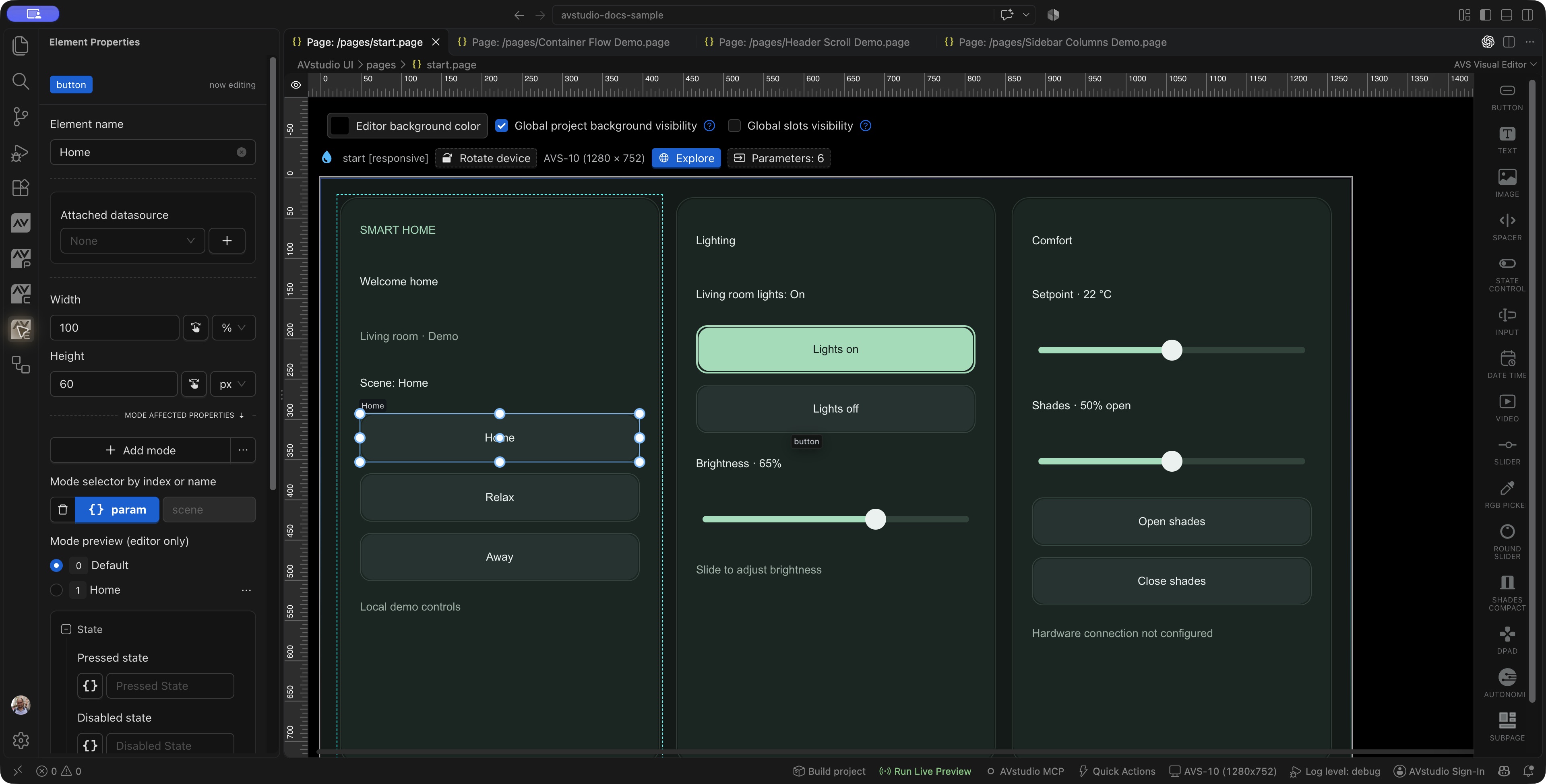
For a feedback-driven pressed state, bind isPressed to !crestron:type=boolean;name=101!, then inject false/true through Crestron Emulation. Pressed styling comes from the theme's Button pressed* keys: background/text/icon/border colors, border width, background image/gradient and their opacity/blur. A normal image or gradient can cover the pressed background color; set the corresponding pressed image/gradient to none when the solid color should be visible.
Bind Disabled separately, for example to an equipment-availability value. When true, the button dims/grayscales and suppresses its actions. Theme keys disabledOpacity (default 0.8) and disabledFilter (default grayscale(1)) control the effect. Disabled also applies over an already pressed appearance.
False, 0, "false", "0", and an empty string are false; other nonempty boolean-like values are true. Unresolved dynamic tokens in the editor are not treated as pressed/disabled. Modes remain useful for named content/state appearances. Test feedback state and actual disabled action suppression in Live Preview.
Worked setup
- Insert Button and name it
OpenLighting. - Set the label to Lighting and give it a comfortable touch area, for example 240 × 64 px.
- Create the destination page before wiring navigation.
- In Actions, add a page-flip action using
onPress, then select the lighting page. - Save and open Live Preview. Press the button and confirm that the destination page opens.
For equipment commands, replace the page-flip action with the required connector or signal action. Decide whether the device expects a pulse, a held digital value, or another payload. Configure reported state separately from the outgoing command.
Verify the result
Check tap behavior, return navigation, and active-state feedback. A button that changes color locally does not prove that the device received its command.
Save the project, run Run Project Health Check, and test in Open Live Preview (Browser). Hardware-backed behavior also needs verification in the target runtime with the actual integration available.