Subpage List
Picker group: Widgets · Project type: subpageList · Reference version: 27.0.29
Use Subpage List (subpageList) for repeated cards, rooms, sources, or other records. Create a reusable target page, add Subpage List, select the target, and attach a datasource whose filtered result is an array.
Pass each record's fields into the target page's parameters. Item-relative datasource tokens use *, for example #datasources/rooms.datasource:*.name#; the datasource path must match the list's attached datasource.
Choose the layout:
- Boxless: the parent container arranges the instances. In a responsive page, the list has no independent box, so its own width, height, and box styling do not control the repeated layout.
- Grid: rows and columns divide the element into cells. Set the gap and scrolling. Row flow fills across and adds rows below; column flow fills down and adds columns to the right.
No datasource, a non-array result, or an empty array produces no instances. The editor provides hints for these states. Test an empty list, one item, and more items than the visible grid can hold. See Subpages and lists and Datasources.
Configure in the VS Code sidebar
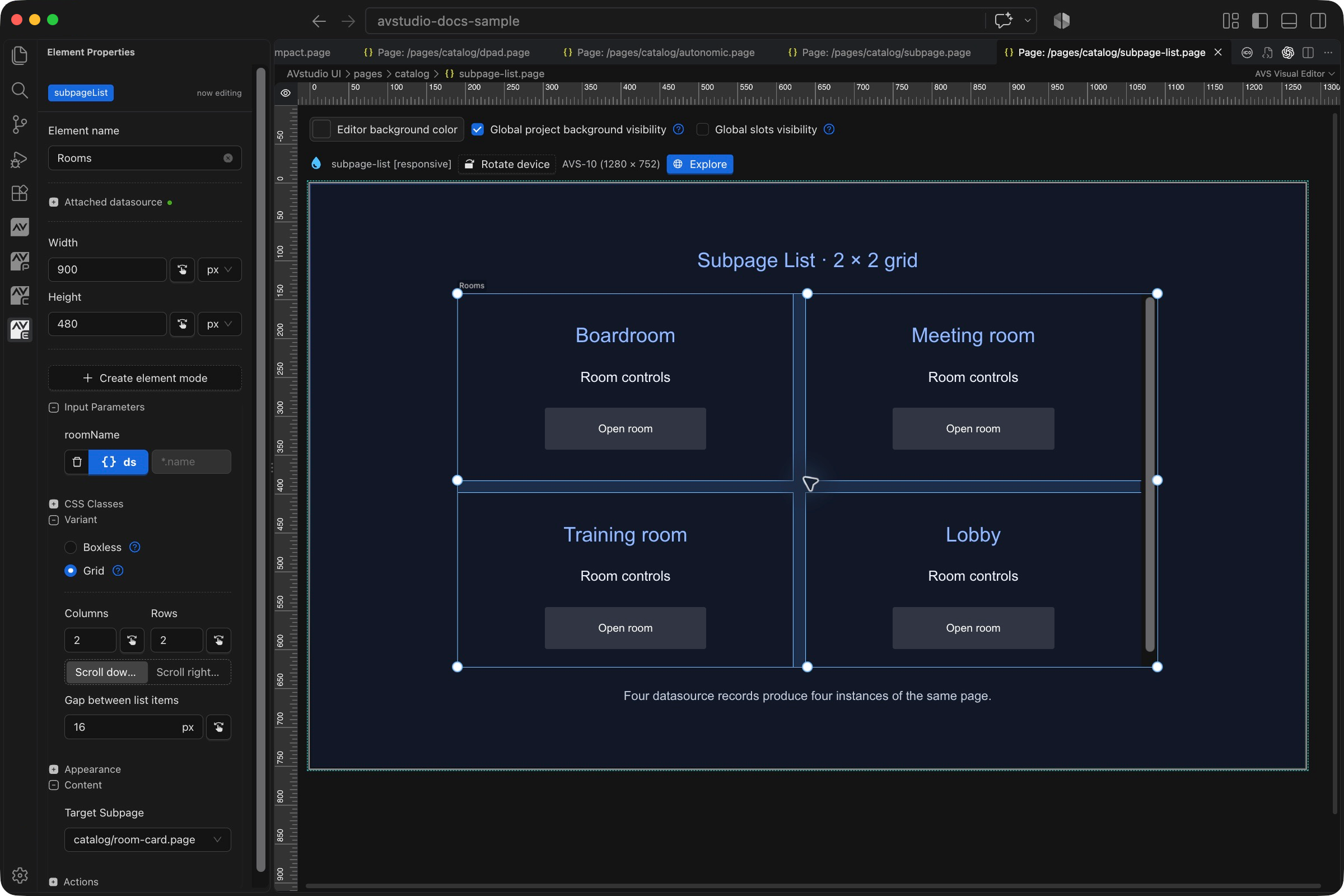
Select the Subpage List on the visual canvas, then open Element Properties. The screenshot shows the selected control in the development environment; click it to open the full-resolution image. Expand the groups below; scroll the sidebar to reach settings below the visible area.
| Sidebar control | What it does |
|---|---|
| Attached datasource | Attach the array that supplies list records. The sample uses one room record per card. |
| Input Parameters | Map each record into the target page parameters. The ds binding shown for roomName reads *.name from the current record. |
| Variant → Boxless / Grid | Choose parent-driven flow or a grid inside the list element. |
| Variant → Columns / Rows | Set grid dimensions; the example uses two columns and two rows. |
| Variant → Scroll down / Scroll right | Choose the direction in which additional items flow and scroll. |
| Variant → Gap between list items | Set spacing between repeated instances; the sample uses 16 px. |
| Content → Target Subpage | Choose the page repeated for every record, here catalog/room-card.page. |
The shared Element name, datasource, sizing, CSS, and mode controls are explained in the sidebar reference. Settings depend on the selected type and variant.
Settings explained
Select the control and open Element Properties. Expand the relevant sections for its variant, appearance, content, and actions. The property keys below identify the saved project settings; the visible groups vary by control and variant.
| Setting | Project property | What to configure |
|---|---|---|
| Target page | subpageName | Reusable page rendered for every record. |
| Replication source | attachedDatasource | Its filtered result must be an array. |
| Per-record values | inputParameters | Use matching item-relative datasource tokens to pass record fields. |
| Layout | variant | Boxless lets the parent arrange instances. Grid allocates equal cells within the element. |
| Visible matrix | rows, columns | Grid rows and columns; these are visible cell counts, not a limit on the datasource. |
| Fill direction | gridFlow | Row fills across and adds rows below; column fills down and adds columns to the right. |
| Scrolling | scrollMode | Disabled, scroll with a bar, or scrollHidden with the bar hidden. |
| Spacing | gap | Spacing between grid cells. |
| Scrollbar color | scrollbarThumbBackground | A CSS color or auto. |
Worked setup
- Create
room-card.pagewith aroomNameparameter, as in the Subpage example. - Create a datasource whose result is an array of rooms. For a local example, use four objects with a
namefield. - Insert Subpage List, select the card page, and attach the rooms datasource.
- Map
roomNameto#datasources/rooms.datasource:*.name#. The path in the token must exactly match the attached datasource key. - Choose Grid, set 2 rows and 2 columns, set a 16 px gap, and enable scrolling.
- Preview. Four records should produce four cards. Add a fifth record to check overflow and scrolling.
In Boxless mode on a responsive page, the parent container controls the repeated layout; the list has no separate box. In Grid mode, its width and height define the matrix area. Avoid a fixed custom size on the target page when each card should fill its cell.
Grid scroll snap
Since 27.0.8, the grid variant can snap to its cells in both responsive and fixed pages. Choose a scrollable Scroll mode, enable Scroll snap, then set alignment to Start, Center, or End. Saved keys are scrollSnap (default false) and scrollSnapAlign (default start). Scroll through enough data to overflow and verify the resting position follows the chosen cell edge/center.
The boxless variant has no scroll box or snap card and ignores these keys, including its fixed-layout fallback. Disabled scroll makes snap inactive. These are list-instance properties, without theme defaults.
Selected-item context
In Input Parameters, set listKey to an item-relative token such as #datasources/rooms.datasource:*.id#. Bind activeSelectedListKey to the shared selected key, for example $selectedRoomId$. Each instance compares its key with that value; without a resolved key, the item index is used.
The target page receives %avstudio_listItemKey% and %avstudio_listItemIsSelected% automatically. Use the boolean in a Button state or mode selector and the key in a supported action. No parameter declaration is required. Page Parameters shows these system-provided values in a pinned Subpage List context section; its action editor can attach side effects to selection changes.
The avstudio_ prefix is reserved. Do not create user variables/parameters with that prefix, supply these names in inputParameters, or attach an external setter to them. The list owns their values. Keep listKey item-relative and activeSelectedListKey list-wide: an item-relative selected key cannot resolve outside the item context, while a literal list key can select all items at once. Health Check flags these cases.
For repeated-instance entrance effects, set itemAnimate and itemAnimateDelay; ordinary animate affects the whole list box. See Visibility and entrance animations.
Verify the result
Test no records, one record, four records, and overflow. If nothing renders, check that a target is assigned, the datasource is attached, and its final result is an array. A non-array object is not a one-item list.
Save the project, run Run Project Health Check, and test in Open Live Preview (Browser). Hardware-backed behavior also needs verification in the target runtime with the actual integration available.