Autonomic
Picker group: Widgets · Project type: autonomic · Reference version: 27.0.29
Use Autonomic (autonomic) for an Autonomic media-player interface. Add Autonomic, then configure the player API base URL and the default player name. Choose whether to show the player selector and provide fallback artwork when needed.
Allocate enough space for the player controls and metadata. A working demonstration needs a reachable Autonomic service; an empty API URL is not a functional player configuration. Test player selection, metadata/artwork updates, and playback controls with the actual service.
Configure in the VS Code sidebar
Select the Autonomic on the visual canvas, then open Element Properties. The screenshot shows the selected control in the development environment; click it to open the full-resolution image. Expand the groups below; scroll the sidebar to reach settings below the visible area.
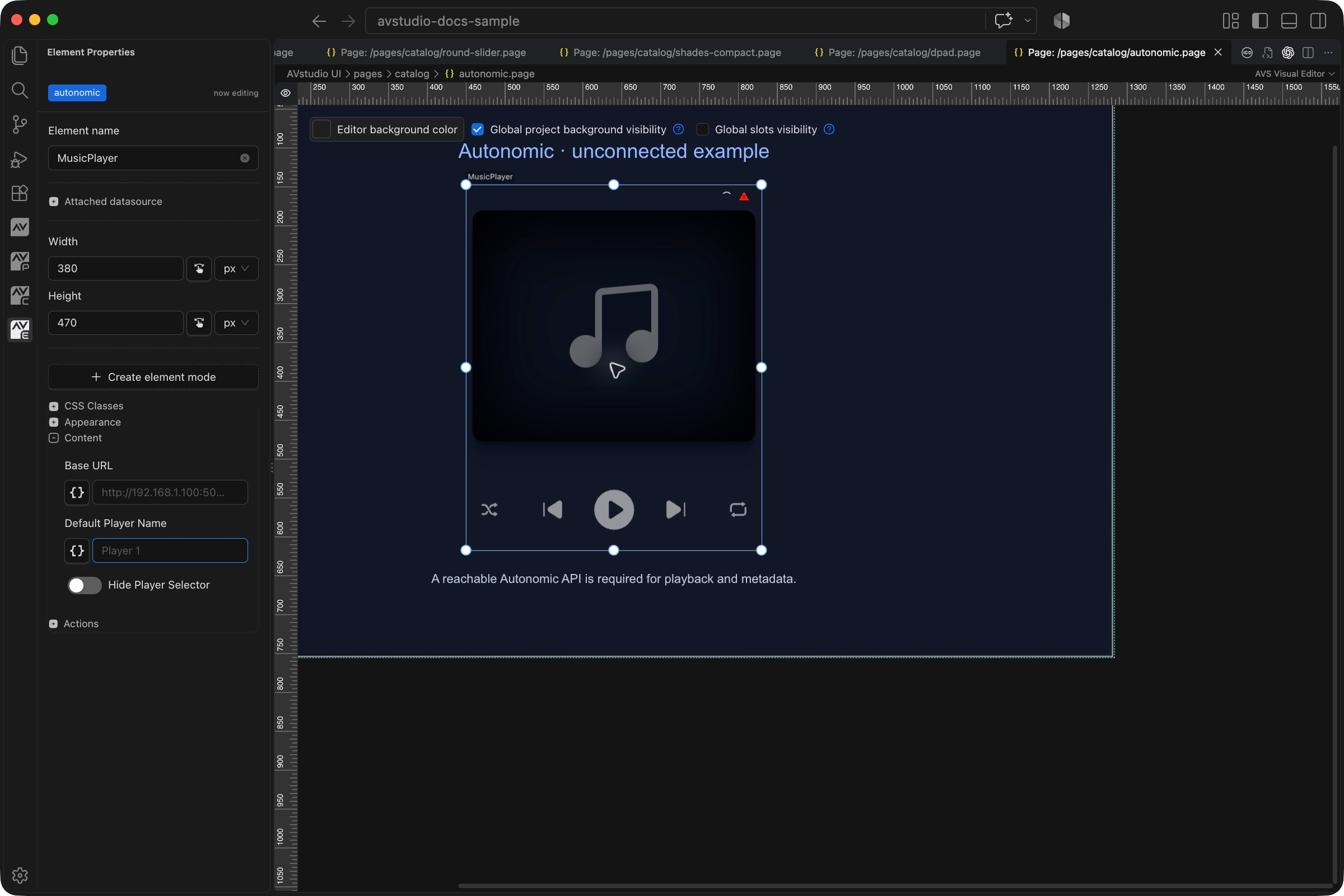
| Sidebar control | What it does |
|---|---|
| Content → Base URL | Enter the reachable Autonomic API endpoint. The placeholder is an example, not a detected device. |
| Content → Default Player Name | Choose the player that the widget should use initially. |
| Content → Hide Player Selector | Hide player selection only when the interface should use the configured player. |
| Width / Height and Appearance | Allow space for artwork, metadata, and playback controls. The screenshot shows an unconnected editor example. |
The shared Element name, datasource, sizing, CSS, and mode controls are explained in the sidebar reference. Settings depend on the selected type and variant.
Settings explained
Select the control and open Element Properties. Expand the relevant sections for its variant, appearance, content, and actions. The property keys below identify the saved project settings; the visible groups vary by control and variant.
| Setting | Project property | What to configure |
|---|---|---|
| API endpoint | autonomicBaseUrl | Base URL of the reachable Autonomic player API. |
| Default player | autonomicDefaultPlayerName | Player/zone selected initially; use the actual service name. |
| Player selector | hidePlayerSelector | Hide only when a fixed-zone interface is intended and the default player is valid. |
| Fallback artwork | Image source properties | Artwork used when a media image is unavailable. |
| Widget area | width, height | Allow space for artwork, player selection, metadata, and playback controls. |
Worked setup
- Confirm the Autonomic service is reachable from the panel or browser that will run the interface.
- Insert Autonomic and name it
MusicPlayer. Start with a tall area such as 380 × 470 px. - Enter the API base URL and an existing default player/zone name.
- Keep the player selector visible while checking the available players. Hide it only for an intentional single-zone screen.
- Preview with the service online and test player selection, metadata, artwork, and playback controls.
The screenshot shows the widget with no API configured. The warning indicator and empty artwork are an unconnected state, not a completed player setup. No working Autonomic backend was used for this documentation capture.
Verify the result
Confirm the selected zone, play/pause, previous/next where supported, and metadata/artwork updates. Test recovery after the service becomes unavailable and reachable again.
Save the project, run Run Project Health Check, and test in Open Live Preview (Browser). Hardware-backed behavior also needs verification in the target runtime with the actual integration available.