State Control
Picker group: Basic Elements · Project type: stateControl · Reference version: 27.0.29
Use State Control (stateControl) for a two-state choice such as mute or lighting enabled. Add State Control, then choose switch, checkbox, or toggle in its variant settings. These are variants of one component, not three separate element types.
Set the label, ON/OFF text, colors, size, and label/control order. Configure the interaction action and the state feedback required by your system. Test both states and change the state from another controller to confirm that the display follows feedback.
Configure in the VS Code sidebar
Select the State Control on the visual canvas, then open Element Properties. The screenshot shows the selected control in the development environment; click it to open the full-resolution image. Expand the groups below; scroll the sidebar to reach settings below the visible area.
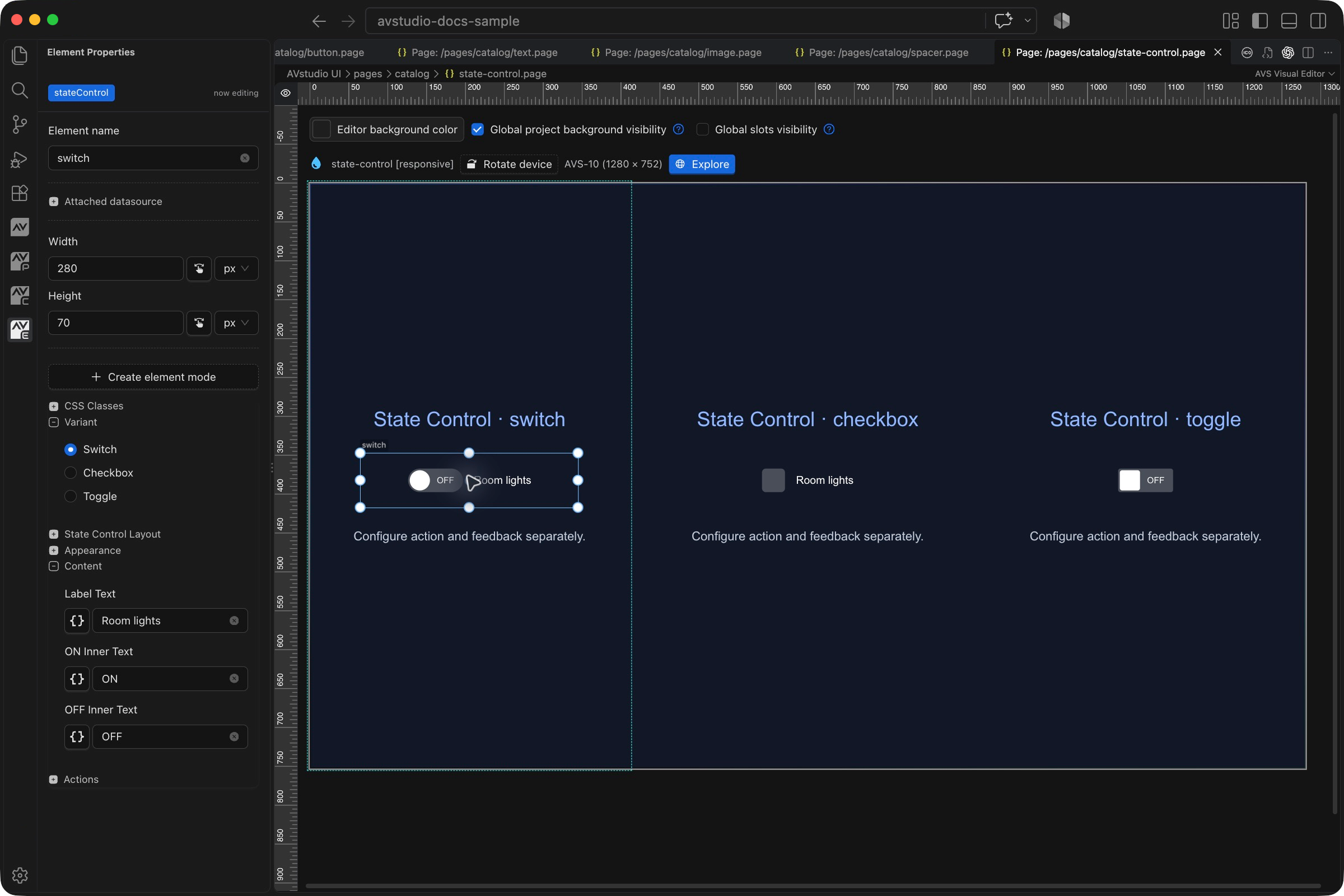
| Sidebar control | What it does |
|---|---|
| Variant | Choose Switch, Checkbox, or Toggle. Each presents the same two-state idea differently. |
| State Control Layout | Adjust the arrangement of the label and control for the selected variant. |
| Content → Label Text | Set the caption describing the controlled function, such as Room lights. |
| Content → ON Inner Text / OFF Inner Text | Set the labels displayed for the two states. |
| Appearance / Actions | Style the control, then configure its behavior and feedback. Test both states independently of their labels. |
The shared Element name, datasource, sizing, CSS, and mode controls are explained in the sidebar reference. Settings depend on the selected type and variant.
Settings explained
Select the control and open Element Properties. Expand the relevant sections for its variant, appearance, content, and actions. The property keys below identify the saved project settings; the visible groups vary by control and variant.
| Setting | Project property | What to configure |
|---|---|---|
| Variant | variant | Switch, checkbox, and toggle are three presentations of this one element. |
| Label | text | Names the choice, such as Room lights or Mute. |
| State labels | textOn, textOff | ON/OFF text should describe the meaning of each state. |
| Colors | color, backgroundUnchecked | Control color and the unchecked background. |
| Thumb colors | thumbCheckedBackground, thumbUncheckedBackground | Separate colors for the movable indicator in each state. |
| State text colors | textOnColor, textOffColor | Style the ON and OFF text independently. |
| Order and size | reverseOrder, size | Swap label/control order and set the control size in pixels. |
Worked setup
- Insert State Control and name it
RoomLights. - Choose Switch, then enter Room lights as its label. Set ON/OFF text that matches the intended meaning.
- Configure a change action with the boolean value expected by your system.
- Connect the incoming state through the supported state/feedback configuration for your project. Keep the device's reported state as the source of truth.
- Preview both states, then change the equipment state from another controller and verify that this control follows.
Choose Checkbox for a form-like choice and Toggle for a compact ON/OFF presentation. The variant changes appearance; it does not select a connector or wire the device automatically.
Incoming values and context in 27.0.29
Bind value to the incoming boolean checked state using literals or dynamic tokens. Interaction updates the control immediately. In 27.0.29, changes to the bound value are reflected immediately rather than waiting for the optimistic interaction window to expire; without a confirming update, the control still synchronizes back to its stable value after interaction settles. Configure the outgoing action and incoming acknowledgement separately; an unbound local change can return to its stable fallback.
In Web/MQTT/WebSocket JSON bodies, insert @context:value@ from Context to send the current change value; Slider range bodies may also use @context:value2@. Numeric/boolean markers can stand as bare JSON values. See JSON bodies and context tokens.
Verify the result
Check off-to-on and on-to-off behavior, incoming updates, and label readability. Avoid configuring both a tap action and a change action to send the same command twice.
Save the project, run Run Project Health Check, and test in Open Live Preview (Browser). Hardware-backed behavior also needs verification in the target runtime with the actual integration available.
Related guides
- Add components to a project
- Shared sizing and appearance
- Actions and navigation
- Variables and feedback
- Back to the component catalog
Dynamic text in 27.0.5
Text labels now resolve dynamic tokens and HTML instead of showing raw token strings. Use the correct global variable, page parameter, or datasource scope, then check the rendered label in Live Preview.