Shades Compact
Picker group: Widgets · Project type: shadesCompact · Reference version: 27.0.29
Use Shades Compact (shadesCompact) for a visual shade or curtain position control. Add Shades Compact and choose the opening style: left, right, dual, or vertical.
Configure minimum/maximum values, the direct position value, fabric appearance or image, and handle dimensions. The template starts with a 0–100 range; verify which endpoint means open or closed for your installation.
Configure the outgoing action and incoming position feedback. Test open, closed, and intermediate positions on the actual system, including whether the direction needs to be interpreted differently for the selected mechanism.
Configure in the VS Code sidebar
Select the Shades Compact on the visual canvas, then open Element Properties. The screenshot shows the selected control in the development environment; click it to open the full-resolution image. Expand the groups below; scroll the sidebar to reach settings below the visible area.
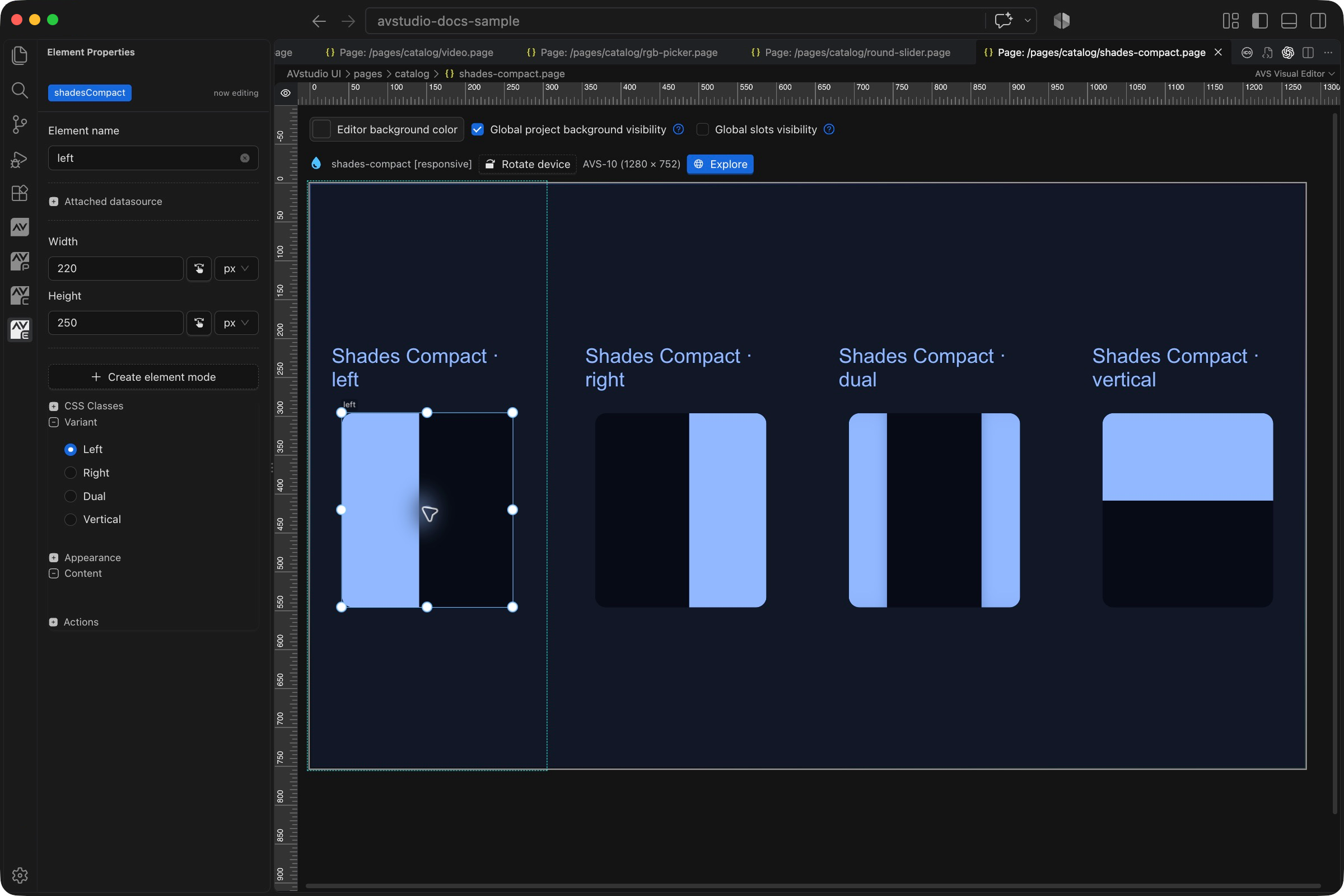
| Sidebar control | What it does |
|---|---|
| Variant | Choose Left, Right, Dual, or Vertical to match the curtain or shade presentation. |
| Width / Height | Set the area available for the shade visualization and touch interaction. |
| Appearance | Configure the shade presentation, including the supported fabric and handle styling. |
| Actions | Configure the outgoing position behavior and verify incoming position feedback. Confirm which endpoint means open for the real mechanism. |
The shared Element name, datasource, sizing, CSS, and mode controls are explained in the sidebar reference. Settings depend on the selected type and variant.
Settings explained
Select the control and open Element Properties. Expand the relevant sections for its variant, appearance, content, and actions. The property keys below identify the saved project settings; the visible groups vary by control and variant.
| Setting | Project property | What to configure |
|---|---|---|
| Opening style | variant | Left, right, dual, or vertical fabric presentation. |
| Range | minValue, maxValue | Position range; template values are 0–100. |
| Local position | directValue | A direct numeric position for an unconnected example. |
| Fabric color | fabricBackground | The visible fabric fill. |
| Fabric image | Image source properties | Optional texture or artwork for the fabric. |
| Blur | fabricBackgroundBlur | Fabric background blur in pixels. |
| Handle | handleSize, handleThickness | Size and line thickness of the handle. |
Worked setup
- Insert Shades Compact and name it
WindowShade. - Choose the opening style that matches the mechanism: Vertical for a roller shade, or a horizontal style for a curtain.
- Use 0–100 for the demonstration range and 45 as its direct position.
- Set the fabric appearance and make the handle visible against it.
- Configure the outgoing position action and incoming position feedback for your system.
Before testing equipment, establish which endpoint means open and which means closed. Different control programs can use opposite conventions. The selected opening style controls the visual presentation; verify that the actual device command and reported position use the same convention.
Incoming values and context in 27.0.29
Bind directValue to the incoming numeric shade position using literals or dynamic tokens. Interaction updates the control immediately, then re-syncs to the stable bound value about three seconds after interaction settles. Configure the outgoing action and incoming acknowledgement separately; an unbound local change can return to its stable fallback.
In Web/MQTT/WebSocket JSON bodies, insert @context:value@ from Context to send the current change value; Slider range bodies may also use @context:value2@. Numeric/boolean markers can stand as bare JSON values. See JSON bodies and context tokens.
Verify the result
Test fully open, fully closed, an intermediate position, external movement, and every supported direction. Confirm the displayed position agrees with actual movement.
Save the project, run Run Project Health Check, and test in Open Live Preview (Browser). Hardware-backed behavior also needs verification in the target runtime with the actual integration available.