Image
Picker group: Basic Elements · Project type: image · Reference version: 27.0.29
Use Image (image) for logos, artwork, backgrounds within a layout, or an MJPEG preview. Add Image and select a project asset, or enable an external URL and provide the source.
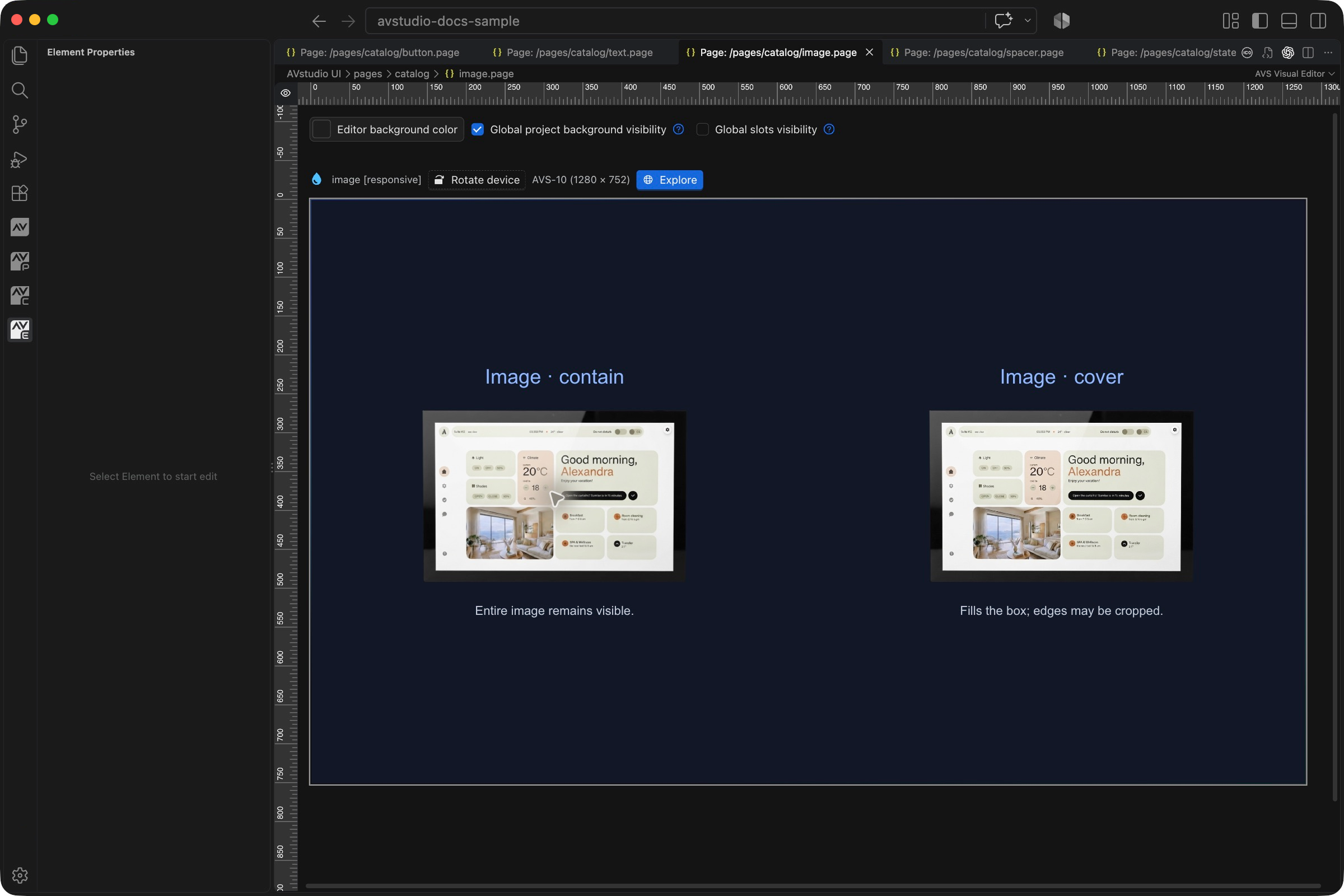
Choose contain to preserve the entire picture, cover to fill the area with possible cropping, or fill to stretch it. Adjust horizontal/vertical alignment and opacity (0–100). Local paths are relative to the project, for example assets/images/room.png.
The simple variant displays an ordinary image. The stream variant displays MJPEG: enable useExternalUrl and provide the MJPEG endpoint. It requests the stream when mounted, refreshes when clicked, and closes the connection when leaving the page. Test with the actual source available. Use Video for MP4/HLS/RTSP instead. See Assets and icons.
Configure in the VS Code sidebar
Select the Image on the visual canvas, then open Element Properties. The screenshot shows the selected control in the development environment; click it to open the full-resolution image. Expand the groups below; scroll the sidebar to reach settings below the visible area.
| Sidebar control | What it does |
|---|---|
| Variant | Choose the ordinary image or stream presentation for the source you intend to display. |
| Content → Local file / External URL | Select a project asset or supply an external image endpoint. The selected example uses touch-panel.png. |
| Content → Fill control | Choose how the image fills its box and how it is aligned. Contain preserves the full image; Cover can crop the edges. |
| Content → Opacity / Lazy Load | Set transparency on the 0–100 scale and choose whether loading may be deferred. |
| Appearance | Style the element box separately from the source image. |
The shared Element name, datasource, sizing, CSS, and mode controls are explained in the sidebar reference. Settings depend on the selected type and variant.
Settings explained
Select the control and open Element Properties. Expand the relevant sections for its variant, appearance, content, and actions. The property keys below identify the saved project settings; the visible groups vary by control and variant.
| Setting | Project property | What to configure |
|---|---|---|
| Variant | variant | Simple displays a normal image; Stream displays a Motion-JPEG feed. |
| Local asset | imgPath | Select an image under assets, such as assets/images/panel.png. |
| External source | useExternalUrl, externalUrl | Enable external URL mode and enter a reachable source URL. |
| Fit | fillType | Contain preserves the whole picture; cover crops as needed; fill stretches to the box. |
| Alignment | fillAlignX, fillAlignY | Choose left/center/right and top/center/bottom for the image within its box. |
| Opacity | opacity | Uses 0–100: 0 is invisible and 100 is fully opaque. |
| Lazy loading | isLazyLoad | Applies to ordinary images; ignored by the Stream variant. |
Worked setup
- Add the artwork to the project assets, then insert Image and name it
PanelArtwork. - Select the asset and set an explicit image area, for example 340 × 220 px.
- Choose Contain when every edge must remain visible. Choose Cover for a filled thumbnail and check the crop.
- Adjust alignment and opacity, then preview.
For an MJPEG camera or screen mirror, choose the Stream variant, enable the external URL, and enter the actual MJPEG endpoint. Once the source is available, click the image to request or refresh the stream. There is no automatic reconnect loop; leaving the page closes its connection. A normal video file belongs in Video.
Verify the result
Test missing assets, unreachable URLs, a different box aspect ratio, and page exit/re-entry for streams. Use sources reachable from the target panel, not only from the development computer.
Save the project, run Run Project Health Check, and test in Open Live Preview (Browser). Hardware-backed behavior also needs verification in the target runtime with the actual integration available.