Slider Element
The Slider element provides a linear slider for adjusting or displaying values such as volume, brightness, or progress.
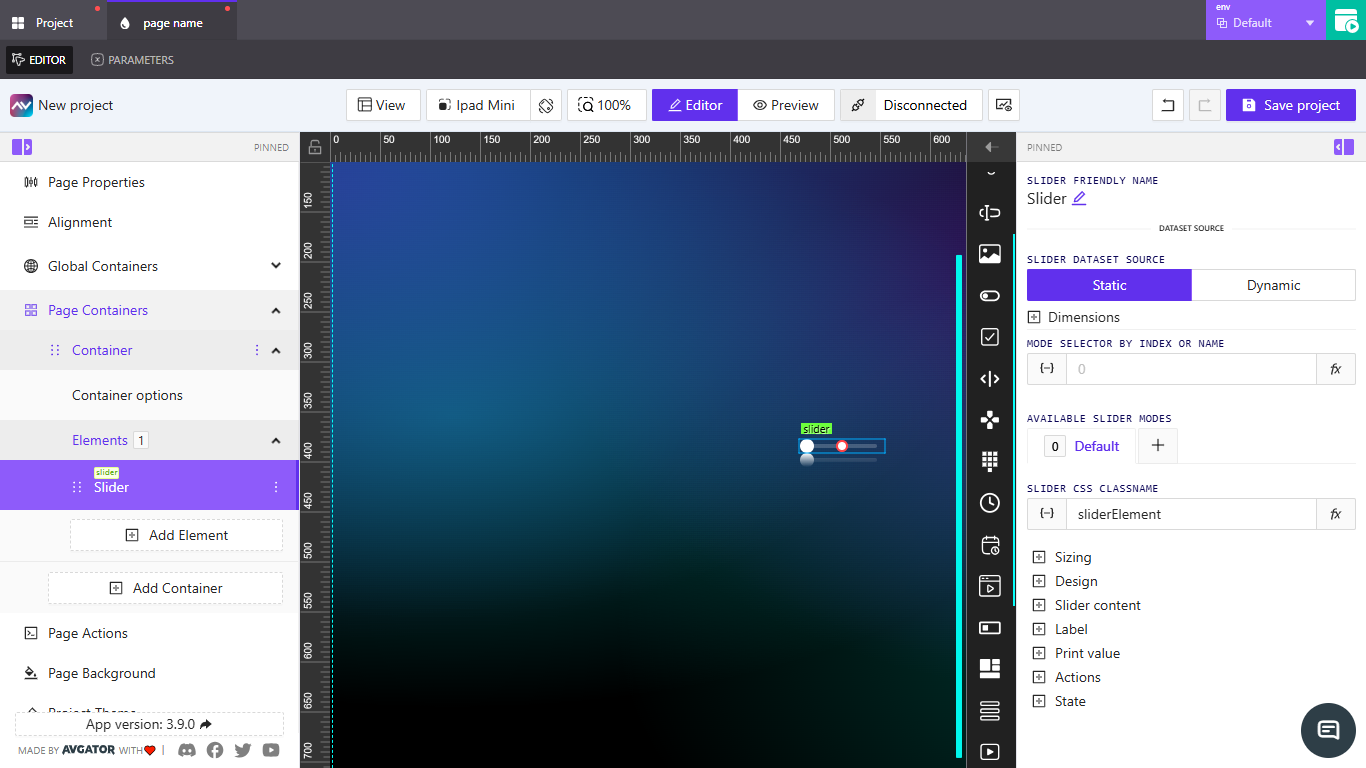
How to add a Slider
- Open your project in AVstudio and go to
Editor. - In the left panel, expand
Page Containersand selectContainer. - Under
Container options, clickElements. - Click
Add Element, chooseSlider, then clickAdd Element.
Slider settings overview
Slider friendly name
Edit the displayed name of the element.
Slider dataset source
- Static — enter a fixed value; supports
{-}andfx. - Dynamic — bind to a dataset so the value updates automatically.
Dimensions
Set the visual size of the slider.
- Width — width of the slider (
px,%, etc.). - Height — height of the slider (
px,%, etc.).
Mode selector by index or name
Select the active mode using a number or a mode name. Supports {-} and fx.
Available slider modes
Manage slider modes.
- Default — initial mode.
+— add a mode (can copy settings and set unique actions).
Slider CSS classname
Assign a CSS class for styling. Supports static values, {-}, and fx.
Sizing
Adjust the thickness of the track and the size of the handle.
Design
Configure the slider’s style and orientation.
- Font family, label position, and value position.
- Toggles for vertical slider, bar slider, reverse, show controls, hide thumb, and dynamic background.
- Colors for min track, max track, and thumb.
- Thumb border & radius — border width, style, color, and radius.
- Reflect — enable reflection with alignment, offset, and opacity settings.
Slider content
Configure what appears within the slider. Supports static or dynamic values.
Label
Add a label to describe the slider.
Print value
Show the current numeric value near the slider.
Actions
Add actions that trigger when the slider value changes. Supports Crestron, Routing, Variables, Parameters, Overlays, Functions, HTTP Web Requests, Web Sockets, and Audio.
State
Control visibility and availability.
- Orientation visibility (Both, Mobile, Desktop).
- Visibility dynamic value and visibility signal.
- Reserve space while hidden.
- Disabled signal to block interaction.