Settings reference
Extension settings belong to VS Code; project configuration belongs to avstudio.config. They serve different purposes.
Choose the right settings location
| Location | What it controls | Shared with project source? |
|---|---|---|
| VS Code Settings | MCP, Live Preview/Custom Elements server, onboarding, and Element Picker options. | Depends on User versus Workspace scope; review before sharing. |
| avstudio.config | Project identity, output archive, active theme, start page, and production logging. | Yes, when the project configuration is included in source control. |
| Set Live Preview log level | Development console verbosity for the workspace. | Stored in VS Code workspace state, not written to avstudio.config. |
| Page, container, and element sidebars | Layout and control properties for the selected entity. | Stored in the owning project document. |
The extension settings below were checked against the NG 27.0.29 manifest; existing project Forms Editor screenshots retain their original version. A setting in one location does not automatically configure the others.
VS Code settings
Open VS Code Settings and search for avstudio. Check whether you are editing User or Workspace settings before making a change. User settings apply to your VS Code environment; Workspace settings belong to the open workspace and may be shared with its files.
The 27.0.29 manifest contributes these six settings:
| Setting | Default | Meaning |
|---|---|---|
avstudio.mcp.port | 27777 | Internal localhost MCP port; allowed range 1024–49151; tries the next two ports, then an OS-assigned free port |
avstudio.liveServer.port | 43981 | Preferred local server port for Live Preview and Custom Elements; range 1024–49151, next two ports then OS-assigned fallback |
avstudio.mcp.token | Empty | Bearer token; an empty value causes a random token to be generated and persisted for this installation |
avstudio.mcp.onboarding | auto | Offer MCP setup at most once per unconfigured project; off suppresses the offer |
avstudio.editor.elementPicker.visible | true | Show the Element Picker; application scope |
avstudio.editor.elementPicker.showLabels | true | Show captions below picker icons; application scope |
Use VS Code Settings to adjust them. Do not commit a token to shared workspace settings.
MCP port
avstudio.mcp.port is the starting port for the internal server bound to 127.0.0.1. Its default is 27777, and the permitted range is 1024–49151. If the chosen port is occupied, the extension tries the next two ports, then falls back to an OS-assigned free port.
This is not the Live Preview web-server port. Preview reports its own Local and Network URLs at startup. Changing the MCP port is not a way to change a preview URL.
Compatible assistants use the stdio bridge and project discovery described in AI assistance and MCP. Do not assume that a client should connect directly to a hardcoded HTTP address simply because the internal server has a port.
Live Preview and Custom Elements port
avstudio.liveServer.port starts at 43981 by default. If occupied, the extension tries the next two ports and then an OS-assigned port. Use the URL actually reported by the server; the preferred port is not a guaranteed session address. This server also serves local Custom Element content. It is separate from avstudio.mcp.port.
MCP token
An empty avstudio.mcp.token setting allows NG to generate and persist a token for the VS Code installation. Empty does not mean that authentication is disabled. The bridge uses authentication internally.
Keep the token out of shared settings, source-control commits, screenshots, and copied prompts. Follow the current bridge setup instructions instead of copying the token into a client configuration.
MCP onboarding
avstudio.mcp.onboarding: "auto" offers setup at most once per unconfigured project. Choose "off" to suppress that offer. This setting controls the onboarding prompt; it is not a general disable switch for the MCP server or the generated AI skill.
You can still run Setup AVstudio MCP server from the Command Palette to inspect the setup workflow. A running server and a connected assistant client are separate states.
Project configuration
Open AVstudio UI → avstudio.config in Explorer. The AVS Forms Editor presents the project fields together. Change the intended value and save the file; build again when the change needs to appear in an exported archive.
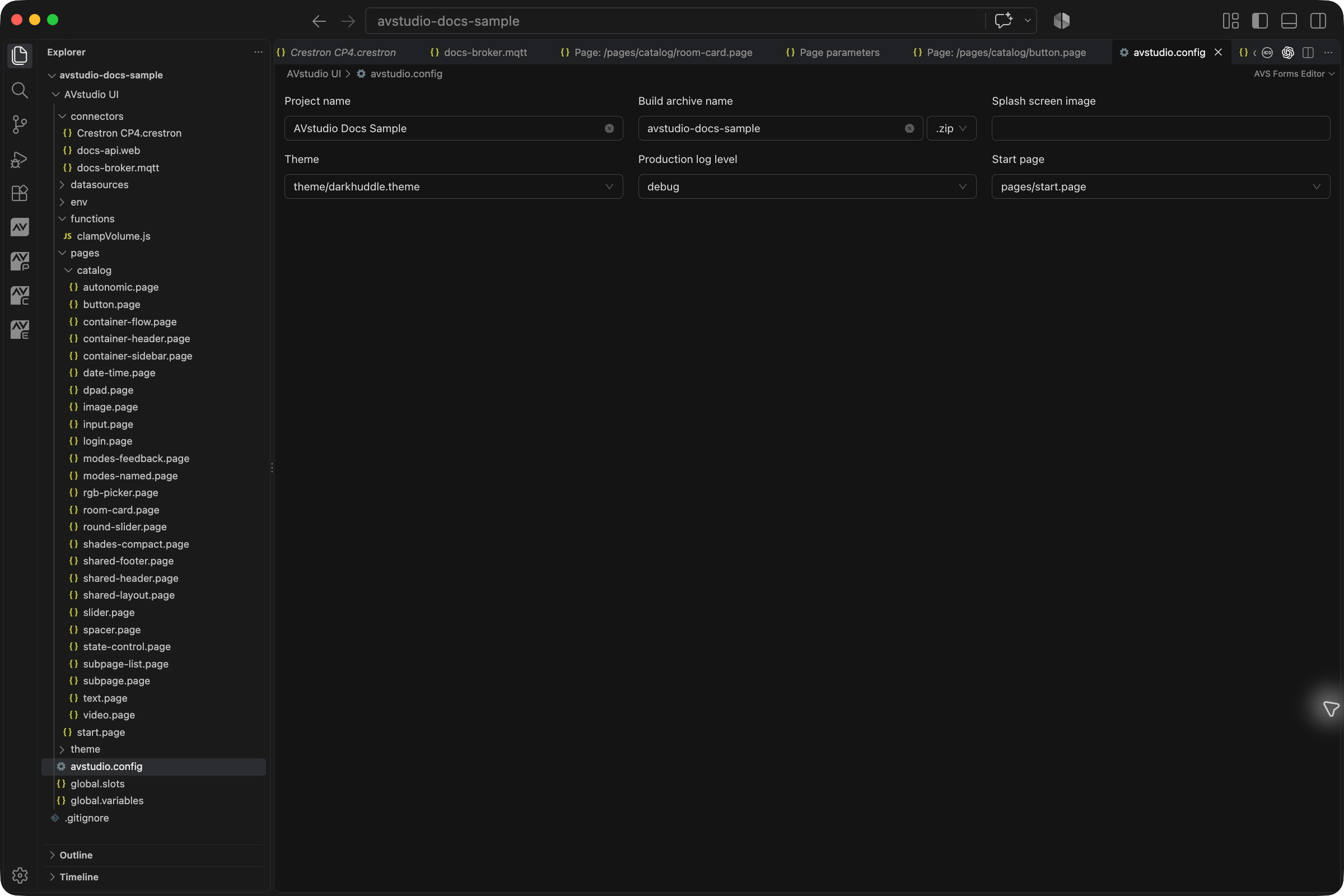
| Field | Meaning |
|---|---|
name | Project display name |
archiveName | Build archive basename |
archiveType | zip or ch5z; legacy dotted values remain readable |
splashScreen | Splash image setting |
theme | Project-root path to active .theme file |
startPage | Project-root path to the starting .page file |
loglevel | Production logging: silent, error, warn, info, or debug |
Names and output
Project name is the readable project identity. Build archive name is the base filename for the generated deliverable; the adjacent format selector chooses .zip or .ch5z. These settings do not rename the workspace folder or source pages.
For example, archiveName: "conference-room" and archiveType: "zip" produce build/conference-room.zip after a successful build. Selecting another format requires rebuilding; renaming an existing archive's extension is not a conversion. See Build and deployment.
Theme, splash screen, and start page
Theme selects a real .theme file, such as theme/darkhuddle.theme. Keep required theme dependencies with that file. A missing or empty theme selection uses the built-in defaults described by the project model.
Splash screen image is a dropdown of images from assets/images/. Select the image and verify its appearance on the intended runtime. Project fields can also reference deployment values with environment tokens.
Start page identifies the initial page, such as pages/start.page. Select an existing page or use Set as start page for the intended page in Explorer. The currently open editor tab does not replace the configured Start page.
Use project-root path conventions. A typical theme or page reference does not include the outer AVstudio UI/ folder or an absolute path on your workstation.
Production versus development logging
Production log level in avstudio.config controls exported builds. An absent or invalid production log level falls back to debug. Preview logging is independently selected through Set Live Preview log level and stored in VS Code workspace state. There is no current avstudio-editor.logLevel setting in the manifest.
To change development logging, run Set Live Preview log level from the Command Palette or use Log level in the status bar. Select the level in the picker, or press Escape to leave the current choice unchanged.
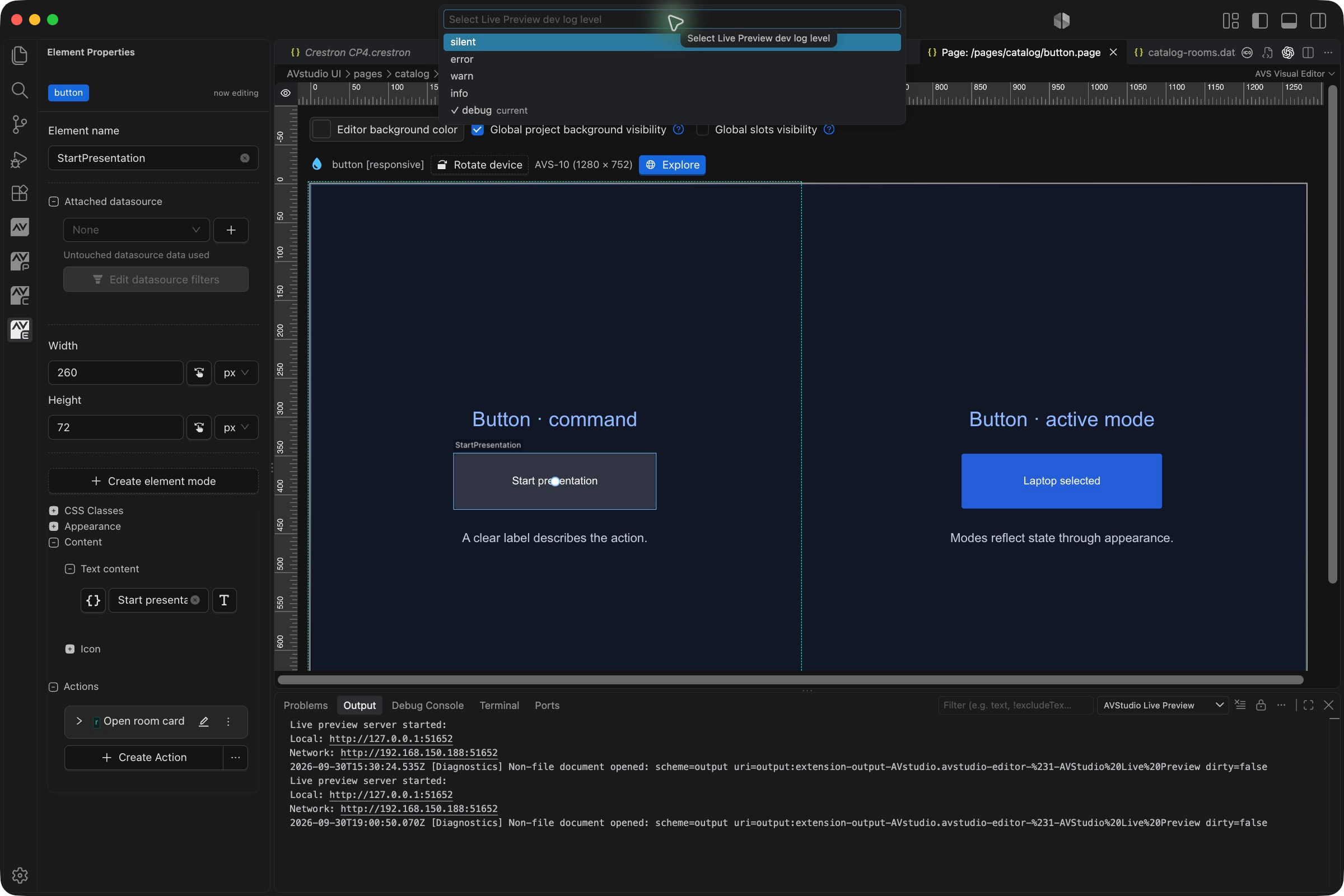
| Level | Action and connector logging |
|---|---|
silent | Suppresses this console output. |
error | Errors. |
warn | Errors and warnings. |
info | Also includes sent-action information. |
debug | Most detail, including available device/broker write confirmations. |
The check mark in the picker indicates the current level; the highlighted row is not applied until selected. The screenshot leaves debug unchanged.
For example, you can use debug in Live Preview while exporting a project configured with warn. Changing the preview picker does not rewrite the production setting. Inspect runtime messages in the running preview's browser Console; the VS Code Output channel provides startup information.
Settings stored elsewhere
Icon packs are enabled by files in assets/icons/, not by a project configuration field.
Device presets and orientation are selected through Select editor window size and Rotate editor device with an AVstudio editor active. They are development controls, not additional fields in avstudio.config. See Live Preview.
Connector hosts, authentication, protocol settings, and global Crestron joins belong to the relevant connector files. Variables and feedback bindings belong in their variable or parameter editors. Editing the extension's MCP settings does not configure those runtime integrations.
Verify a settings change
- Confirm the settings location and scope before editing.
- Save project-file changes and review the resulting source diff when applicable.
- For file references, run Run Project Health Check and fix missing targets.
- Test the affected behaviour: start-page routing, theme appearance, preview logs, or MCP client connection.
- Rebuild and check the exported project when changing production configuration.
Troubleshooting
| Symptom | What to check |
|---|---|
Preview log output did not change after editing loglevel | Use Set Live Preview log level; project loglevel controls production builds. |
| Exported build still uses old settings | Save avstudio.config, rebuild, and confirm you are testing the new archive. |
| MCP port change did not change the browser preview address | These are separate servers; use the URL reported by Live Preview. |
| MCP onboarding no longer appears | Check avstudio.mcp.onboarding and whether the project has already been offered setup. |
| Assistant has no AVstudio tools | Verify its bridge/client configuration, not only the server settings. |
| Start page or theme cannot be resolved | Check the actual file and its project-root path; run the health check. |
| A suggested setting cannot be found | Compare with this version's six contributed settings; older or invented setting names may not exist. |
| Icon pack selection is missing from config | Manage packs through Open Icon Library Explorer; activation is represented by project files. |
For the full set of extension operations, see Command reference.
Element Picker settings
VS Code Settings exposes avstudio.editor.elementPicker.visible and avstudio.editor.elementPicker.showLabels. Both are application-scoped booleans, defaulting to true. Toggle the panel or captions without editing project data. See Element Picker.